
This guide outlines how to get assistance from the Finalsite Enrollment Support Team, connect with a Client Success Manager, and utilize self-service resources.
Methods to Reach Support
Our support agents are available Monday through Friday, 7 a.m.–6 p.m. CST. You can reach a customer service representative through the following methods:
- Support Request: Click Help (top right of your site) and select Submit a New Request
- Support Phone Number: (844)207-5636 or (512)520-8660
- Support Email: enrollmentsupport@finalsite.com
Support requests/tickets are assigned and handled in the order they're received, ensuring everyone gets assistance promptly. Response times may be longer during busy seasons, including Admissions Season and Enrollment Season. Your patience and understanding are greatly appreciated.
In this Article
- Navigating the Help Menu
- Ticket Support
- Phone Support
- Help Center, Training, & System Resources
- Other Support
- Feature Requests
Navigating the Help Menu
In the upper-right corner of your Finalsite Enrollment admin portal, you will find the Help menu. Clicking this opens a drop-down menu with three primary destinations:
- Help Center: Access our library of documentation, tutorials, and Office Hours registration.
- My Requests: View a complete history of your current and past support tickets.
- Submit a New Request: Open the formal ticket submission form to reach an agent.
Ticket Support
While Finalsite Enrollment is designed to be self-service friendly for most updates, certain technical configurations are managed exclusively by our team.
- Is it self-service? Before submitting a ticket, visit “Finalsite Enrollment Support: Changes We Manage” for a complete list of items that require our intervention versus those you can update yourself.
Help > Submit a New Request
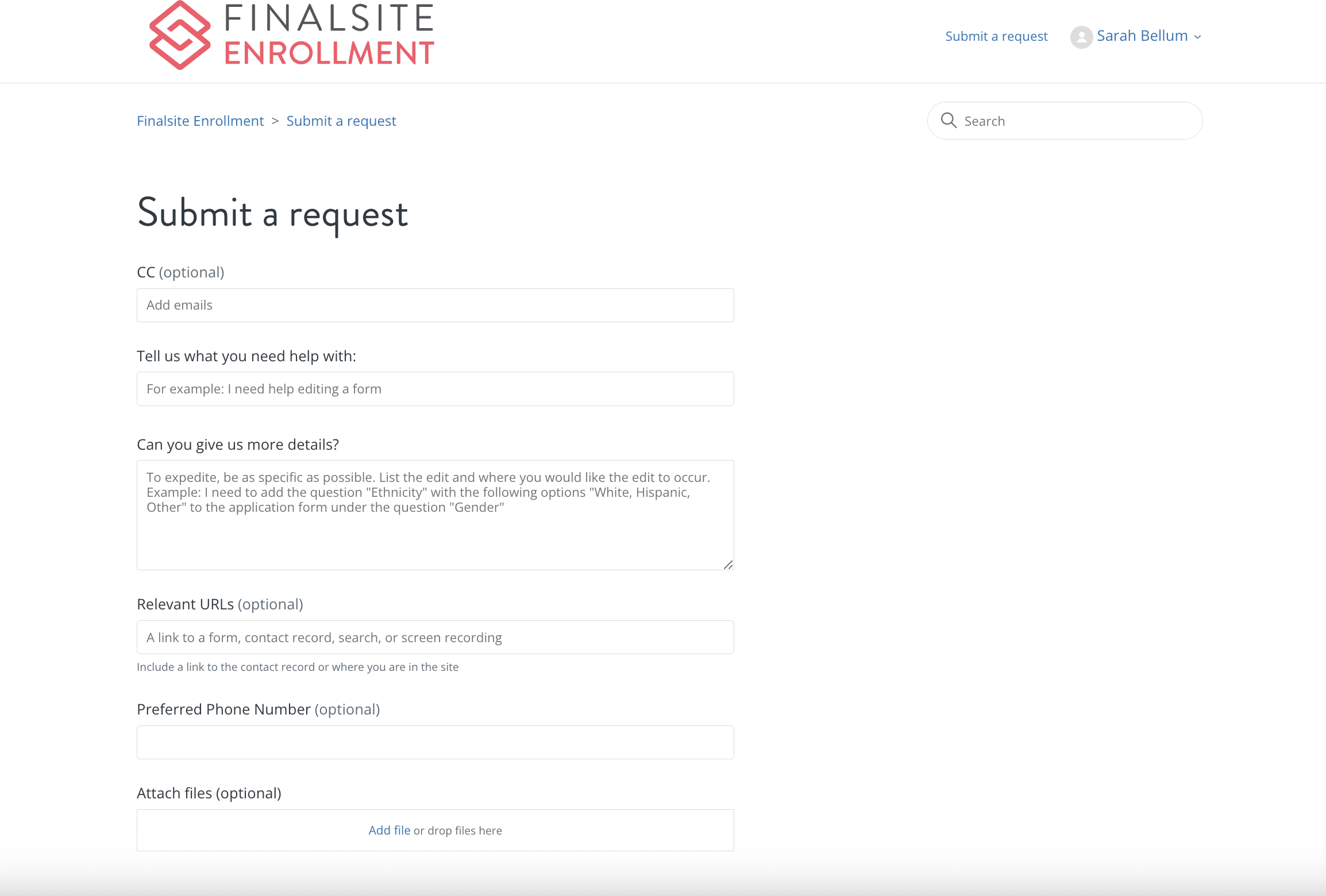
Submitting a request is the most effective way to track complex technical issues. To start, click Help in the top right of your site and select Submit a New Request.
This will open the Support Request Form. Within this form, you will see the following fields:
- CC (optional): Add additional email addresses of any other team or staff members that you would like to include on the ticket.
- Tell us what you need help with: Brief description of your request (e.g., I need help editing a form.)
- Can you give us more details?: Detailed description of what you need help with. See the "Best Practices for Tickets" section below for information to include in your request.
- Relevant URLs (optional): Include any relevant URLs to contact records or other pages affected by the issue.
- Preferred Phone Number (optional): If you’d like to discuss your issue over the phone, provide a phone number.
- Attach files (optional): Attach any screenshots or files needed for your request.
- Submit button: Submit your request!
Best Practices for Tickets
To help our agents resolve your case quickly, please include:
- Exact Location: The specific page or contact record URL where the issue is occurring.
- Steps to Reproduce: What actions were taken immediately before the error?
- Attachments: Screenshots or screen recordings of the behavior.
- Editable Documents: For form edits, provide text in a Word/Google Doc rather than a PDF. Review the article “Finalsite Enrollment Support: How to Submit Form Requests” to learn more about submitting form edit/build requests to support.
Help > My Requests
Click Help > My Requests to view your ticket history. You can review past solutions provided by our support specialists, respond to a request, or reopen a previous conversation if a problem persists.
Phone Support
If you prefer to speak with a support agent directly, you can reach our support line at (844) 207-5636 or (512) 520-8660.
- Please note that form edit and form build requests cannot be handled over the phone and must be submitted as a request in writing. For detailed instructions on how to submit form requests, please refer to the article "Finalsite Enrollment Support: How to Submit Form Requests."
If you are currently submitting a digital ticket but would like a callback, please include your Preferred Phone Number in the optional field on the Support Request Form.
Help Center, Training, & System Resources
Beyond direct support, we provide several tools to help you stay informed and master the platform.
Help Center
The Help Center is our comprehensive self-service library. It is designed to provide immediate answers without the need to wait for an agent.
- Access: Click Help > Help Center in the upper-right corner.
Take a Tour of the Help Center
- Submit a request: This option is located in the upper right so that you can access the Support Request Form.
- Sign-in Name: This is located next to the Submit a request option in the upper right, and it includes a request link to access your current and past requests. You can also sign out from here.
- Search Bar: Use the central search bar to look up articles by keyword.
- What’s New: View some new and highlighted articles below the search bar.
- Article Collections: All of the documentation is organized by collections, which are displayed below the search bar and the What’s New section. You can click into any collection for a full library of related content.
- EMS Support Bot: Located in the bottom right corner of the Help Center, the EMS Support Bot is designed to be your first point of contact for quick answers, troubleshooting steps, and "how-to" guidance. Learn more about using the support bot by visiting the article “Finalsite Support Bot overview.”
Office Hours & Learning Center
- Office Hours: Join us for FREE live training sessions. Register online to ask questions in real-time.
- Learning Center: Access a collection of on-demand videos and courses through our Learning Center.
System Status Page
If you encounter unexpected behavior or site issues, like your site is down, pages are not loading, 404 errors, or slow performance, check the Finalsite Status Page (status.finalsite.com) to see if there are any known system-wide issues. You can view current and past incidents or subscribe to get live alerts delivered directly to your inbox.
Other Support
Reaching Your Client Success Manager (CSM)
Your Client Success Manager (CSM) is your primary partner at Finalsite, dedicated to helping your district or school reach its goals and ensuring you have the right tools for success.
Don’t know who your account manager is? If you aren't sure who your specific representative is, don't worry! You can easily get connected:
- Email us: Send a message to ems-cs@finalsite.com.
- What happens next: A member of our team will review your request and personally connect you with your assigned CSM.
Whether you are looking to explore new features or learn more about your current products, your CSM is ready to help guide the way.
Parent Support & Resources
The support options listed above are specifically tailored for school administrators utilizing Finalsite Enrollment. For security reasons, we provide support only to school administrators, not directly to parents.
If you're a parent with questions, we encourage you to contact the school directly. Parents can also use our Parent Portal Help Center for assistance with logging in, billing, forms, and other frequently asked questions.
Feature Requests
We value your feedback. If you have a feature idea or request:
- Click Resources in the top right of your admin portal.
- Select Share an Idea.
- In the Share an Idea form, provide as much detail as you can so that our Product Team has a good understanding and requirements of your needs. Include any relevant screenshots.
- Click Submit to send the request to our team.
Comments
0 comments
Article is closed for comments.