
This article provides school administrators with the necessary steps to access the admin portal using legacy methods, either standard credentials or Single Sign-On (SSO).
Single Sign-On Is Here!
A connected SSO experience is now rolling out to all Finalsite clients! Finalsite is currently transitioning all clients to a connected SSO experience. Because this is a regional rollout, the availability of MFA and certain login features depends on which experience your school is currently utilizing.
This major upgrade includes:
- enhanced security with multi-factor authentication
- support for Google and Microsoft identity providers (IdPs)
- a modern, consistent login experience across all Finalsite products
When enabled, you will automatically be logged out of your Finalsite products. Upon return, you'll see a newly designed login page.
Coming Soon: Enhanced Parent Login Experience
We are excited to announce that an updated Parent Portal login experience is launching in the coming weeks!
- What’s New: A refreshed pre-login screen where schools can add their logo and specific instructions.
- Login Options: Families will have three clear options: Email/Password, Google SSO, and Microsoft SSO.
- No Action Required: This update will be released to all families automatically. Your school does not need to perform any manual setup to enable these features.
Current Status: In the meantime, families will continue to see the standard login screen. For more details on the current process, please refer to our “Parent Portal: Parent Experience” article.
Wondering Which Login Experience Your School Currently Has?
You can identify your current login experience by looking at your login screen.
If you see this login screen, you have been upgraded to the connect SSO experience:
Finalsite’s new login experience is built to boost security, simplify authentication, and create a seamless gateway across products. Whether you're logging in for the first time or switching between tools, learn more about how to manage the features in this newer login experience in this article, "Log In To Finalsite Enrollment: The Connected SSO Experience."
If you are a Finalsite client that has not yet been moved over to the universal, connected SSO screen, you may still see this legacy log in experience:
To learn more about how to manage the legacy login features, check out the article, "Log In To Finalsite: The Legacy Login Experience."
How do I get started with the new connected SSO experience?
Our goal is for all users to eventually transition to a Unified SSO experience to provide a single, seamless login across all Finalsite products.
No action is required now: We are rolling out SSO in waves. You will be informed with a notification and we will reach out if any additional action is needed.
Stay informed: We will provide full documentation and support throughout the transition process.
In this Article
- Access the Admin Portal
- Option 1: Log In With Email & Password
- Option 2: Log In With SSO (Google or Microsoft)
Access the Admin Portal
To log in to the admin portal, navigate to your school's specific URL and add /admin at the end. The format depends on your school's location:
United States and Global Clients (outside of Canada)
- Link Format: https://[Subdomain Here].fsenrollment.com/admin
- Example: https://myschool.fsenrollment.com/admin
Canadian Clients
- Link Format: https://[Subdomain Here].fsenrollment.ca/admin
- Example: https://mycanadianschool.fsenrollment.ca/admin
Option 1: Log In With Email & Password
If your school has not enabled SSO, use your standard credentials:
- Navigate to your login page (see link examples above).
- Enter your Email and Password.
- Click Sign In.
Option 2: Log In With SSO (Google or Microsoft)
Single Sign-On (SSO) allows you to use your school-issued Google or Microsoft account to access the system. This reduces password fatigue and improves security.
How To Sign In With SSO
If SSO is enabled, the standard email/password fields will be replaced by a dedicated sign-in button.
- Click the SSO button displayed.
- Schools using Google will see a Sign in with Google button.
- Schools using Microsoft will see a Sign in with Microsoft button.
- Schools using Google will see a Sign in with Google button.
- Select the appropriate school account from the prompt.
- Note: Microsoft users may see a one-time pop-up asking to confirm the connection.
- Upon successful authentication, you will be redirected to the dashboard.

⚠️ Important note on parent SSO
Unlike the admin side, SSO is automatically available to all parents. No manual setup is required for their portal. For more details, see our “Parent Portal: Parent Experience” article.
Set Up For SSO
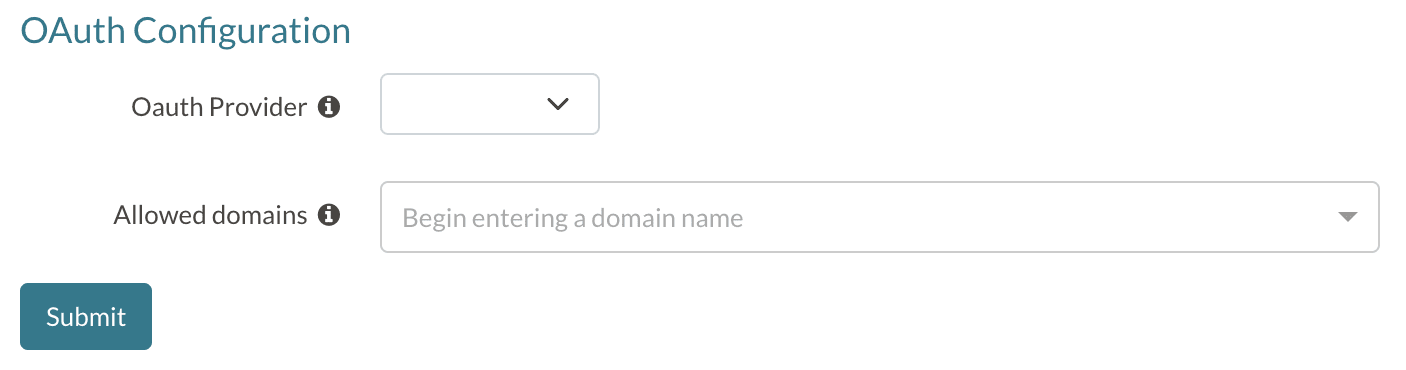
To enable SSO for your staff, a System Admin at your school must configure the OAuth settings under Settings > Portal > OAuth Configuration.
Requirements
- Permission: System Admin account type.
- Account Sync: Admin accounts must already exist in Finalsite Enrollment for SSO to work.
- Service: Your school must use Google G-Suite or Microsoft (personal accounts are not supported).
Configuration steps
- Navigate to Settings > Portal > OAuth Configuration.
-
Required for Admins: Select either Google or Microsoft from the OAuth Provider drop-down.
- Note: This is a global setting. If you leave this blank, admins will continue using email/password.
-
Allowed Domains: Type your school’s domain (e.g., schoolname.org), then select Create Option. You can add multiple domains if your school uses several.
- Click Submit to save.

Important SSO Behaviors
- Account existence: SSO does not "create" an admin account. The user must already have a profile in Finalsite Enrollment.
- Deactivation: If an account is removed from your G-Suite or Microsoft directory, the user will lose access to Finalsite Enrollment immediately, though their record remains in the system.
- Session duration: Once logged in via SSO, the session timeout is set to 2 weeks.
- Disabling SSO: If you decide to turn SSO off, notify users in advance so they can set up or reset their manual passwords.
Comments
0 comments
Article is closed for comments.