
The Posted Date tab of the Billing Reports page shows account and student billing activity by specific ledger posting dates or by month, helping you track when charges and payments were actually recorded.
Who can access this feature?
Admin Account Types: System Admin, Admin, User
Permissions: Financial
💡Quick Answers
- How do I group the report results? Use Show Report By to display by Account Name, Student Name, or Both; each option shows totals based on the date items were posted to the ledger.
- What is the difference between the Day and Month views? Day shows activity broken down by individual ledger posting dates; Month shows consolidated monthly totals.
- How do I filter or export the report? Use the Filter Options dropdown (term, grade, category, payment method, etc.) and the Download Report menu to export as CSV or PDF.
In this Article
Display Options
In the section directly below the report tabs, you'll find options for displaying the data within the report.

Show Report By
Account Name
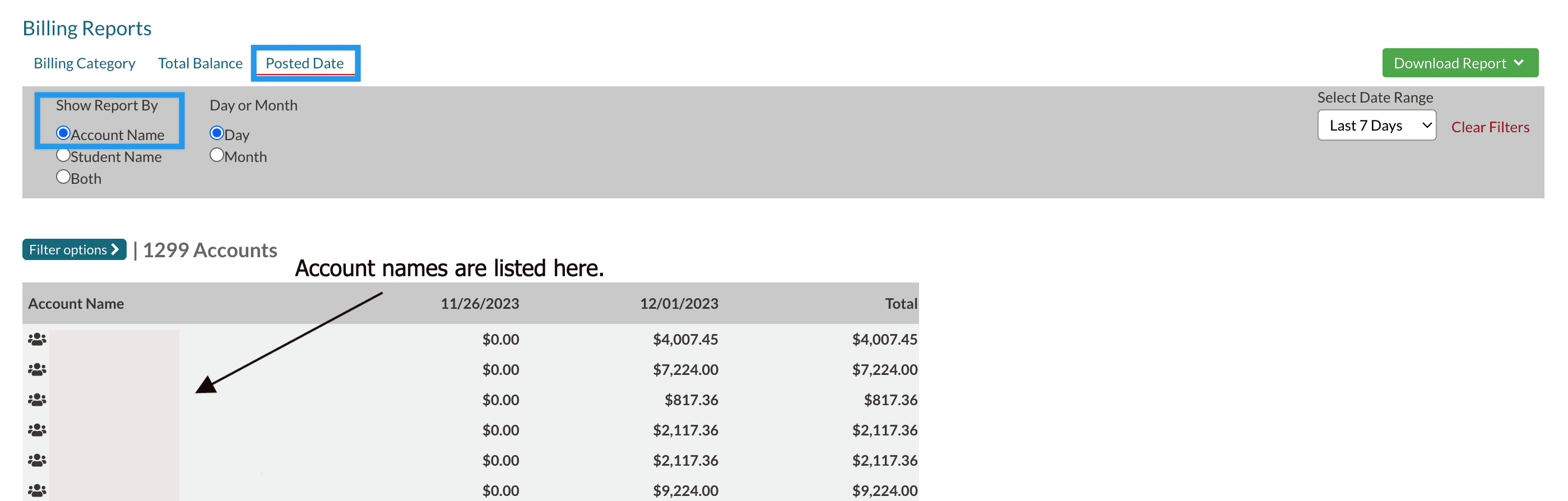
- Selecting to sort by Account Name populates the report to only show the name of each individual with a billing account (typically the parent).
- It also displays the totals for the accounts based on the date they were posted to the ledger. The totals are displayed based on the options you select for the timeframe you'd like to see.
- Clicking the Account name brings you to their record.
Student Name
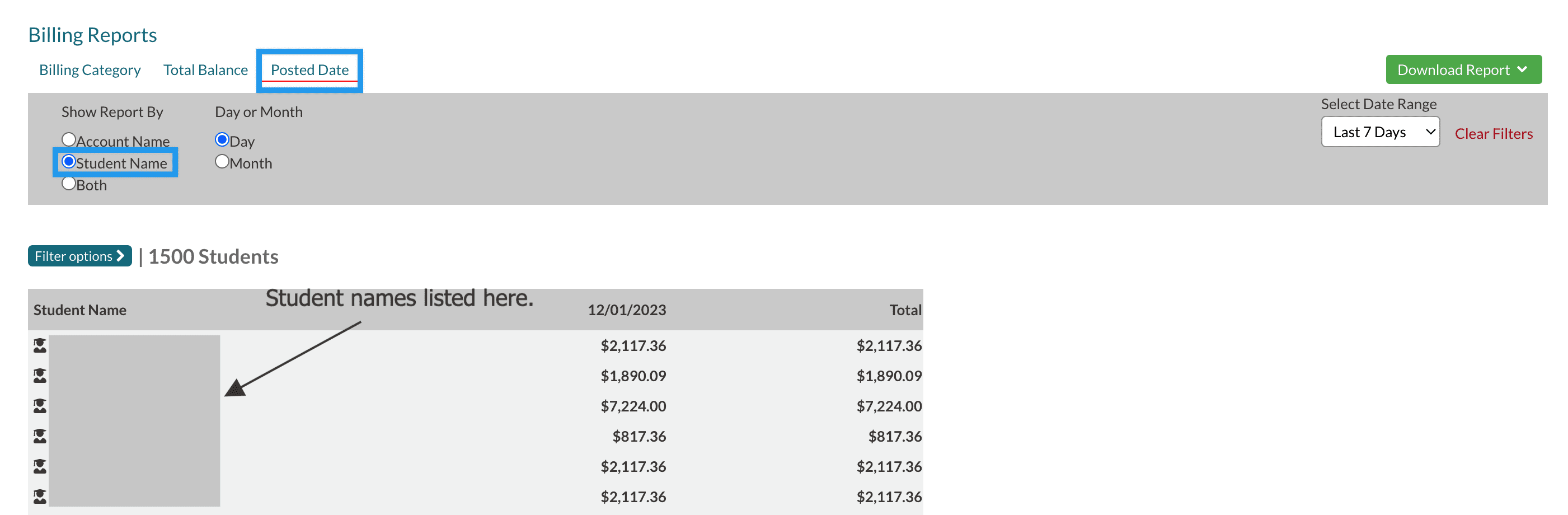
- Selecting to sort by Student Name populates the report based on the Students.
- It also displays the totals for each student based on the date they were posted to the ledger. The totals are displayed based on the options you select for the timeframe you'd like to see.
- Clicking the student's name brings you to their record.
Both
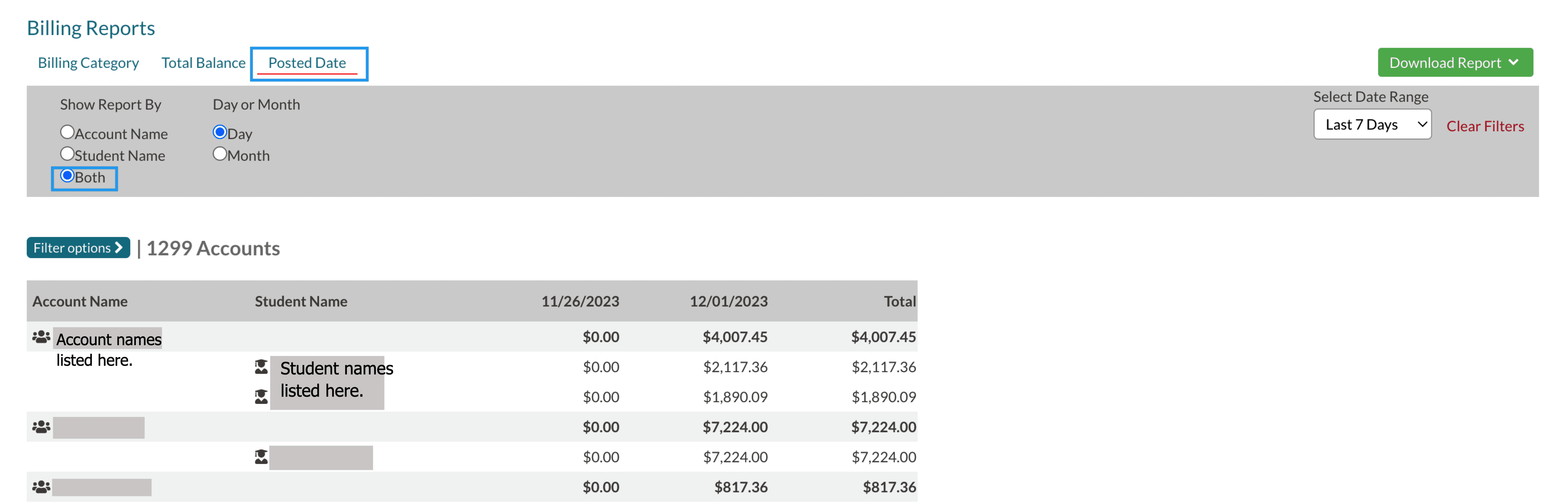
- Selecting Both shows both the account totals based on their posted dates. Under each account, the students attached to the account are listed along with their totals by posted date.
- Clicking on the Account or Student names will bring you to their record.
Day or Month

Day
- Selecting Day filters the report to display the activity based on the ledger item dates. Whatever you select from the Select Date Range dropdown further adjusts what timeframe displays.
Month
- Selecting Month filters the report to display activity based on monthly ledger totals.
Filter and Export Options
Filter Options
Below the Show options box, expand the Filter Options button to view and select from the filters.
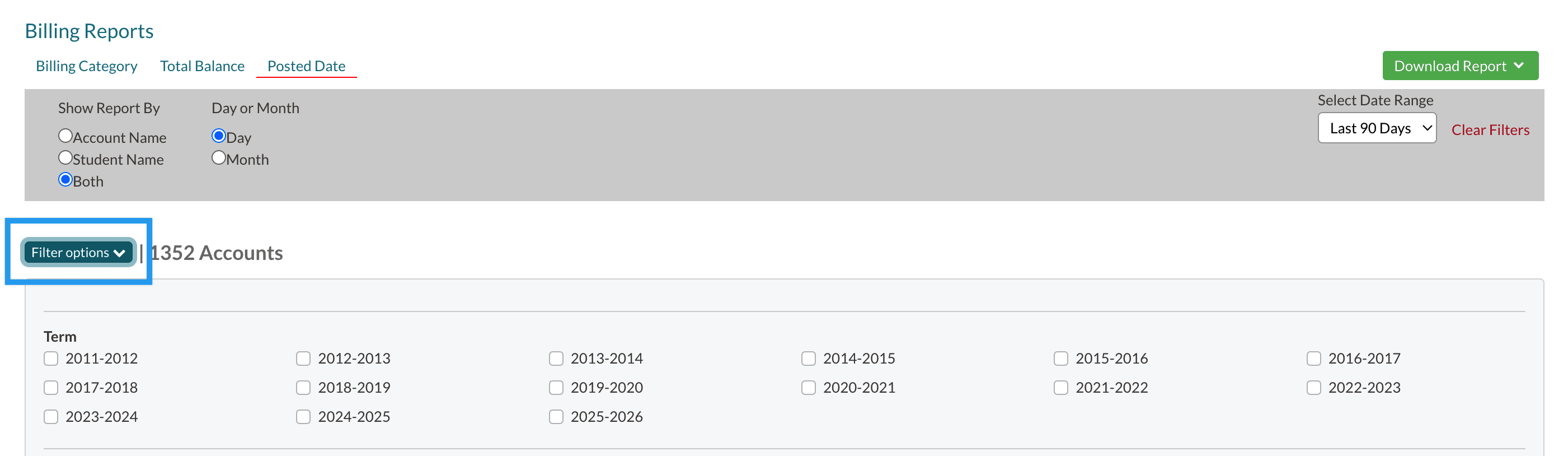
Filter Options include:
- Term
- Grade
- Payment Type
- Category
- Category Group
- Payment Method
- Account First Name (text box)
- Account Last Name (text box)
Export Options
Using the Download Report menu, you can Export the report to a CSV or PDF.

Comments
0 comments
Article is closed for comments.