
This article serves as an introduction to how families encounter billing in Finalsite Enrollment. It's the right starting point if you're new to billing here and want a foundational mental model before digging into the mechanics.
For a walkthrough of what parents do in their Parent Portal, visit the article "Parent Billing Workflow."
💡Quick Answers
- Is there one billing account per family? No. We use a per-parent account model. Each parent has a unique ledger and only sees the charges they are personally responsible for.
- Who decides the "Financial Split"? By default, the parent who pays the deposit is assigned 100% responsibility. However, school admins can adjust this percentage (e.g., 50/50) at any time to reflect the family's needs.
- What happens if I change a split mid-year? Changing a split only affects future contract charges. It will not retroactively move balances that have already been posted to a parent's ledger.
- Can a grandparent make a payment without their own ledger? Yes, via Shared Access. A parent can grant a grandparent one-time payment access. Note that shared users cannot enroll in Autopay.
In This Article
The Per-Parent Account Model
The most important thing to know about the parent billing experience is that every parent has their own, unique billing account.
Finalsite Enrollment does not use a single-family-account model. Two concepts shape what each parent sees and pays:
- Financial Split determines how much of a student's contract charges land on each parent's ledger.
- Shared Access lets one person make one-time payments on someone else's account.
Both are summarized below with links to the deep-dive articles.
Parent Account View
Here's a quick peek at what a parent's billing account looks like. Depending on your school's setup, a few things may differ, but this is broadly what they see.
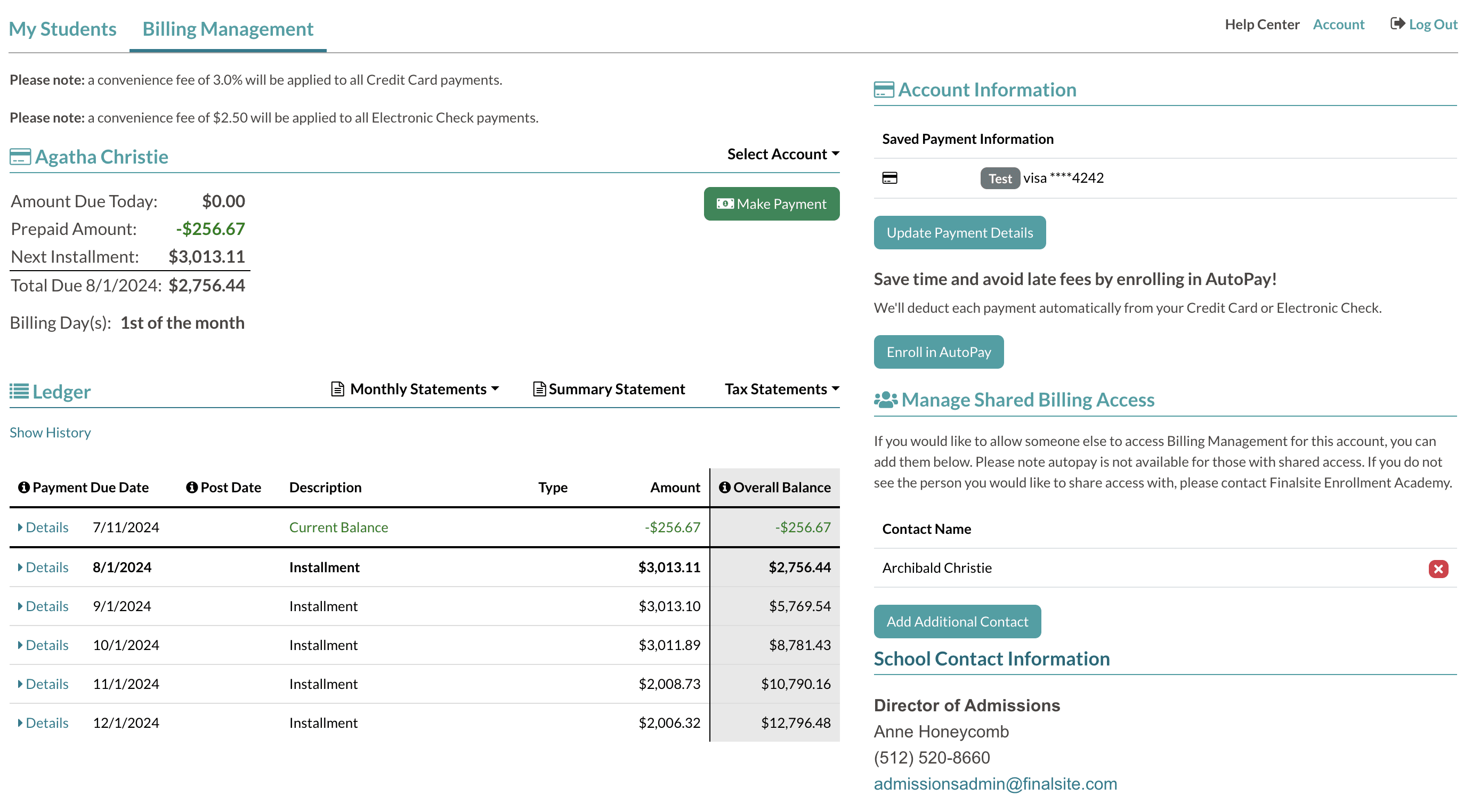
At a glance, parents will see:
- A custom message at the top (if your school has added one in the Billing Management Widget on the Parent Portal Content page).
- Convenience fee rates (if your school passes them on to parents).
- Amount Due Today and Next Amount Due, with the next due date.
- Make Payment button.
- Autopay status and dates (if Autopay is enabled), and a Manage Autopay Dates section if you've made those options parent-facing.
- Update Payment Details button for adding, editing, or deleting saved payment profiles.
- The ledger of charges, credits, and remaining balance, with past-due items flagged in red.
- Monthly, Summary, and Tax Statements available for download.
- Manage Shared Billing Access for granting another contact one-time payment access.
For the full walkthrough of each of these areas, visit the article "Parent Billing Workflow."
Use Impersonate to See Your Setup
We can't show every variation, so use the Impersonate feature to view the Billing Management tab as your parents see it. The more familiar you are with what they see, the better you can support them.
Parent Billing Experience Video
Here's how parents experience billing management in the Parent Portal. (This video is also available to parents in their Help Center.)
Financial Split
The Financial Split percentage determines how much each parent or guardian is responsible for on a student's contract tuition and fees. It's set per-student, so siblings can have different splits.
How Financial Split Affects the Parent Ledger
The tables below show how a sample student contract of $10,000 distributes across parent ledgers under two common split scenarios.
Scenario 1: 100% Financial Split (one parent is fully responsible)
| Parent | Financial Split | Amount on Their Ledger |
| Parent A | 100% | $10,000 (full contract amount) |
| Parent B | 0% | $0 (no charges appear) |
In this scenario, all contract tuition and fees post to Parent A's ledger. Parent B has no balance owed and sees no contract charges in their portal.
Scenario 2: 50/50 Financial Split (responsibility shared evenly)
| Parent | Financial Split | Amount on Their Ledger |
| Parent A | 50% | $5,000 (half of contract) |
| Parent B | 50% | $5,000 (half of contract) |
In this scenario, every contract charge is divided evenly between Parent A and Parent B. Each parent sees only their own portion in the Parent Portal; they do not see the other parent's split or balance.
The default behavior most schools encounter: if no split is set before the contract is signed, the parent who pays the deposit is automatically assigned 100%. Splits can be changed any time after; only future contract charges move to reflect the new split.
For setup steps, ledger behavior, and FAQs, visit the article "Billing: Setting the Financial Split."
Shared Access
Shared Access lets a parent or billing account holder grant another person access to make one-time payments on an account. A common case: a grandparent, aunt, or step-parent occasionally chipping in toward tuition. Shared Access contacts cannot enroll in Autopay.
Two scenarios shape what the shared user sees when they log in:
- One ledger only → they see the primary parent's ledger and a Make Payment button.
- Multiple ledgers (e.g., they have their own billing account in addition to the shared one) → they see a Select Account dropdown and need to pick the correct ledger before clicking the Make Payment button.
⚠️ Important Note
If parents see the Select Account dropdown, coach them to confirm they're on the correct ledger before paying.
For the parent setup steps, full scenario walkthroughs, and FAQs, visit the article "Shared Access: Parent-Guardian Experience." For admin setup, visit the article "Billing: Shared Access."
Comments
0 comments
Article is closed for comments.