
To remove a Call to Action (CTA) option from the Inquiry form, you must first delete the dependent form sections tied to that option, then remove the option from the field itself on the Fields page.
💡Quick Answers
- What are the three key steps to remove a CTA option? (1) Delete the dependent form sections in a draft of the form; (2) Remove the field option from the Fields page (Settings > Fields & Data > Fields); (3) Preview the form to verify the option is gone.
- Why must I remove dependent sections first? Selecting a CTA option reveals hidden form sections (such as tour booking fields); those sections must be deleted from the form before removing the option, or they will remain visible.
- How do I remove the option from the Fields page? Find the CTA field, click Edit to open the pop-up, delete the unwanted option from the Options box, and save; see How to Find Fields for help locating the field.
- How do I verify the changes are correct? In Settings > Forms > Inquiry Forms, open the Select menu in the Actions column and click Preview to confirm the option no longer appears on the form.
In this Article
- Why Remove a Call-To-Action (CTA) Option?
- Removing a CTA Option Involves Three Key Steps
- Try It Yourself: Remove a CTA From The Inquiry Form
- Additional Tips
Why Remove a Call-To-Action (CTA) Option?
The CTA section of your inquiry form offers families various ways to engage with your school, such as asking questions or scheduling a tour. As your needs evolve, you might need to remove outdated options or streamline the form.
Removing a CTA Option Involves Three Key Steps
Please note that these steps are only a high-level overview of what's required. Check out the tutorial at the bottom of the article to walk through the process step-by-step.
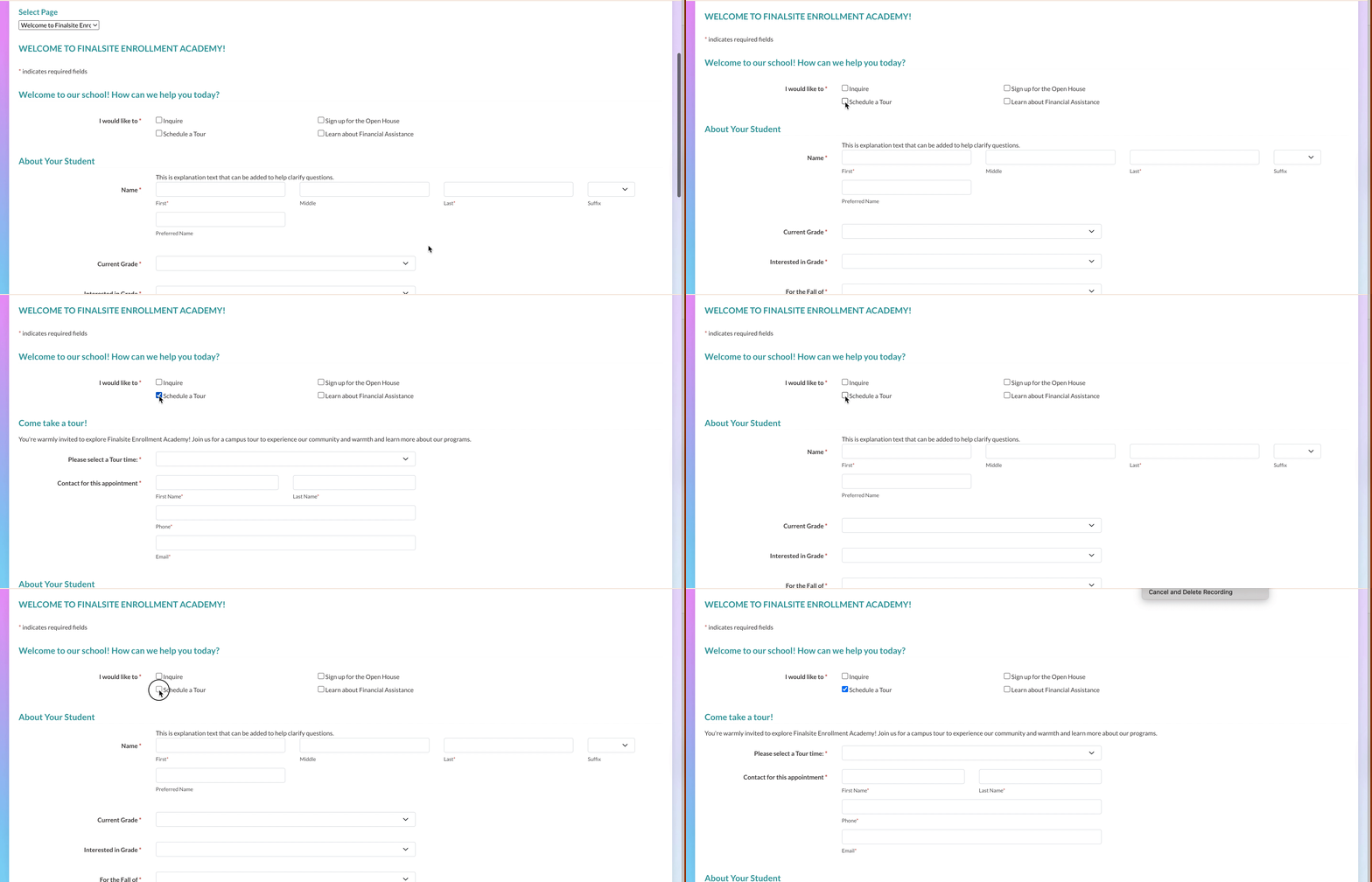
1. Remove Dependent Sections
In the call to action section, selecting an option reveals additional form sections. For instance, choosing "Schedule a Tour" will display the tour invite fields.
- To remove these fields, create a draft of your form and delete the dependent sections.
- After that, publish the form and remove the option from the fields page.
2. Remove the CTA Option
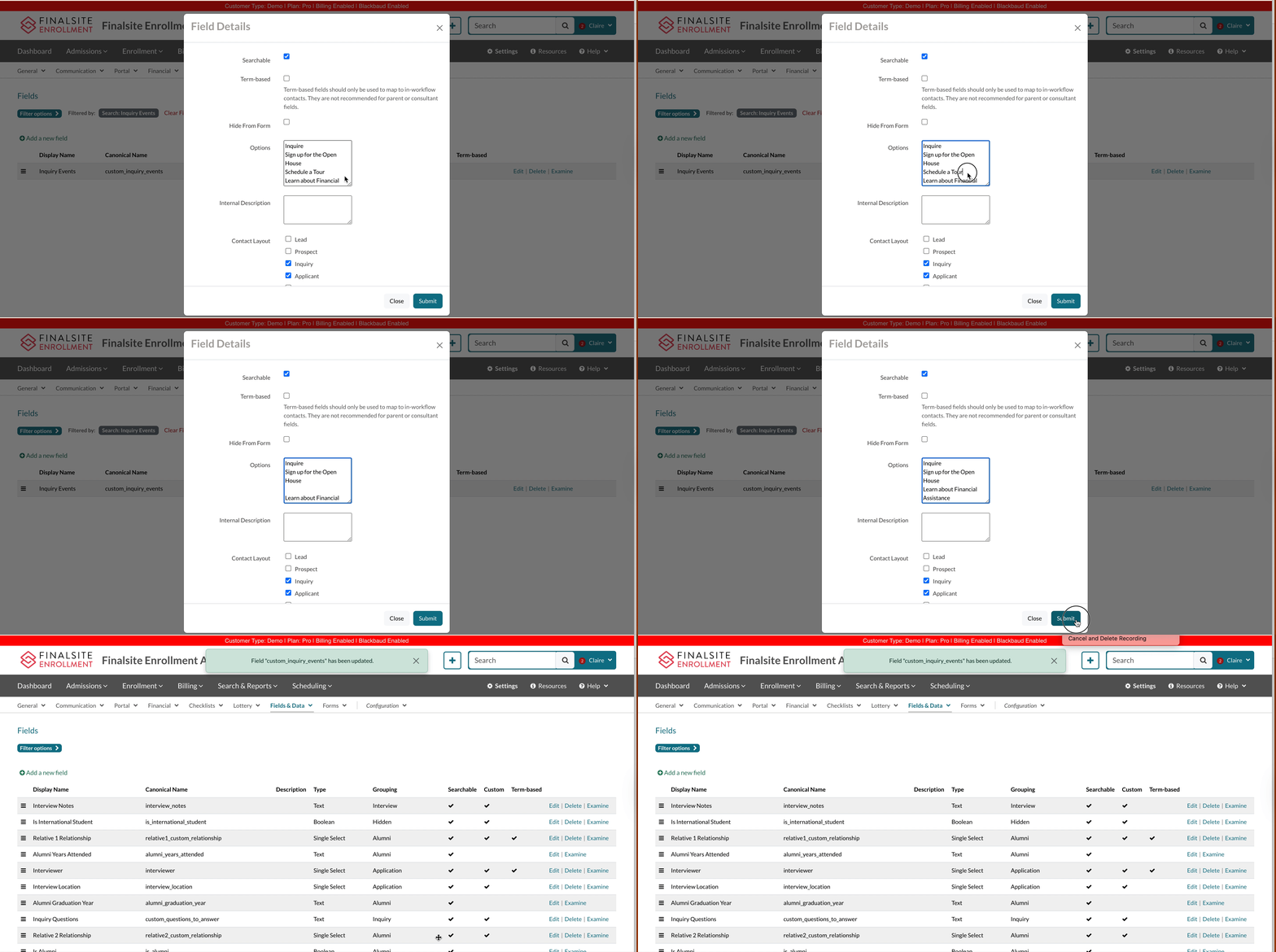
After updating the form, you'll still need to remove the field option from the field itself.
- To remove the field option, go to your Fields page (Settings > Fields & Data > Fields), find the field, and edit it.
- Delete the option you want to remove from the call to action section and save your changes.
Once you've removed the option, you're almost finished! You just need to check your work to be sure that everything looks good.
3. Verify Changes
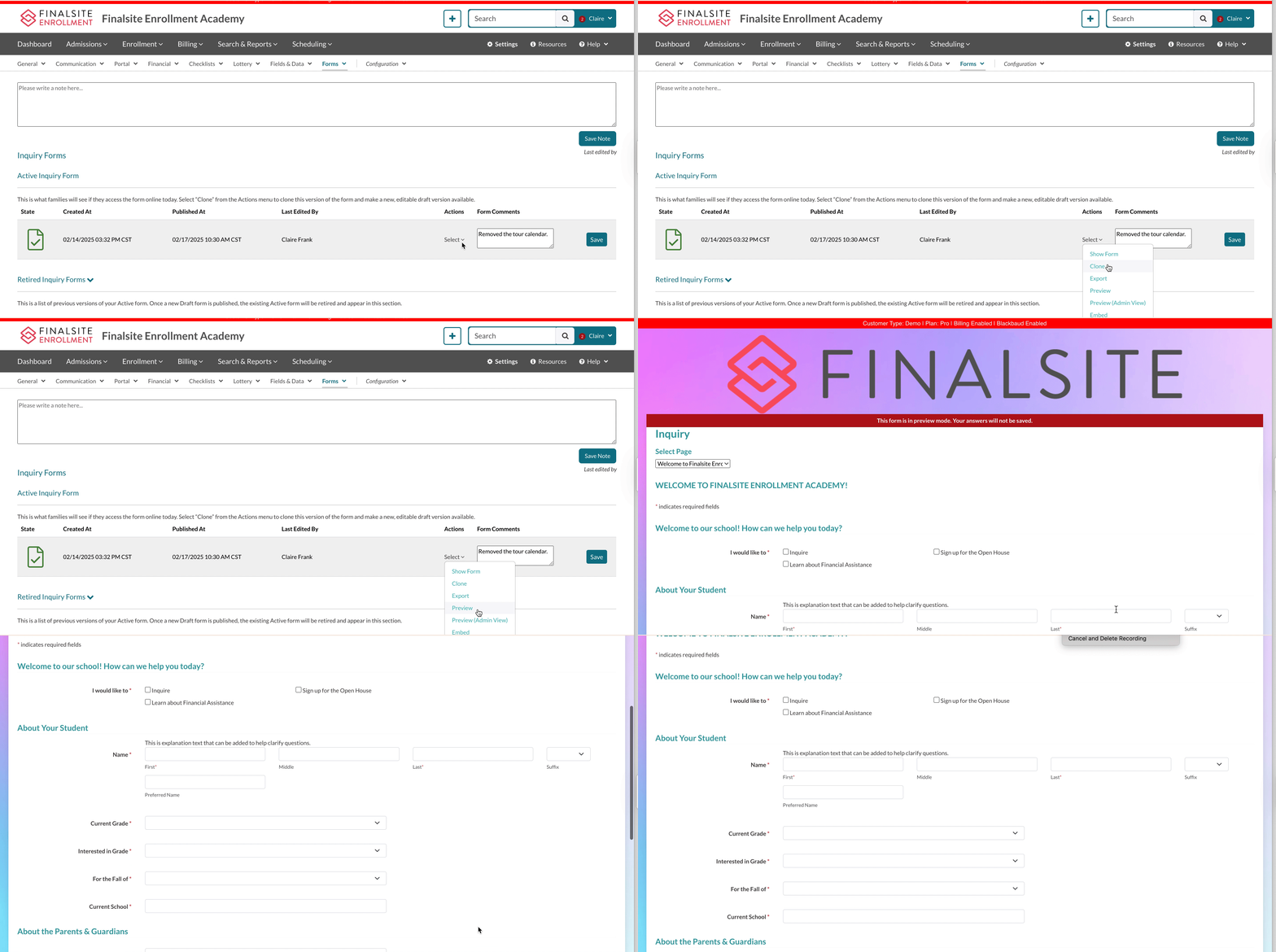
Finally, you want to be sure to preview your form to confirm that the CTA option and its associated sections are no longer displayed.
- Within the form edit page (Settings > Forms > Inquiry Forms), open the Select menu in the Actions column and select Preview to open a preview of the Inquiry form.
Try It Yourself: Remove a CTA Option From The Inquiry Form
Here's an interactive tutorial
** Best experienced in Full Screen (click the icon in the top right corner before you begin) **
Additional Tips
- Consider Alternatives: Before removing a CTA option, consider whether an alternative action would be more suitable. For example, instead of removing "Schedule a Tour," you might update it to "Request Tour Information" if tours are temporarily unavailable.
- Communicate Changes: If removing a CTA option significantly impacts how families interact with your school, communicate these changes clearly on your website or through other channels.
- Test Thoroughly: After removing a CTA option, test the form thoroughly to ensure it functions as expected and provides a seamless user experience.
If you have any questions or require assistance, submit a request to the support team.
Comments
0 comments
Article is closed for comments.