
You can embed Finalsite Explore directly into a Finalsite Composer page using an iframe embed code, giving prospective families access to the school browser without leaving your website.
💡Quick Answers
- What embed code do I use without a custom subdomain? Use: <iframe height='600' src='https://portal.fsenrollment.com/explore_schools?embed=true' width='100%'></iframe>
- What embed code do I use with a custom subdomain? Use the same iframe structure but replace {CUSTOM SUBDOMAIN} with your actual subdomain from your custom branded portal URL.
- What are the steps to add the embed in Composer? Toggle on Compose mode, add an Embed element from the Standard Elements tab, open its settings, toggle off the title, paste the embed code, Save, toggle off Compose mode, and Publish.
- Will families need to log in to browse embedded Explore? No, the /explore_schools links let families browse all schools without creating an account; a login is only prompted when they select Apply or Log In.
In this article
Step-by-Step
- On the Composer page that you'd like to embed Finalsite Explore into, toggle on Compose mode and select to add a new Element.
- Select the Embed option in the Element Library. It's found under the Standard Elements tab.
- Click the Settings icon in the Embed element to open the settings.
- Toggle off the element title.
- Paste the embed code into the element and click Save.
- Toggle off Compose mode.
- Publish your changes.
Embed Code
You can use the following code snippets to embed Explore into Finalsite Composer.
Use this link if you do not have a branded (or customized) shared portal.
You can copy the link exactly as it appears below and paste it directly into the embed tool in Composer.
<iframe height="600" src="https://portal.fsenrollment.com/explore_schools?embed=true" width="100%"></iframe>Use this link if you do have a branded (or customized) shared portal.
Please note: before using the code below, please replace the {CUSTOM SUBDOMAIN} text with the name of your custom subdomain as it appears in the URL.
<iframe height="600" src="https://{CUSTOM SUBDOMAIN}.fsenroll.com/explore_schools?embed=true" width="100%"></iframe>How can I find the name of my custom subdomain?
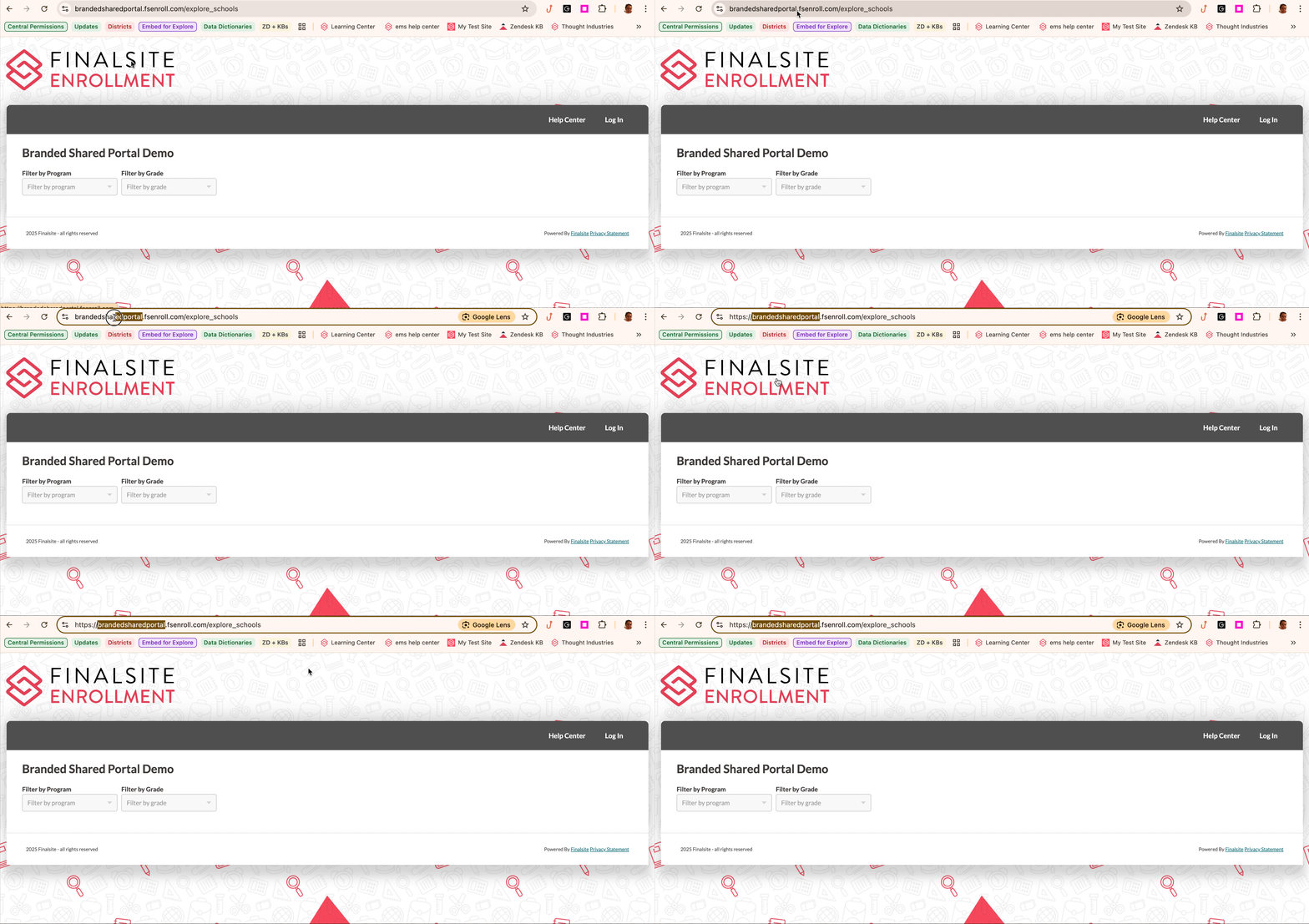
To find the name of your custom subdomain, open your Finalsite Explore page. Copy the text that appears before the ".fsenroll.com..." in the URL. Use that text to replace the {CUSTOM SUBDOMAIN} text in the code snippet above.
Notes
- As a best practice, we encourage you to use the links above which include "/explore_schools" in the URL. These convenient links provide parents direct access to browsing through schools in Finalsite Explore without the need to create an account first.
- If a parent selects the Log In link, they will be directed in an new tab to the log in/account creation page for Finalsite Explore.
Try it for Yourself
Here's an interactive tutorial
** Best experienced in Full Screen (click the icon in the top right corner before you begin) **
Comments
0 comments
Article is closed for comments.