
Admin Permission Groups are reusable permission sets you assign to admin accounts, making it faster and more consistent to set up new admins without configuring individual permissions each time. Only System Admins can create groups and assign users.
💡Quick Answers
- How do I create a new permission group? Navigate to Settings > Portal > Admin Permission Groups, click Add a New Group, enter a name, select the desired permissions, and click Save.
- How do I add an admin to a permission group? Go to Settings > Portal > Admin Portal Accounts and either edit a single admin, select multiple admins and use Change Permissions, or add a new admin and select a group in the pop-up.
- Can I assign permission groups to many admins at once? Yes, if you have 20 or more admins to update, contact Support for a bulk import; schools still in onboarding should work with their implementation specialist.
- Are permission groups the same for single-site and multi-site schools? Yes, the creation and assignment process is identical, though the Admin Portal Accounts page may look slightly different for multi-site groups.
In this Article
Creating Admin Permission Groups
The Admin Permission Groups page (found under Settings > Portal > Admin Permission Groups) allows you to create reusable sets of permissions.
Think of these sets as templates. Instead of assigning individual permissions every time you create a new admin account, you can simply assign them to one of these pre-defined permission groups on the Admin Portal Accounts page. This makes setting up new admin accounts much faster and ensures consistent permission assignments.
Reminder: Only System Admins have access to the Admin Permission Groups page.
Step by step
- Navigate to the Admin Permissions Groups page: Settings > Portal > Admin Permission Groups.
- Select Add a New Group
- Enter a name for the group.
- Select the checkboxes for the Permissions that you'd like the group to have access to.
- Click Save.
Watch and learn
In this short GIF below, we demonstrate how to navigate to the Admin Permission Groups page from the Dashboard and create a new group.
Adding Admins to Permission Groups
Once a group has been created, you can begin adding Admins to it. Admins are added to permission groups through the Admin Portal Accounts page (Settings > Portal > Admin Portal Accounts.) They can be added to Permission groups individually or in bulk.
Reminder: Only System Admins have access to the Admin Portal Accounts page.
Step by Step
- Navigate to the Admin Portal Accounts page: Settings > Portal > Admin Portal Accounts.
- Follow one of the three options, depending on your needs:
- To add a single admin to a permission group: Select Edit (right side of the page) on the row of the Admin you'd like to update.
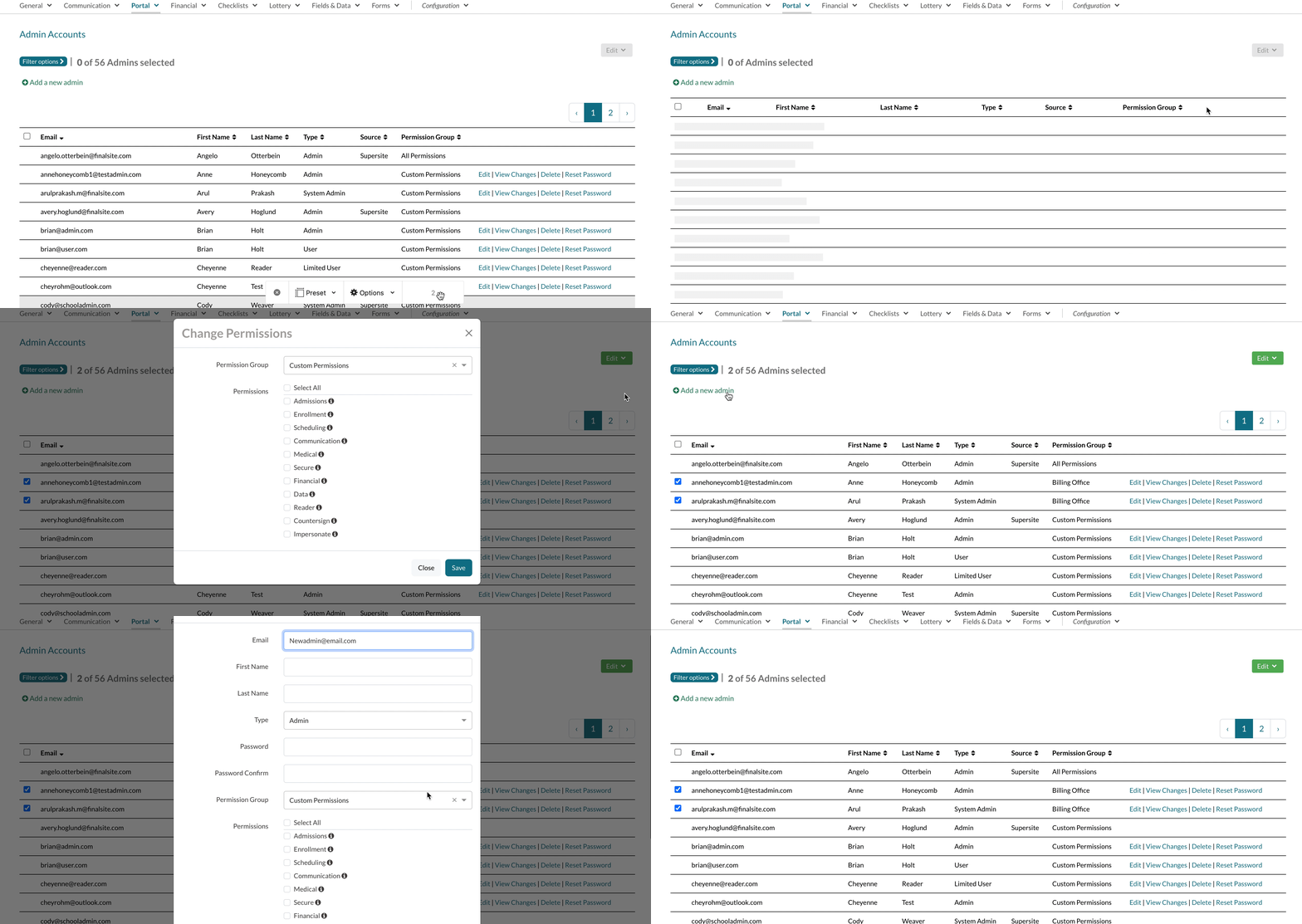
- To add multiple admins to a permission group: Select multiple Admins by clicking the checkbox to the left of their names and then select Change Permissions from the Edit menu.
- To create a new admin and add them to a permission group: Select the Add a new admin button.
- In the pop-up, select a group from the Permission Groups dropdown.
- Click Save.
Watch and learn
In this short GIF below, we demonstrate the three ways of adding an admin to a permission group through the Admin Portal Accounts page.
Please note that this example was created on a multi-site school. If you are not a part of a multi-site group, you will see the exact same options but some of the components of your Admin Accounts page will look slightly different.
Bulk Assigning Permission Groups to Admin
If you need to update permissions or group assignments for many admins at once, our team can help with this through a managed bulk import process.
- Still in onboarding? If your group is still meeting with your implementation specialist, work with them to provide the info you need on what permission groups and admins you need created in your sites.
- Out of onboarding? If your school is no longer working with an onboarding specialist and you have 20 or more admins that you need to add or update permission groups for, our support team can assist with the process.
Library of Resources
Check out the following resources to learn more about setting up and managing Permission groups:
- For multi-site groups: Managing Admin Permissions Across Multiple Sites
- For schools that are not part of a group of sites: Admin Permission Groups
- Admin Portal Accounts: Permission & Access Controls
- Office Hours & Past Session Recordings
Comments
0 comments
Article is closed for comments.