
Every admin user in Finalsite Enrollment has an account type (System Admin, Admin, User, or Limited User) plus a set of granular permissions that control what data and pages they can see. This article explains each type, what permissions unlock, and tools like Permission Groups and the Permissions Explorer.
💡Quick Answers
- What are the four account types? System Admin (full access; can manage other admins). Admin (power user; access to all settings except admin/financial dispute/OAuth/MFA). User (no Settings menu; can't delete contacts). Limited User (Readers see only assigned candidates; Counselors see only assigned students).
- What's the difference between an account type and a permission? Account type sets the baseline access level. Granular permissions (Admissions, Enrollment, Financial, Medical, Secure, Communication, Data, Reader, Counselor, Impersonate, Scheduling) control which fields and pages are visible within that level.
- Do permissions hide students entirely? No. Permissions control what data is visible within a contact record. Without Enrollment permission, an admin can still find a student in Search but won't see the Enrollment tab, enrollment-specific field groupings, or uploaded enrollment forms.
- Who can create or edit other admin accounts? System Admins only. They're also the only account type that can access Payments, Disputes, and sensitive data-retention settings.
- How can I avoid checking permission boxes one by one for every new hire? Use Permission Groups, pre-defined sets (e.g., Finance Office, Admissions Team) created under Settings > Portal > Admin Permission Groups. Assign the group to a new account and all the right permissions apply at once.
In this Article
Account Types
Every admin user is assigned one of the following account types. This sets their baseline access level to the system and settings.
| Type | Access Level | Key Restrictions & Notes |
|---|---|---|
| System Admin | Full Access: Complete control over all student data and all backend system settings. | Only role that can manage other admin accounts, permissions, and financial payment/dispute settings. Recommended limit: 3 per school. |
| Admin | Power User: Access to all student data and most settings pages. | Cannot manage other admin accounts or high-level system configurations (OAuth/MFA). |
| User | Standard Access: Access to all student records and basic tools. | No access to the Settings menu. Cannot delete contact records. |
| Limited User | Restricted Access: View-only or task-specific access based on assigned modules. | Can only see specific students (Counselors) or assigned applications (Readers). No access to other system pages. |
System Admin
The System Admin is the highest level of access and should be granted sparingly.
- Exclusive controls: This is the only account type capable of creating/updating other admin accounts and managing system permissions.
- Financial & privacy management: Only System Admins can access the Payments and Disputes pages (Settings > Financial) and manage sensitive data retention settings for reviews and checklists.
- Best practice: To maintain high security, we recommend limiting your school to no more than three System Admin accounts.
Admin
Admin accounts are designed for power users who manage day-to-day operations and configurations.
- Broad access: Admins have access to all system pages and fields, including the Settings menu.
- Permission-based: While they have broad access by default, their visibility can still be restricted using the granular permissions (e.g., Financial or Medical) listed below.
User
User accounts are ideal for staff members who need to manage student data but should not be altering system-wide configurations.
- Settings restriction: Users can access all standard functional pages, but cannot access the Settings menu.
- Data protection: For security reasons, User accounts cannot delete contacts from the system.
- Online review: If your school uses the Online Review module, Users have specific limitations; please refer to our “Reader Permissions” article for more details.
Limited User
This role is specifically designed for external contributors or staff with a very narrow scope of work.
- Reader access: When assigned the Reader permission, these users can only access the Review Module to evaluate candidates assigned to them. They cannot see other reviewers' feedback or access any other part of the system.
- Counselor access: When assigned the Counselor permission, these users can only see their assigned students. They can update checklists and view activity for those specific records but are blocked from viewing the rest of the student body.
Permissions
Permissions control which fields and pages the admin/user can view throughout the system.
Important Notes on How Permissions Work
Permissions in Finalsite Enrollment do not necessarily "hide" a student record from existence; rather, they control what data is visible within that record.
- Student contact records: If an admin lacks Enrollment permissions, they can still find a student via search. However, they will not see the Enrollment tab, enrollment-specific field groupings, or uploaded enrollment forms.
- Search & Reports: Admins can pull lists of all contacts, but they cannot add columns or filter by fields they do not have permission to view.
- Granular item permissions: You can further restrict access within Email Templates and Checklist Items to control who can view or edit specific items.
Granular Permission Definitions
Assign these specific permissions to customize a user's access to different modules.
| Permission | Description & Capabilities |
|---|---|
| Admissions |
|
| Enrollment |
|
| Scheduling |
|
| Communication |
|
| Medical |
|
| Secure |
|
| Financial |
|
| Data |
|
| Reader |
|
| Counselor |
|
| Impersonate |
|
Permission Groups and Explorers
Managing permissions for a large team can be streamlined using the following tools:
Permission Groups
Instead of checking individual boxes for every new hire, System Admins can create pre-defined groups (e.g., Finance Office or Admissions Team) under Settings > Portal > Admin Permission Groups. When creating a new account, simply assign the user to a group to apply all relevant permissions instantly.
Learn more about Admin Permission Groups in the following articles:
- Admin Permission Groups (This article is for independent schools that are not part of a multi-site group such as Supersites and Subsites within a District or Diocese.)
- Managing Admin Permissions Across Multiple Sites (This article is for schools that are part of a multi-site group such as Supersites and Subsites within a District or Diocese.)
- Managing Admin Permission Groups: Creating New Groups and Adding Users to Them (This article is for everyone, whether you are managing a single school or are part of a larger group of schools.)
Permissions Explorer
The Permissions Explorer is a downloadable tool (Excel or Google Sheets) that allows you to simulate different account and permission levels to see exactly what a user would see on their screen.
Download the Permissions Explorer
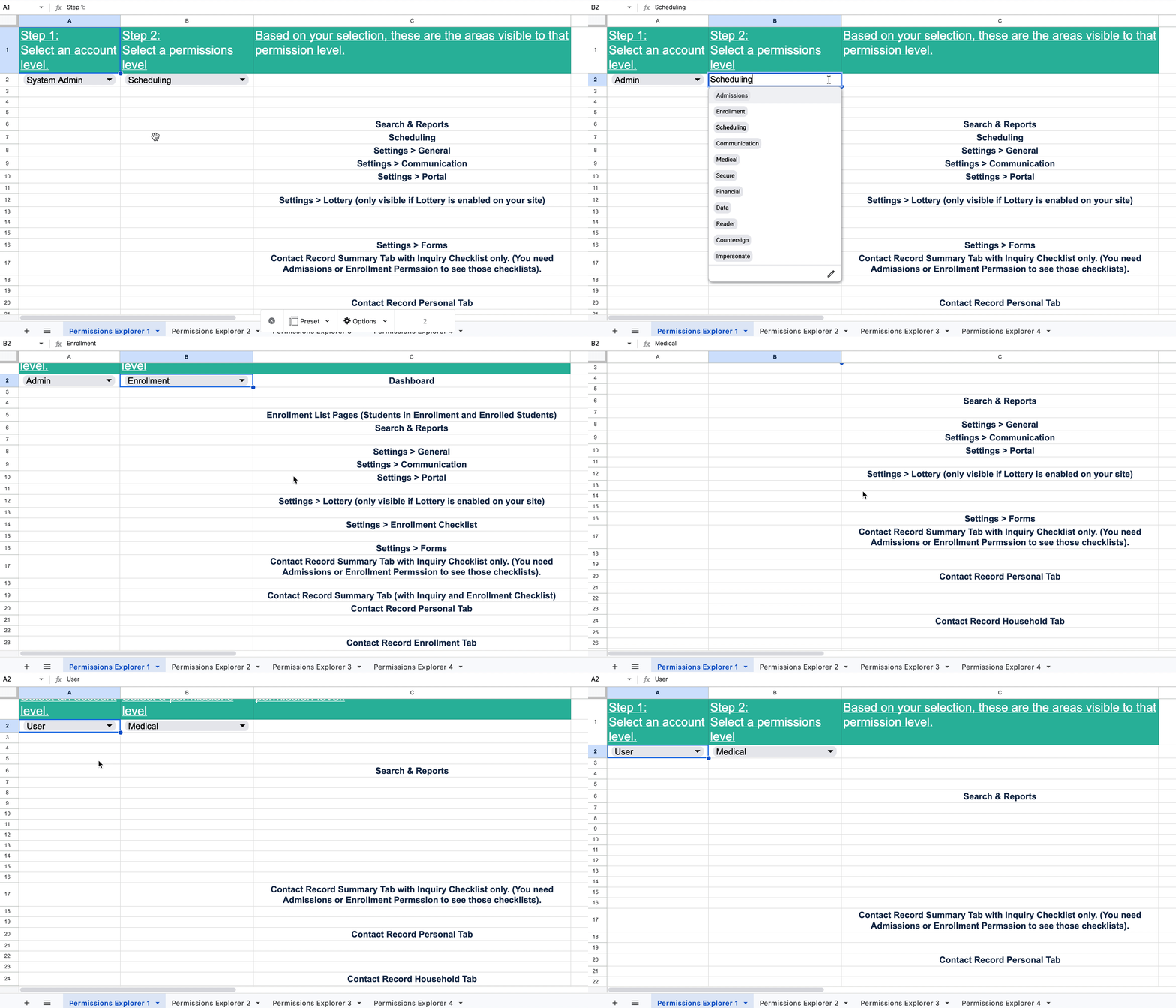
Interested in practicing before you download it? Use this interactive tutorial below (with audio) to get a feel for how the Permissions Explorer works.
Here's an interactive tutorial
** Best experienced in Full Screen (click the icon in the top right corner before you begin) **
Comments
0 comments
Article is closed for comments.