
The Parent Portal Accounts page (Settings > Portal > Parent Portal Accounts) is the master list of every parent or guardian who has created an account. Use it to look up a parent's login email, reset their password, resend their verification email, edit their name or email, or migrate them to an admin account. This page also covers your parent portal URL format and the merge token for linking parents back to the portal.
💡Quick Answers
- Where do I find a parent's login email? Settings > Portal > Parent Portal Accounts. Use Filter Options to search by name or email.
- How do I reset a parent's password from this page? Click Reset Password in their row and confirm. They receive an email with a reset link.
- When do I need to resend a verification email? Only for manually created accounts. Parents who created their account or logged in through SSO never need verification. See Overview of Parent Login Options: Manual Account Creation and SSO.
- Can I convert a parent into an admin user? Yes, with the Migrate to Admin action. You'll confirm the change before it takes effect.
- How do I update a parent's name or email? Click Edit in their row, make the changes, and Submit.
-
What's the merge token for the parent portal URL in email templates?
{{school.parent_portal_url}}. Insert it from the merge token picker in any email template. - What's the format of my school's parent portal link? Schools in the US and outside of Canada: yourschooldomain.fsenrollment.com. Schools in Canada: yourschooldomain.fsenrollment.ca.
Parent Portal Account Management
On the Parent Portal Accounts page (Settings > Portal > Parent Portal Accounts), you'll see a list of all parents or guardians who created a Parent Portal account.
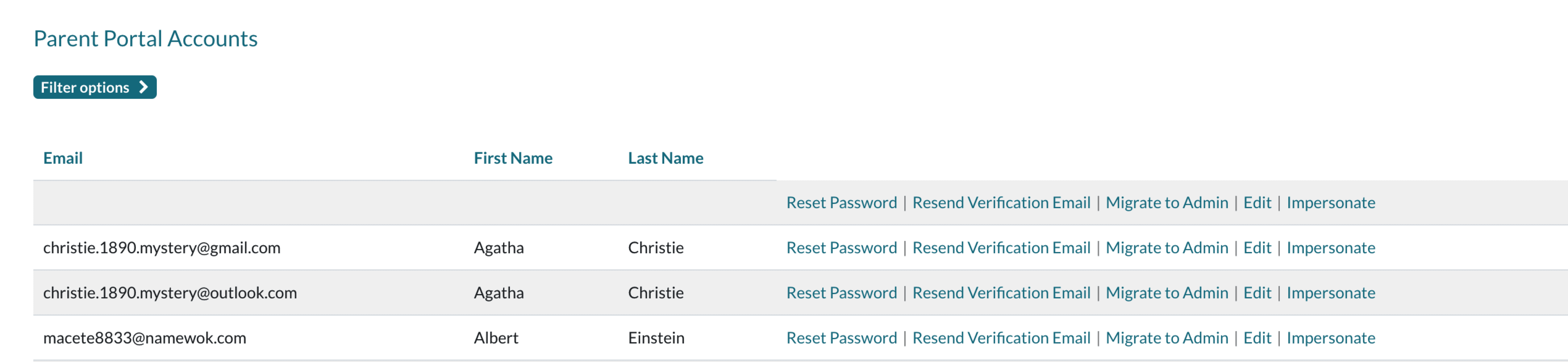
To search for a particular name or email address, click on Filter Options, type in your text, and then click Apply Filter.
Along the right side of the page are the following actions for each account:
- Reset Password: This is where you can reset the password for the parent/guardian. You will be asked to confirm that the parent portal account listed will receive an email to reset their password. Click OK to proceed.
-
Resend Verification Email: This allows you to re-send a parent the verification email that is necessary to confirm their email address. If you select this, you'll be asked to confirm the action in a pop-up box.
- Only manual accounts require email verification. Parents logging in or creating accounts through SSO do not need a verification email.
- Read more in our Overview of Parent Login Options: Manual Account Creation and SSO article.
- Migrate to Admin: This is how you can change the permissions of a parent to become an Admin user in the system. You will be asked to confirm. Click OK to proceed.
- Edit: This allows you to edit the name and email address of each parent portal account. Make the changes you need and then click Submit.
Parent Portal Links
To add the parent portal URL to email templates, use the following merge token:
{{school.parent_portal_url}}This token can be found within email templates using the options displayed below.

If you need the actual hyperlink to your parent portal for the school website, the format of this link will be:
- Schools in US: yourschooldomain.fsenrollment.com
- Schools in Canada: yourschooldomain.fsenrollment.ca
Library of Resources
- Learn more about parent account creation and login in our Overview of Parent Login Options: Manual Account Creation and SSO article.
- Check out our Parent Portal Account Password Reset article to learn additional ways to reset the parent portal password.
- Read our Assisting Parents with Authentication Codes article to learn about parent portal authentication.
- Review the Billing: Setting the Financial Split article to learn how to set financial responsibility for each parent/guardian.
Comments
0 comments
Article is closed for comments.