
The Quick Search bar at the top of Finalsite Enrollment lets you rapidly find any contact by name, email, or student ID without navigating to Search & Reports.
💡Quick Answers
- How do I use Quick Search? Type a name, email address, or student ID into the search bar at the top of the screen; matching contacts appear in a dropdown as you type.
- What types of contacts does Quick Search find? Any contact record in the system, including students, parents, consultants, and other related contacts.
- How do I open a contact record from Quick Search results? Click the contact's name in the dropdown to navigate directly to their record.
- What should I use for more complex searches? Use the Search & Reports tool to search by status, grade, checklist items, field values, and other criteria.
How-To: Search for Contacts in the Quick Search Bar
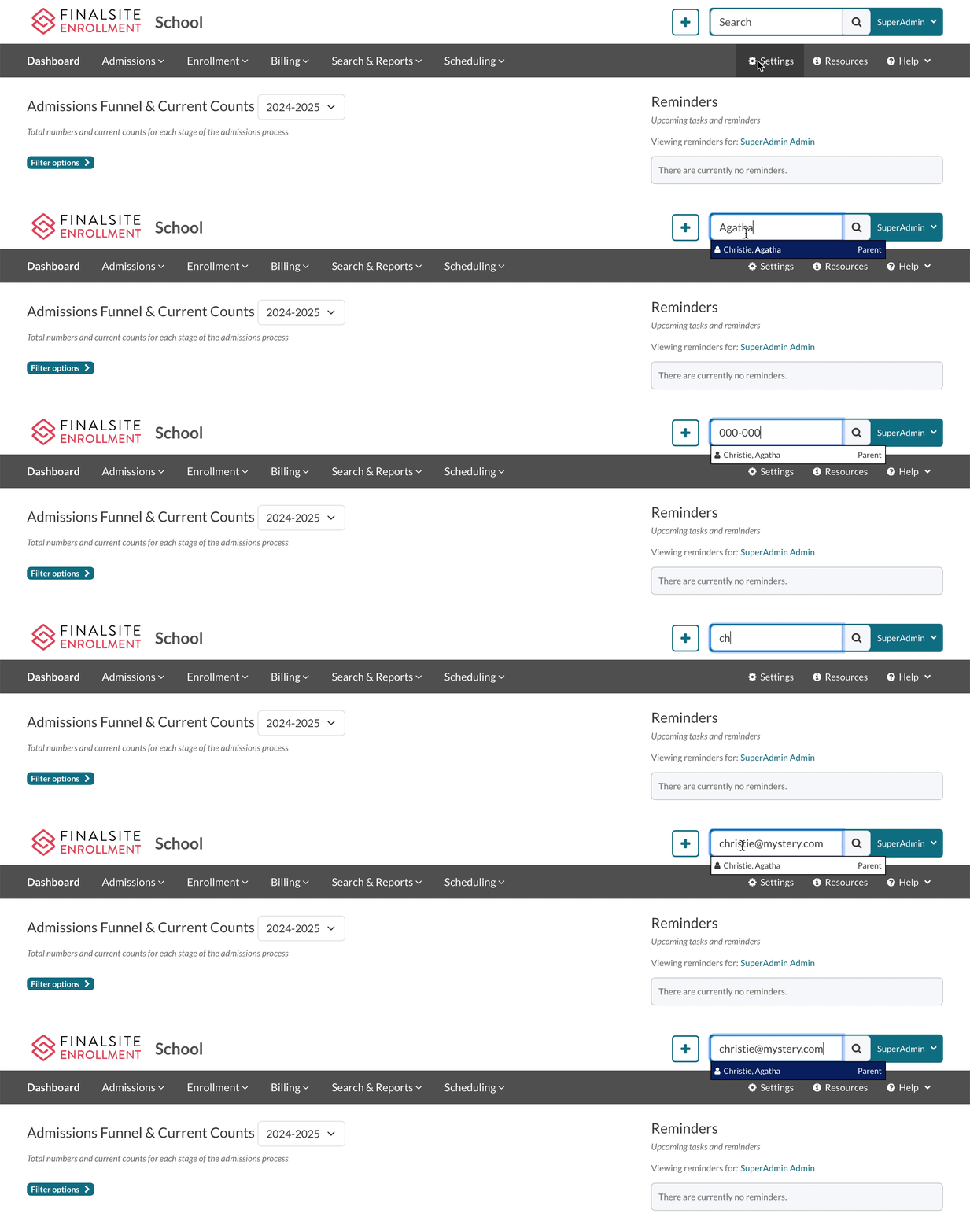
Step 1. Type a name, email, or phone number into the Quick Search bar located in the top, right corner of your site. As you type, a list of contacts will appear below the search bar.
Step 2: Select the contact to proceed to their record, or, hit Enter or Return on your keyboard to view the results in a Search.
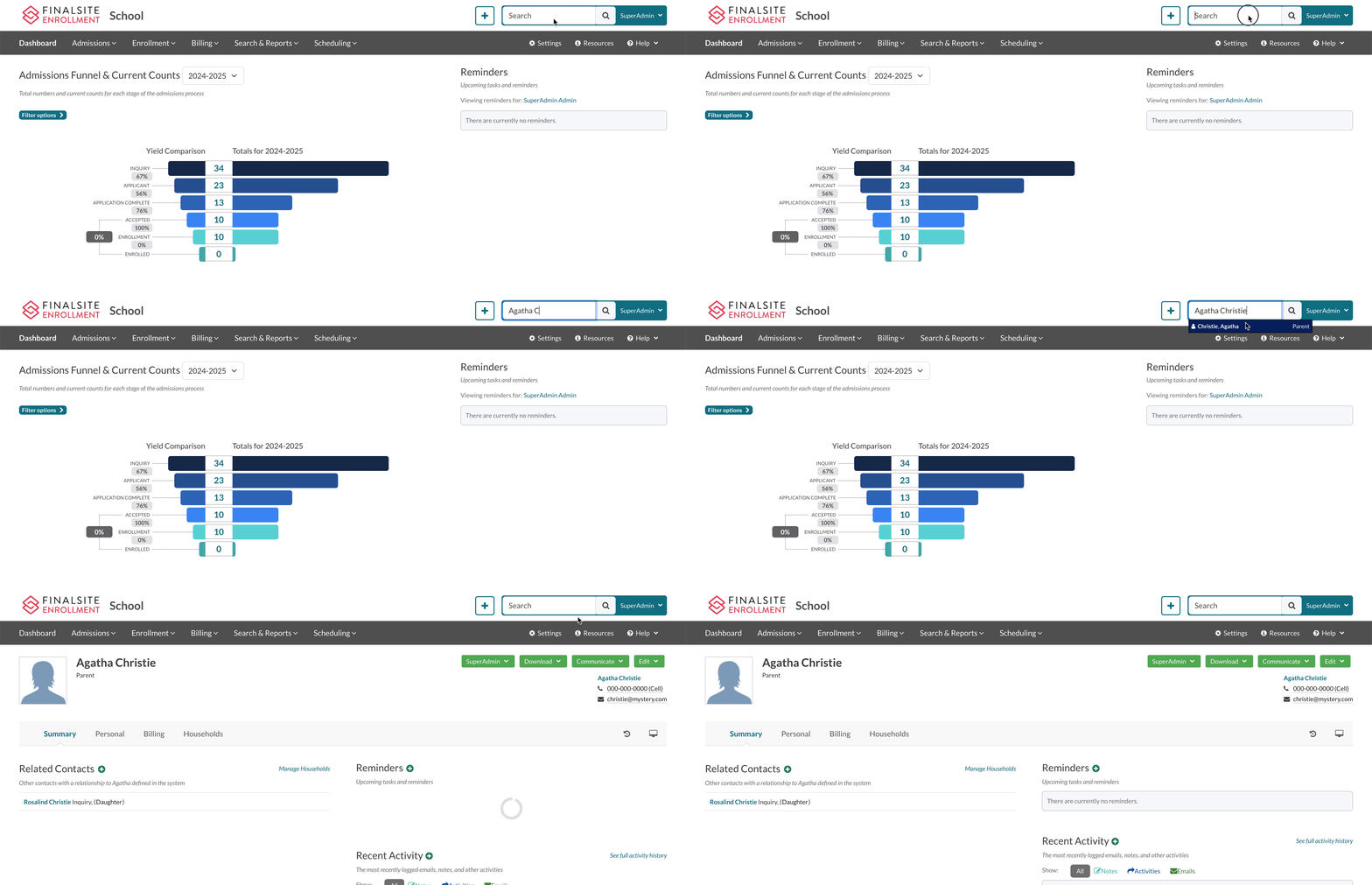
Notes about Quick Search
- The system returns results for partial searches. As you start to enter a name, email, or phone number you will quickly see results populate.
- The system recognizes the following information within the Quick Search bar:
-
Name
- A contact's first, last, or preferred name.
-
Email
- Special symbols in email addresses (like the @ sign).
-
Phone
- Hyphens and parentheses in phone numbers.
- Inclusion of the area code and/or the country code in phone numbers.
-
Name
Pro-tip
If you don’t see the desired contact in the list, hit enter on your keyboard and the full results list will open up in a search view.
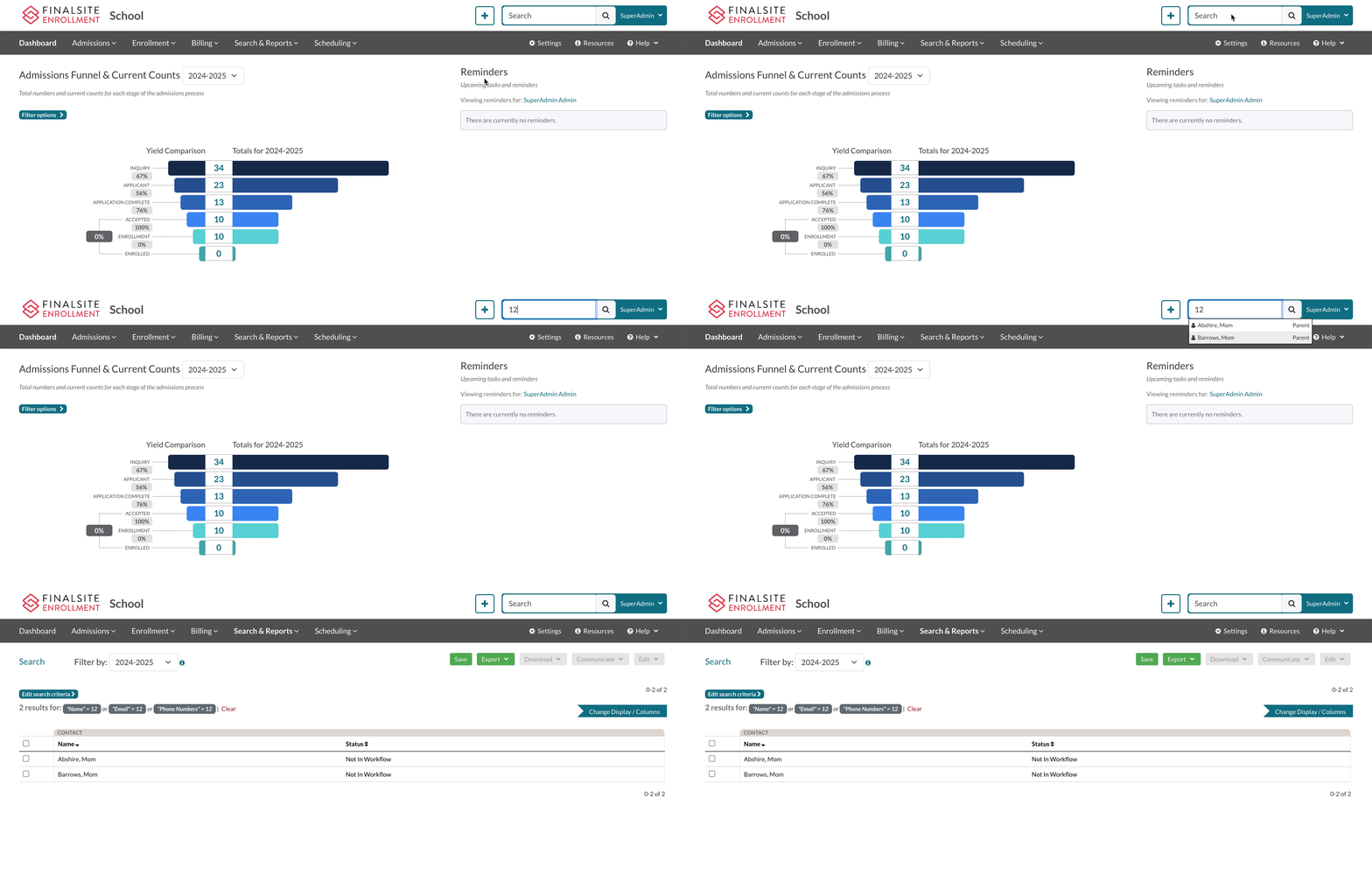
Example of hitting Enter or Return on your keyboard to view the results within a Search.
Comments
0 comments
Article is closed for comments.