
From Search & Reports, you can build custom searches across contacts, save and rerun them, and bulk-act on the results (download forms, send emails, update statuses, edit fields). Searches are built from criteria combined with AND/OR logic and filtered by term, so understanding how those statements interact is key to getting accurate results.
💡Quick Answers
- Where do I start a new search? Search & Reports > Search. Pick a term from the top filter (or Current Term for the most recent in-workflow data per student), then add criteria.
- What's the difference between AND and OR in search? AND combines criteria so all must be true (e.g., Applicant AND transcripts submitted). OR starts a fresh independent search; any criteria above the OR is one search, and anything below is another. To get scoped results across both, repeat the shared criteria after the OR.
- Why is my OR search returning more contacts than expected? OR creates two independent searches. If you intended scholarship-requested students who are also Enrollment in Progress, you must repeat the Enrollment in Progress criteria below the OR. Otherwise the OR side returns ALL scholarship-requested contacts regardless of status.
- What types of criteria can I search by? Admissions Status, Enrollment Status, Activity, Checklist Item, Calendar Event, and All Other Fields (catches custom fields, parent info, household data, role, etc.). Status and checklist criteria support multi-select.
- How do I confirm my search reads correctly before running it? Look below the criteria area, just above the blue Submit button. The system writes out your search in plain English as you build it, so you can sanity-check AND/OR logic before hitting Submit.
- What can I do with a search once it's built? Save it, Export it (see Saving & Exporting Searches), Download (forms or contact photos in bulk), Communicate (send emails, text messages, generate letters/labels), or Edit (add notes/activities, change statuses, update fields, remove students from a term).
Experiencing slow load times when opening a Search?
Search performance can be affected by several factors, including the number of results returned, the amount of search criteria and columns, your browser cache, browser type, and network conditions.
To improve performance, try:
- Clearing your browser's cache and cookies
- Opening the system in an incognito/private window
- Updating your browser to the latest version
- Switching to a different browser
- Connecting from a different network
If the issue persists, it may be due to a large number of results, extensive search criteria or columns, or other system-related factors. Start by contacting your IT department, and if you still need help, submit a request to Finalsite Support.
Within Search & Reports > Search, you have a variety of options for building and editing a search or report.
Filter by
At the top of the Search page, you first have the option to select which term your search should be filtered by.
- When selecting a term filter, the results list displays contacts who have a status set for that term, otherwise known as "in workflow".
- Selecting different terms will update the data for fields that are stored year over year, such as status & role.
- The "Current Term" option will return the data for the most recent "in workflow" term for the students.
Menu Options

Within a search, you have the following action items to choose from:
- Save: Save your search. Read more on this within this article.
- Export: Export your search. Read more on this within this article.
- Download: The download menu allows you to download contact photos and forms in bulk.
- Communicate: The communicate menu enables you to send emails, text messages, or generate letter or label templates.
- Edit: The edit menu allows you to add notes or activities to the students, change their status, update a checklist item or a field or remove the student(s) from the term.
Types of Search Criteria
You can pull up contacts using multiple different search criteria types:
Please note that the Admissions Status, Enrollment Status, and checklist item fields are multi-select so you can select multiple options here.
Search Statements
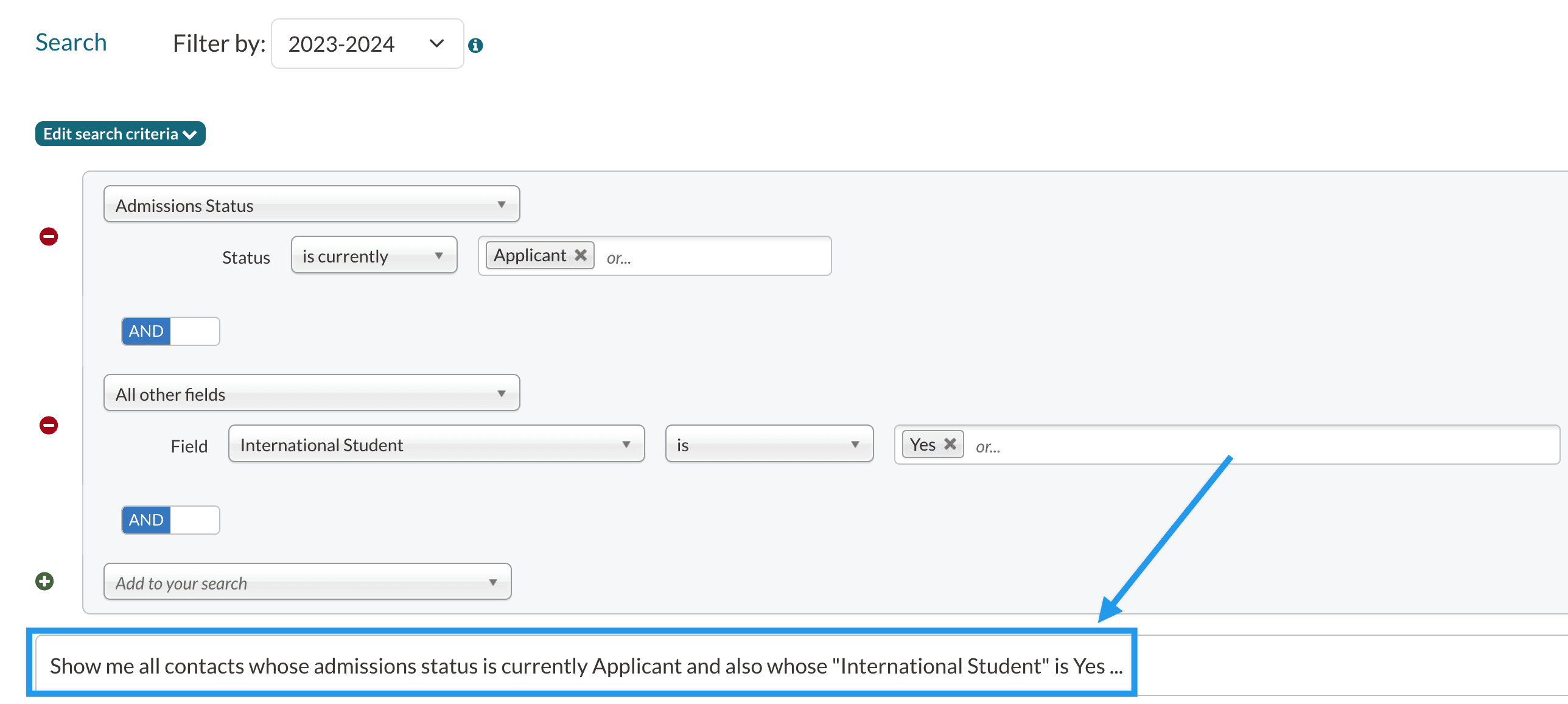
Searches are built by combining one or more items under 'Edit search criteria'. To check your work, the written statement or natural language of your search terms will display below your search criteria (right above the blue Submit button) as you build out your search. This is a great way to check your search terms will populate the desired results, especially when combining 'AND' statements and 'OR' statements. See the section below for more information.
And/Or Searches
When building your search, be sure to select if you want 'AND' or 'OR' between search criteria to populate your desired results.
While an 'AND' search combines multiple search criteria that you want to be true for the contacts (e.g. show me all students who are applicants AND have their transcripts submitted), an 'OR' search is like building a new search from scratch. This means that any criteria set above the 'OR' option will be its own search and anything below it will be a second search. We illustrate this by the white space created once you select 'OR'.
Here is an example of using an 'OR' statement in search:
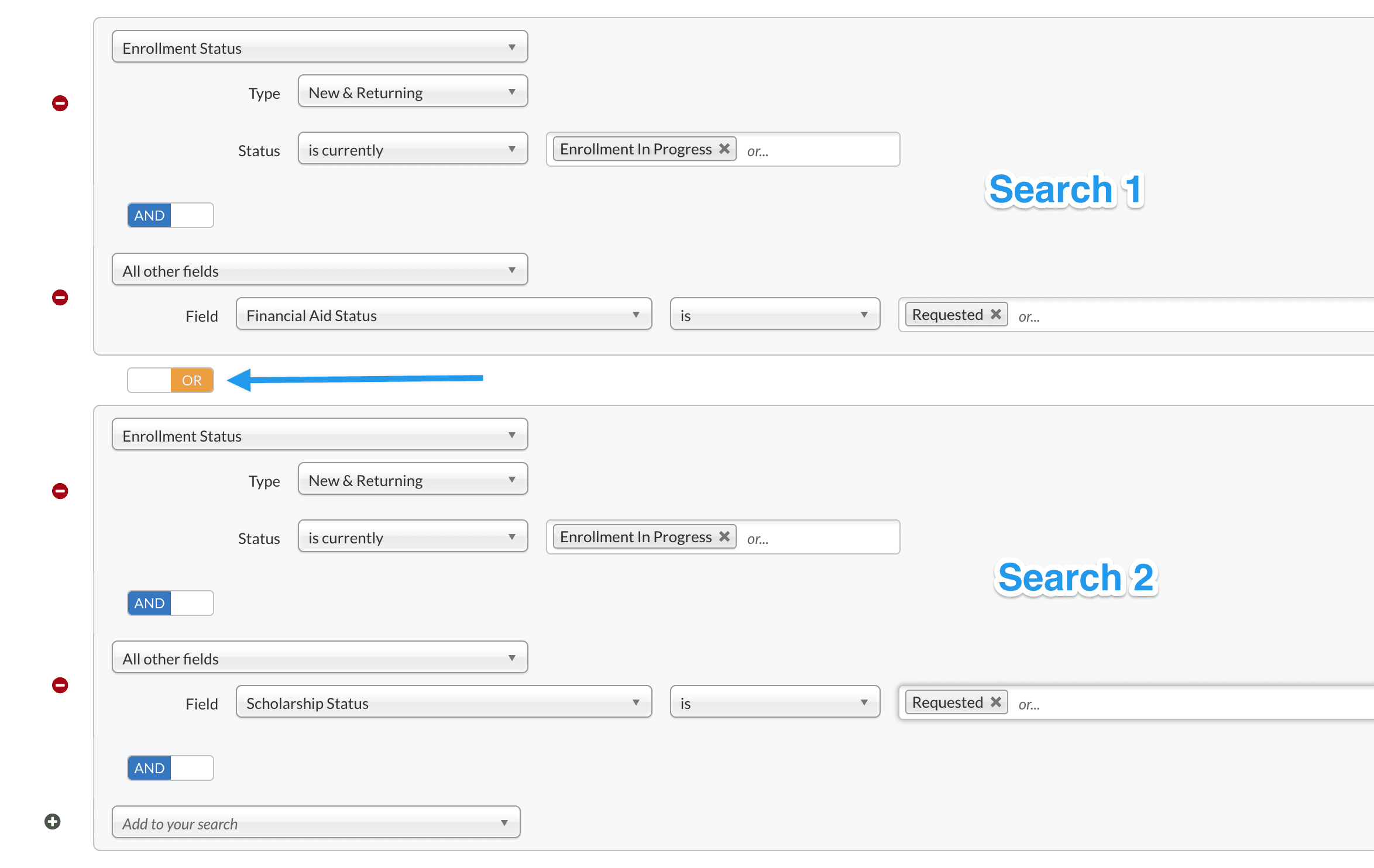
I want to search for all of my students that have a current enrollment status of Enrollment in Progress AND a financial aid status of requested OR a scholarship status of requested. Let’s break this down even further:
Criteria 1: Enrollment status is currently enrollment in progress.
AND
Criteria 2: Financial aid status is requested.
OR
Criteria 3: Scholarship status is requested.
We have three sets of criteria; however, the first two are tied together as one search because of the 'AND' in between them. The third criteria is now its own search and is looking for any contact with a scholarship status of requested, but no student type is specified. If you would like to see the scholarship status of only your students in the enrollment status Enrollment in Progress, you would need to add this criteria again after the 'OR', as displayed below.
Comments
0 comments
Article is closed for comments.