
Once Review is set up for a term, Admins and System Admins with Admissions permission can assign Readers to candidates individually from a student record or in bulk from the Applicants workflow page. Assignment automatically moves the candidate's status to Review in Progress (internal-only) and notifies the reader by email.
💡Quick Answers
- Who can assign readers? Admins and System Admins with the Admissions permission. The Manage Readers option is hidden in the Edit menu if Review hasn't been set up for the term, so set up Review first.
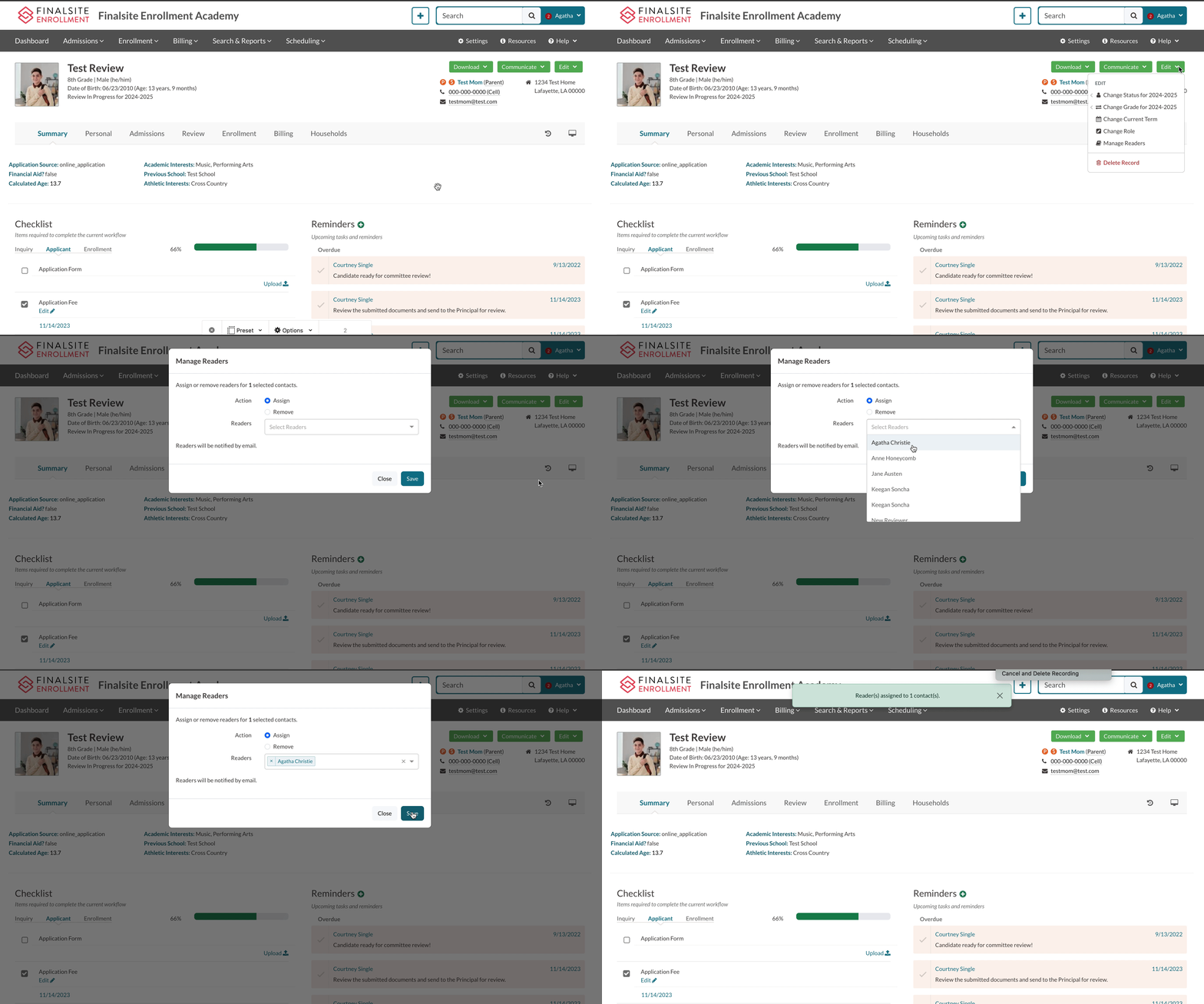
- How do I assign a reader from one student's record? Edit menu > Manage Readers, confirm Assign in the Action column, pick the reader from the dropdown, click Save. The reader gets an email the next morning, and the candidate moves to Review in Progress automatically.
- How do I assign readers in bulk? Admissions > Students in Admissions > Applicants, optionally filter the list, check students, then Edit menu > Manage Readers, pick Assign and the reader, click Save.
- How do I remove a reader? Same Manage Readers menu, but choose Remove in the Action column. Removed readers are not notified automatically, and their scores and comments disappear from the candidate's record (but are restored if you reassign them later).
- Should I manually set a status to Review in Progress? No. Let the system apply it automatically when you assign the first reader. Manual changes to this status can cause inconsistencies.
- How are readers notified? The Reviews Assigned to Me (Daily Summary) notification turns on automatically when you grant Reader permissions. Readers get one digest per morning listing all candidates assigned to them, and they can turn it off from their own User Notifications page.
In this article
- Assign Readers to Candidates from the Student Record
- Assign Readers to Candidates in Bulk from the Admissions List Page
- Reader Notification
- Reader Rxperience
Assign Readers to Candidates from the Student Record
Admins and System Admin can manage (assign or remove) readers directly from the student record.
To Add a Reader
- Open the Edit dropdown Menu in the top right.
- Select Manage Readers.
- In the Action column, Assign should automatically be selected. If it's not, select it.
- In the Readers dropdown, select or type in the name of the reader you'd like to add.
- Click Save.
A Few Additional Notes:
- The reader(s) will automatically be notified by email that they have been assigned to the candidate.
- Upon assignment, the candidate's status is automatically adjusted in the system to Review in Progress. This is an internal-only status that parents will not see. It is not recommended to manually change a student's status to Review in Progress but, rather, allow the system to automatically apply the status with the assignment of the reader.
Setting Up Review
Please note that the Manager Readers option will not be visible in the Edit menu if Review has not been set up for that term. Learn more about setting up Review in "Online Review Overview."
To Remove a Reader
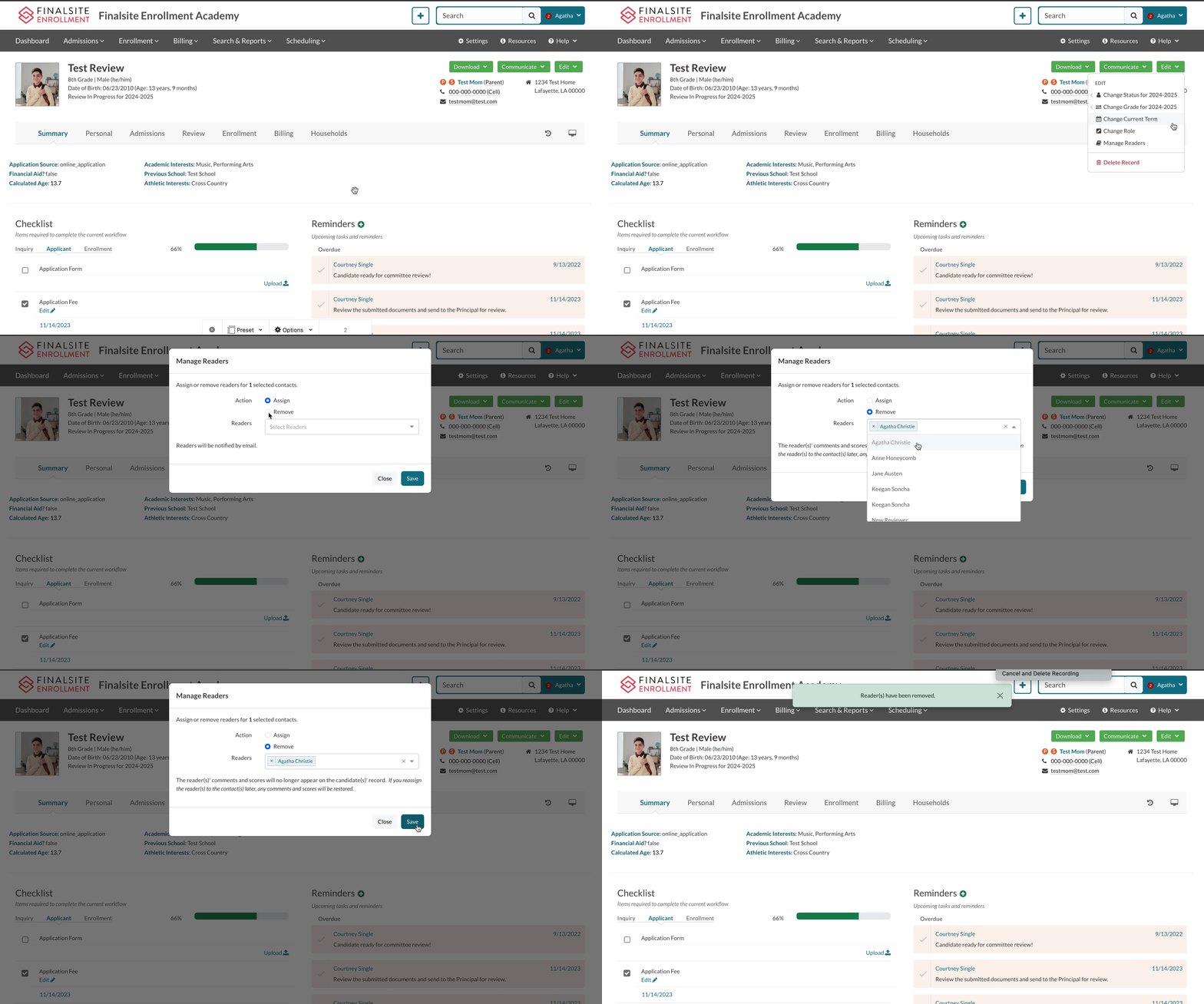
- Open the Edit dropdown Menu in the top right.
- Select Manage Readers.
- In the Action column, select Remove.
- In the Readers dropdown, select or type in the name of the reader you'd like to remove.
- Click Save.
A Few Additional Notes:
- Readers are not automatically notified that they have been removed from the candidate.
- The removed reader(s)' comments and scores will no longer appear on the candidate(s)' record. If you reassign the reader(s) to the contact(s) later, any comments and scores will be restored.
Assign Readers to Candidates in Bulk from the Admissions List Page
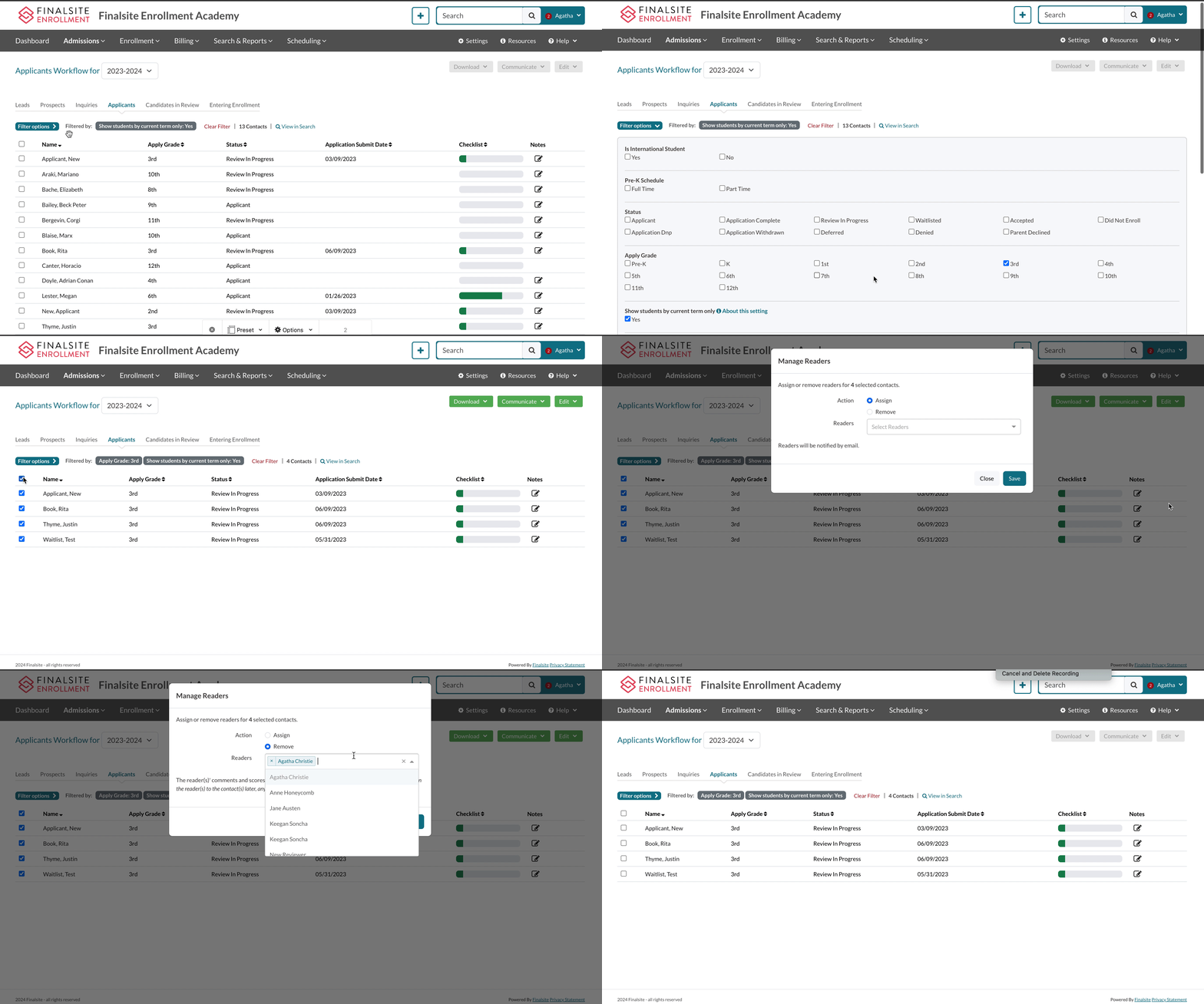
Admins and System Admin with Admissions permission can manage (assign or remove) readers in bulk from the Applicants Workflow page (Admissions > Students in Admissions > Applicants).
Now That's an Idea!
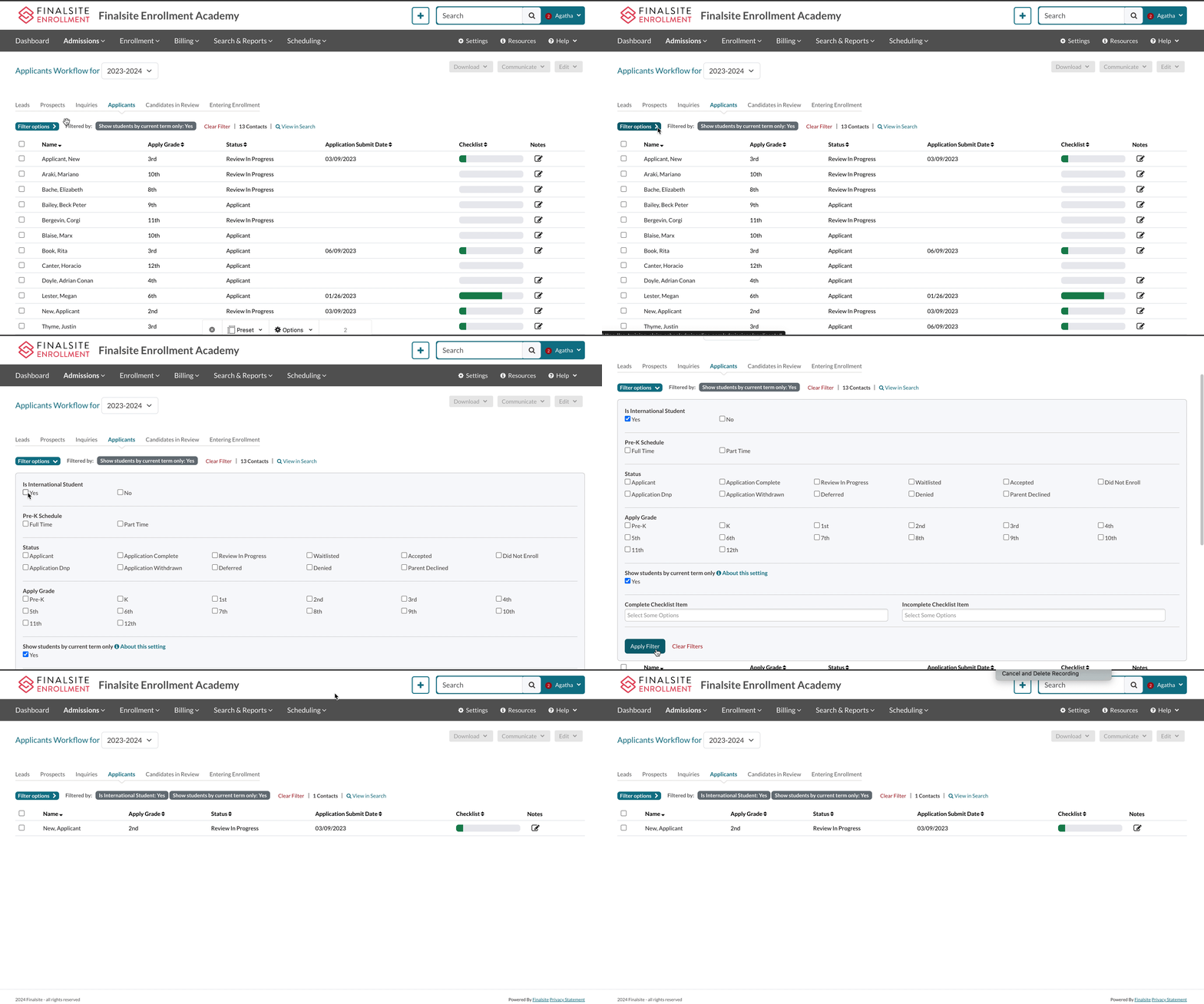
To streamline the assignment process it might make sense for your school to use the Filter Options in the Applicants Workflow page to narrow your candidate pool when assigning readers. For example, if you assign specific readers to international students, you can filter this page to show only international students to easily assign candidates to them.
Pro tip: You can request Custom Filter options added to the dropdown by contacting our Support team.
Assign Readers in Bulk
- Navigate to Admissions > Students in Admissions > Applicants.
- Optional: Use the Filter Options menu to narrow your candidate pool.
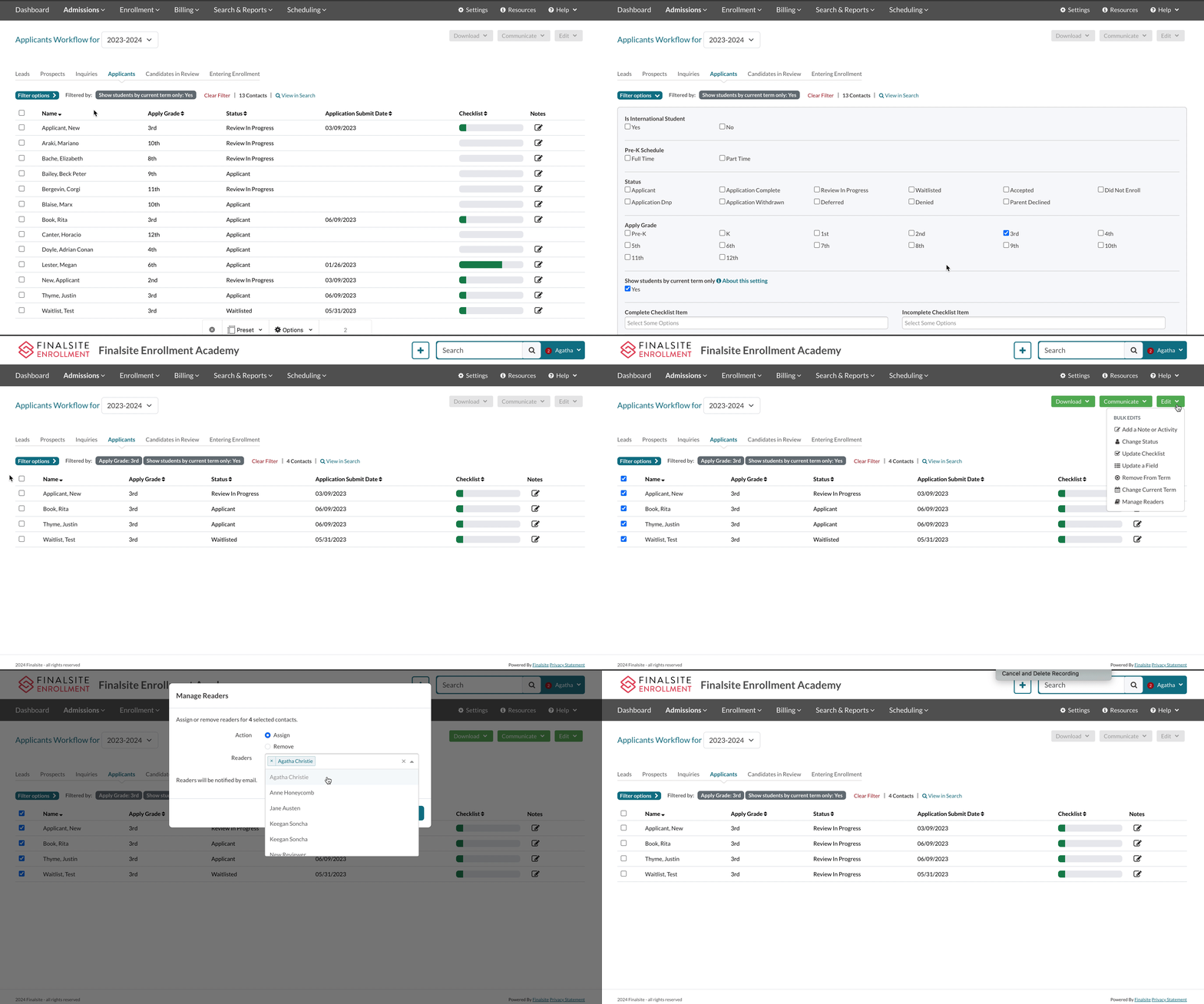
- Select the readers you'd like to assign readers to OR select the top checkbox to bulk select everyone on the page.
- Open the Edit dropdown menu in the top right of the page.
- Select Manage Readers.
- In the Action column, select Remove.
- In the Readers dropdown, select or type in the name of the reader you'd like to remove.
- Click Save.
A Few Additional Notes:
- The reader(s) will automatically be notified by email that they have been assigned to the candidate.
- Upon assignment, the candidate's status is automatically adjusted in the system to Review in Progress. This is an internal-only status that parents will not see. It is not recommended to manually change a student's status to Review in Progress but, rather, allow the system to automatically apply the status with the assignment of the reader.
Removing Readers in Bulk
- Navigate to Admissions > Students in Admissions > Applicants.
- Optional: Use the Filter Options menu to narrow your candidate pool.
- Select the readers you'd like to assign readers to OR select the top checkbox to bulk select everyone on the page.
- Open the Edit dropdown menu in the top right of the page.
- Select Manage Readers.
- In the Action column, Assign should automatically be selected. If it's not, select it.
- In the Readers dropdown, select or type in the name of the reader you'd like to add.
- Click Save.
A Few Additional Notes:
- Readers are not automatically notified that they have been removed from the candidate.
- The removed reader(s)' comments and scores will no longer appear on the candidate(s)' record. If you reassign the reader(s) to the contact(s) later, any comments and scores will be restored.
Reader Notifications
When you assign reader permissions to any User, the Reviews assigned to me (Daily Summary) email is automatically enabled. This means that, once a day, the admin receives an email in the morning that lists all candidates that have been assigned to them for review.
Additional Notes
- Notifications are sent out once per day (very early in the morning), which means the assigned readers won’t get multiple notifications in a day if you add additional students or remove students later that same day.
- Readers can turn off this notification within their Username menu on the User Notifications page. You can read more about user notifications here.
Reader Experience
Depending on the permissions setup of your readers, they will see slightly different things on the student record. Read below to learn about the view of a Limited User reviewer vs. the view of someone who has permissions as an Admin at the school.
Reader-only (Limited User) View
When a reader without full Finalsite Enrollment access logs in, they will be presented with their Review List Page, which will show all outstanding candidates left to be reviewed under the My Assigned Reviews tab. Once a candidate has been scored on all rating criteria, they will move to the My Completed Reviews tab. To begin the review process, each reader will click on the green Review button to the left of each candidate's name.
Admin with Reader Permissions View
For any admins or users with reading rights, you can access your assigned candidate list within the Admissions List Page > My Reviews tab. All outstanding candidates left to be reviewed will be displayed under the My Assigned Reviews tab. Once a candidate has been scored on all rating criteria, they will move to the My Completed Reviews tab. Please note, that it may take a few minutes for the candidate to move from one tab to the next. To begin the review process, each reader will click on the green Review button to the left of each candidate's name.
Additional Resources
- Office Hours & Past Session Recordings
- Click here for Online Review Setup Guides and How-To's
- Finalsite Enrollment Blog: Simplify the Evaluation Process
Comments
0 comments
Article is closed for comments.