
User Notifications are system-generated emails that alert you to activity in Finalsite Enrollment, like new inquiries, submitted contracts, completed checklist items, failed payments, or new payouts. Each notification is either Immediate (sent right when the event happens) or Daily Activity Summary (one digest per morning). What's available to you depends on your account type and permissions; some notifications require specific permissions to enable.
💡Quick Answers
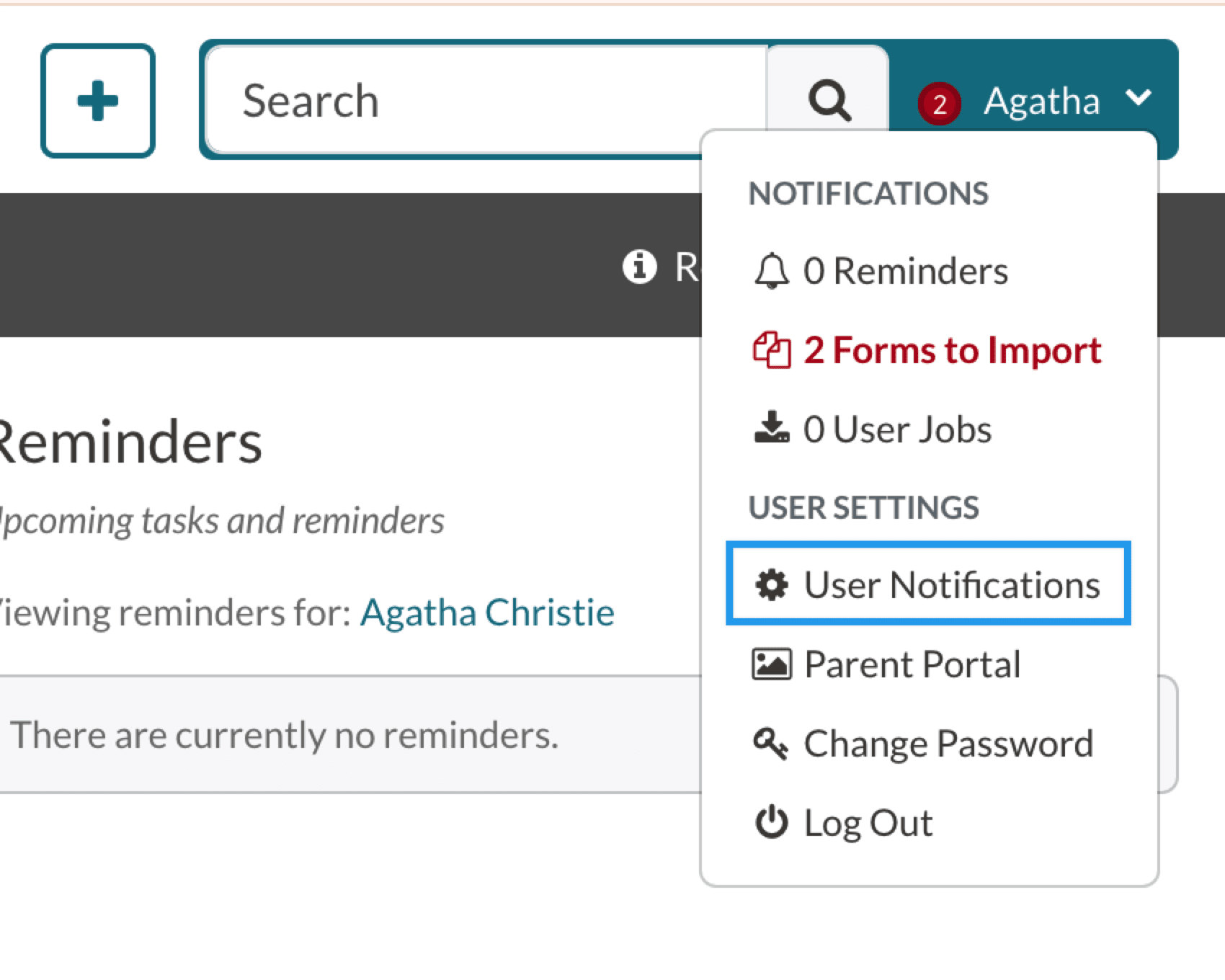
- How do I configure my notifications? Click the Username menu in the top right and select User Notifications.
- What's the difference between Immediate and Daily Activity Summary? Immediate sends an email the moment the event happens. Daily Activity Summary collects multiple notifications into one digest sent early each morning.
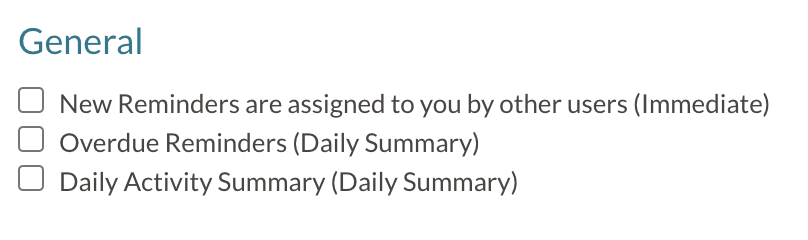
- Which general notifications are available to everyone? New Reminders Assigned to You (Immediate), Overdue Reminders (Daily), and Daily Activity Summary (a recap of contact-record Recent Activity entries).
- What inquiry and admissions notifications can I get? New Inquiry from Parent (Immediate), New Application from Parent (Immediate), and the Admissions Checklist Completion Report (Daily). Schools using Direct Enrollment see Enrollment-form versions of the application notifications instead.
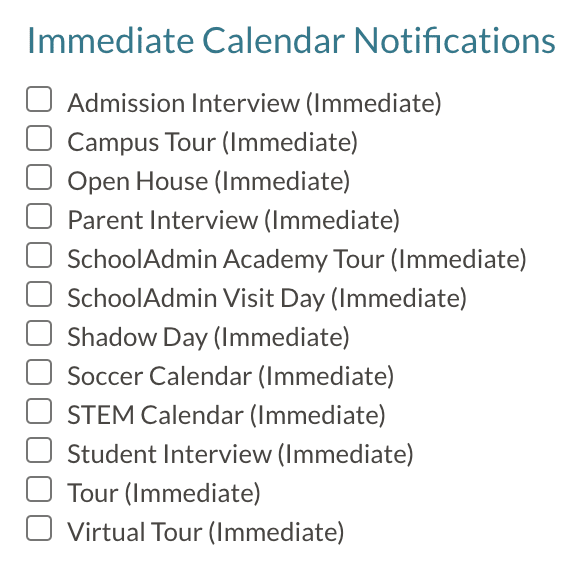
- Can I enable notifications only for specific calendars? Yes. Under Immediate Calendar Notifications, you select individual calendars. Each notification includes the calendar name, the person who booked or rescheduled, and the appointment date and time. For rescheduled appointments, the date shown is the new date, not the original.
- What do the Billing notifications cover? Failed Payment Notification (sent when an ACH payment or refund fails) and New Payout Notification (sent when a payout is initiated, with the amount, expected arrival date, and a link to the payout). Both work for schools regardless of whether they use the Billing module.
- Are these notifications for parents too? No. User Notifications are internal only. Parent-facing emails (confirmations, reminders, cancellations) are set per calendar inside Calendar Settings.
In this article
- Configuring Notifications
- General Notifications
- Lead Notifications
- Inquiry Notifications
- Admissions Notifications
- Review Reader Notifications
- Enrollment Notifications
- Immediate Calendar Notifications
- Billing
- Data
Configuring Notifications
Under the Username menu in the top right, a user can choose to update their notifications. This takes the users to the User Notifications settings page.
General Notifications
- New Reminders are assigned to you by other users: Once another admin or user in the system assigns a reminder to you, you'll immediately receive an email with the details of the reminder including student name, due date, and the reminder text.
- Overdue Reminders: Once a day, you'll receive an email in the morning with the details of all overdue reminders including the student name, due date, and reminder text.
- Daily Activity Summary: Once a day, you'll receive an email in the morning with all activities that have been set in the 'Recent Activity' section of contact records.
Lead Notifications
- Lead received from parent (Immediate): Once a new Lead enters the system, you'll immediately receive an email with the student's name, grade, and term. The email template can be viewed in your email template settings and is named "Lead Received From Parent Notification."
Inquiry Notifications
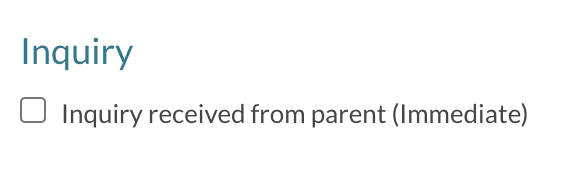
- Inquiry received from parent (Immediate): Once a parent/guardian submits an Inquiry form, you'll immediately receive an email with the child's name, inquiry grade, inquiry term, and a link to view their inquiry form. The email template can be viewed in your email template settings and is named "New Inquiry Notification."
Admissions Notifications
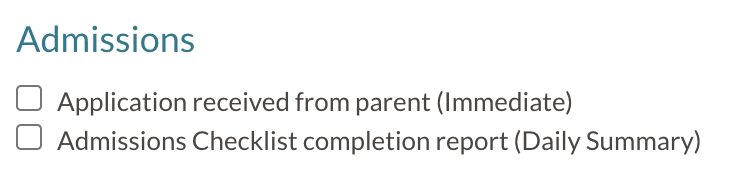
- Application received from parent (Immediate): Once a parent/guardian submits an Application form, you'll immediately receive an email with the child's name, apply grade, apply term, and a link to view their application form. The email template can be viewed in your email template settings and is named "New Application Notification."
- Admissions Checklist completion report (Daily Summary): Once a day, you'll receive an email in the morning that summarizes all Admissions checklist items that have been marked complete the day before. This report will include the student's name, grade, status, admission checklist item title, checklist completion date, and a link to the dashboard near the bottom to view all reminders.
⚠️ Important Note for Direct Enrollment Schools
Schools and districts using Direct Enrollment will see the Enrollment received from parent (Immediate) and Enrollment Checklist completion report (Daily Summary) notification options instead of the Application and Admissions Checklist notifications listed above. Learn more about the enrollment notifications in the section below.
Review Reader Notifications
Who has access to enable this notification?
Type: Any Admin Type
Permission: Reader
-
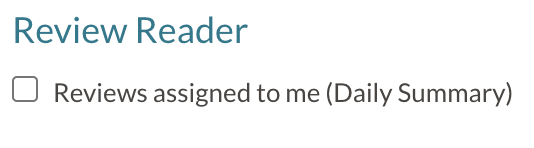
Reviews assigned to me: Once a day, you'll receive an email in the morning that lists all candidates that have been assigned to you for review.
- This notification is automatically enabled when any user is assigned reader permissions under the Admin Accounts page (Settings > Portal > Admin Accounts).
- Please note, this page is only accessible by a System Admin.
- This notification is automatically enabled when any user is assigned reader permissions under the Admin Accounts page (Settings > Portal > Admin Accounts).
Enrollment Notifications
Who has access to enable these notifications?
Type: System Admins, Admins, and Users
Permission: Enrollment
- Contract Submitted: Once a parent/guardian submits a contract, you'll immediately receive an email with the student's name, enroll grade, enroll term, and a link to view the contract. Important note: This notification requires both enrollment and financial permissions to be granted
- Enrollment Checklist completion report: Once a day, you'll receive an email in the morning that summarizes all enrollment checklist items that have been marked complete the day before. This report will include the student name, enroll grade, status, enrollment checklist item title, checklist completion date, and a link to the dashboard near the bottom to view all reminders.
-
Contracts needing countersign (Daily Summary): Once a day, you'll receive an email in the morning that lists all contracts that need to be countersigned.
- Please note: you can only enable this notification if you are set up with the Countersign permission.
-
Enrollment received from parent (Immediate): Once a parent/guardian submits an Enrollment form, you'll immediately receive an email with the child's name, grade, term, and a link to view their enrollment form. The email template can be viewed within your email template settings and is named "New Enrollment Notification."
- Please note: This notification is only available to schools using Direct Enrollment.
Immediate Calendar Notifications
Who has access to enable these notifications?
Type: System Admins, Admins, and Users
Permission: Scheduling
You can select what calendars you'd like to receive immediate email notifications for. This email will include all details included in the registration form for that particular calendar.
You will receive two types of communications if you have enabled this for any of the calendars:
- You will receive a notification email when an appointment is booked for the first time.
- You will receive a notification email anytime the event is rescheduled by the parent.
About the Email
The subject of the email will contain the name of the calendar and will either say that the appointment was 'scheduled' or 'rescheduled' depending on which has occurred.
Subject for when an appointment is scheduled: An Appointment was scheduled for the {calendar name will appear here} calendar.
Subject for when an appointment is rescheduled: An Appointment was rescheduled for the {calendar name will appear here} calendar.
The contents of both emails are the same. They both contain basic information about the appointment including the name of calendar, the person who booked (or rescheduled) the appointment, and the date/time of their appointment.
Please note: For rescheduled email notifications, the date listed within the email is the date the event has been rescheduled to (rather than the date for the original appointment.)
Parent notifications
The notifications set on the User Notifications page are internal only. To set notifications for parents such as confirmation, reminder, and cancellation emails, you'll need to turn these on for each calendar. Click here to learn more.
Billing
The Billing module is not a prerequisite for these notifications. Schools that are not using the Billing module still have access to and can receive these notifications.
Failed Payment Notification
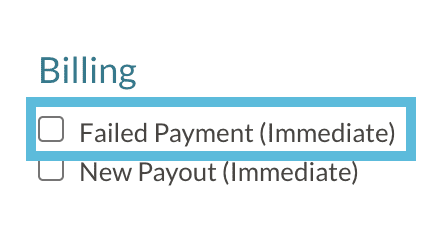
With the Failed Payment Notification enabled, you will be automatically notified in two scenarios:
- When an electronic check (ACH) payment fails.
- When a refund fails.
Failed Payments
- These notifications are sent immediately upon a failed ACH payment occurring, and the template can be updated under Settings > Communication > Email Templates > System Emails > Failed Payment Notification.
- With this notification enabled, every time an ACH payment fails, you will be notified by email with the following information:
A failed payment has occurred for:
Student(s): {{order.related_students}}
Account Name: {{order.payer_name}}
Failure Reason: {{order.payment_failure_reason}}
View Payment: {{order.view_payment_link}}
Failed Refund
- In the case that a refund fails, you will be automatically sent the Failed Refund Notification email. This email is not sent to parents, only to admins with the Failed Payment notification enabled under User Notifications.
- The template for this email can be updated under Settings > Communication > Email Templates > System Emails > Failed Refund Notification.
- The unedited template includes the following:
Subject: Failed Refund
The refund issued to {{ order.payer_name }} in the amount of {{ failure_transaction.amount }} has failed with the failure reason: {{ failure_transaction.message }}.
If billing is in use, the payment has been added back to the customer ledger.
The refund for this payment cannot be made within the system and will need to be issued to the customer directly
New Payout Notification
Who has access to enable this notification?
Type: System Admins and Admins
Permission: Financial
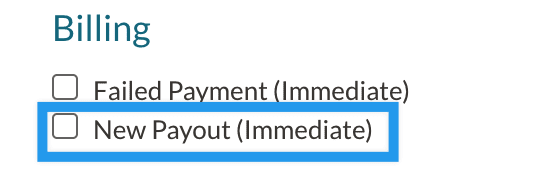
- This notification will send an email as soon as a payout is initiated. The email for this notification is located within Settings > Communication > Email Templates > System Emails. It is called New Payout Notification.
- It can be edited and reverted to the system default, if necessary.
- This email will also appear under the Sent Emails page when sent.
New Payout Email Details
- The notification will show the amount and date of arrival to your bank and will also include a link to the payout.
- The subject of the email is New Payout.
-
The body of the email contains the following text:
A payout of {{payout.amount}} has been initiated and will be available on {{payout.available_date}}.Payout link: {{payout.view_payout_link}}
Data
Results from the Blackbaud Sync Process
This is a daily email record of updates made in Blackbaud that were written back to EMS, resulting in field updates.

Comments
0 comments
Article is closed for comments.