
Documents for Review (Settings > Review > Documents for Review) is where you define exactly what your admissions committee sees when scoring candidates. You can toggle which checklist items appear in the reader view, choose whether to display Test Scores on a separate page, and select which Notes and Activities are exposed. Items only appear if the candidate actually has data for them, so applicants without high-school transcripts won't see that placeholder.
💡Quick Answers
- Which checklist items appear in the reader view? Only items you toggle on AND only when the specific candidate has data for that item. Items without data (e.g., High School Transcript on a Kindergarten applicant) stay hidden automatically.
- Are calendar items included in reviews? No. Calendar checklist items are automatically excluded since they hold scheduling data rather than reviewable content.
- How do I include test scores in the reader view? Toggle Display Test Scores on. At present, only SSAT scores imported through the integration appear there.
- Can I control which notes and activities readers see? Yes. Use the Additional Activity page and select which historical comments to expose. Notes you don't want reviewers to see (admin-only logs, sensitive backchannel) stay hidden.
- Can I reorder how items appear in the reader view? No. Order is set by the system and cannot be changed on Documents for Review.
- How do I hide sensitive field data from reviewers even when the form is included? Use Hide From Form on the field in Field Settings. Fields with Hide From Form display Hidden From View in form viewers regardless of admin permission. Parents still see their answer; the value still shows in searches and on contact records, just not on the form itself.
Configuring the reviewer view
Checklist Items
Select which documents from the Inquiry/Admissions Checklists to include for review by your readers.
- Switch the toggle between on and off to determine if a checklist item appears for reviewers.
- Only items containing data (forms, uploads, recommendations) will appear. Items like calendar events are automatically excluded.
- The system only shows items applicable to that specific candidate.
- Example: If "High School Transcripts" is toggled on but you are reviewing a Kindergarten applicant, that item will stay hidden.
Test Scores
Choose whether to display test scores on a separate page for your readers. At this time, only SSAT scores imported through the integration are shown.
- Toggle Display Test Scores on to show a separate page for Test Scores in the Reader View.
Notes & Activities
Select whether to include an “Additional Activity” page for review by your readers.
- Select which historical comments from the application process should be exposed to your readers.
- This provides context to the committee without cluttering their view with irrelevant logs.
Always click the Save Settings button in the upper right corner before navigating away!
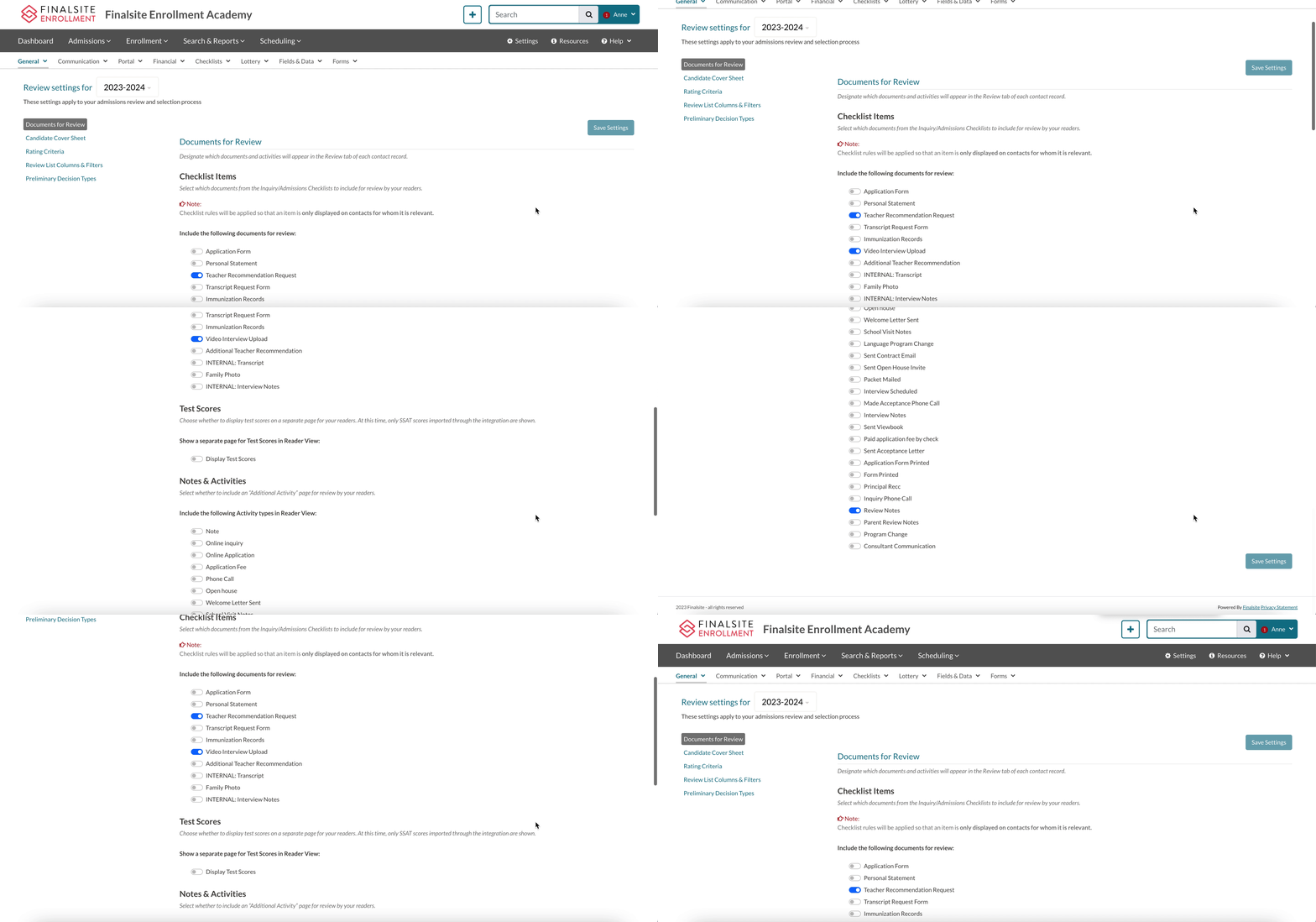
Item Order in Reader View
Checklist items and activities cannot be reordered or rearranged on the Documents for Review page. The order of items in the Review View is set by the system and cannot be changed.
Hide From Form (Hiding Form Data from Reviewers)
The Hide From Form option is available within Field Settings when creating or editing a field.
Choosing this option enables you to conceal the data stored within the field from admins who view the form. This can be particularly important during reviews if there's sensitive information on the form that shouldn't be visible to users reviewing it. In such cases, utilizing the Hide From Form option can be beneficial.
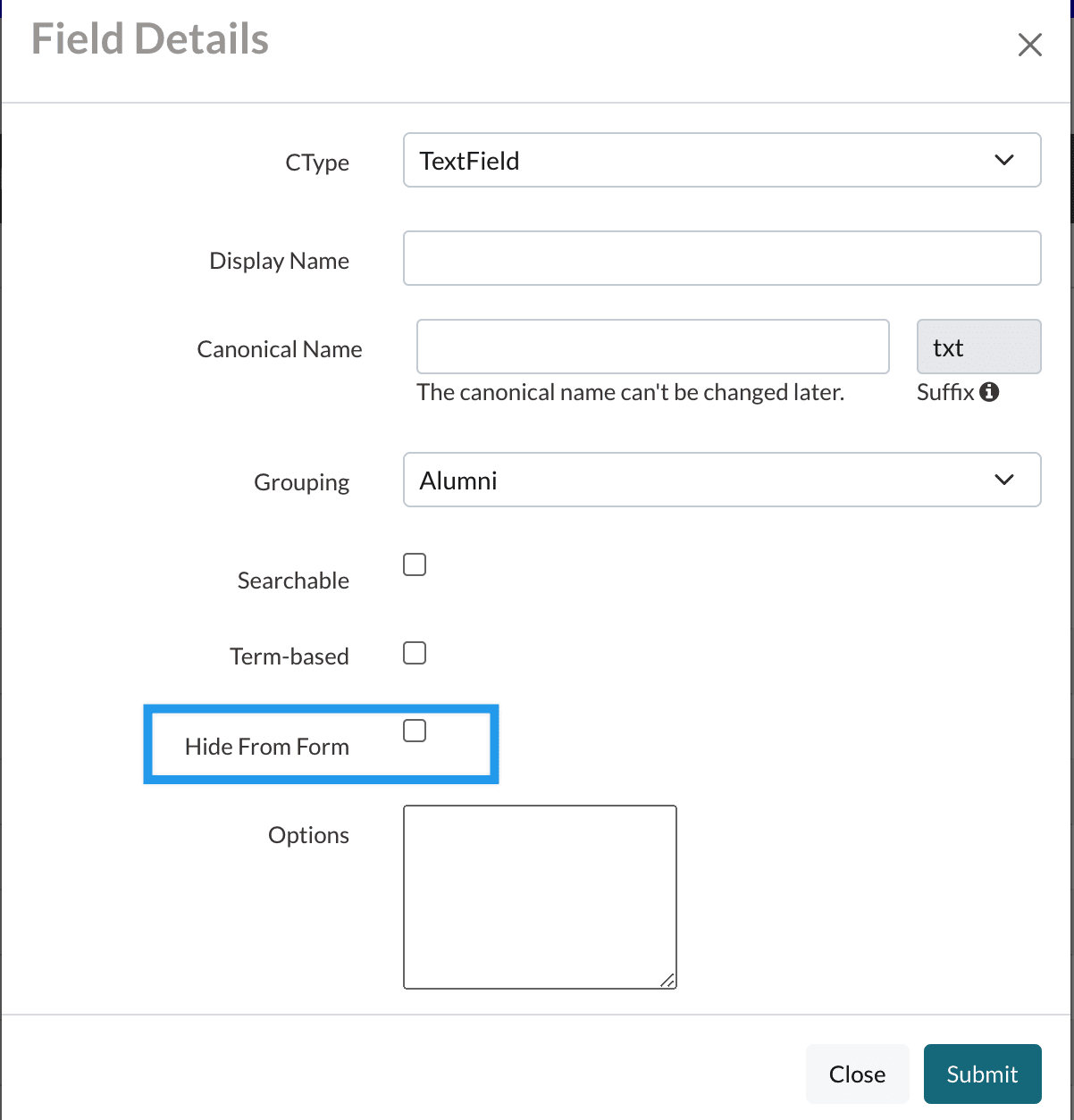
When Hide From Form is selected for a field, it conceals the value of that field from admins when they view it on a form.
For instance, in the image below, both the Gender field and the Applicant's Birth Date field have Hide From Form enabled. Consequently, when an admin views the form, they will not see the data stored in those fields.
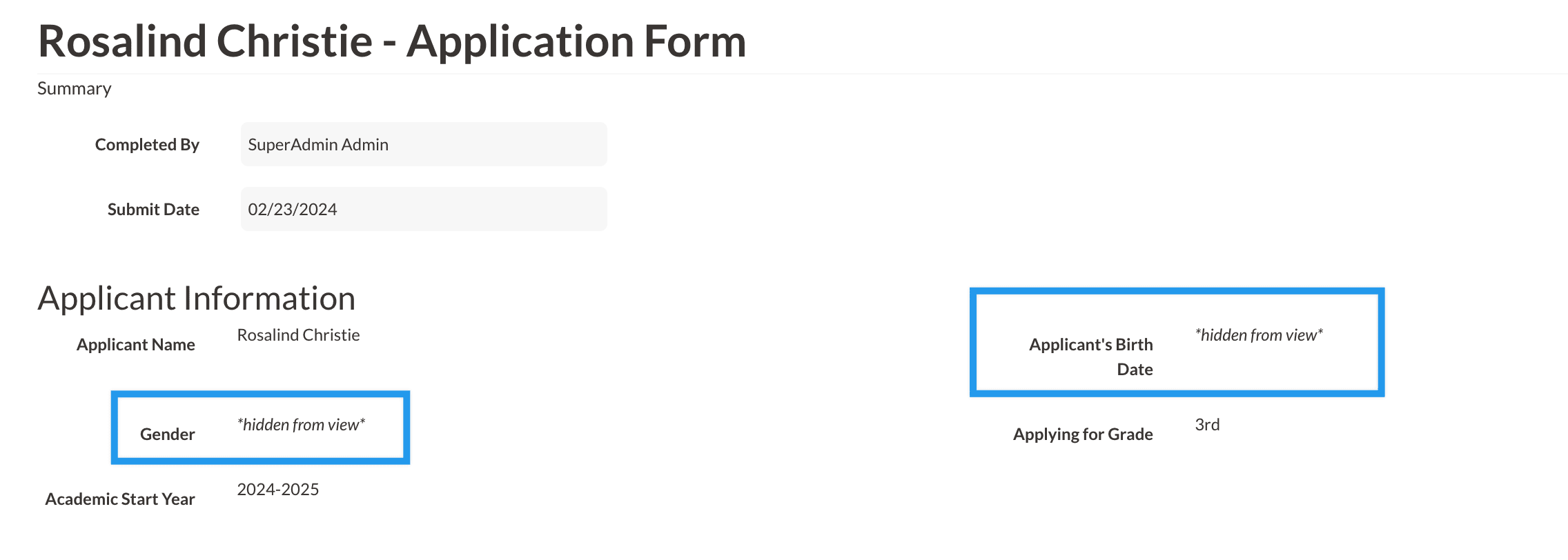
When "Hide From Form" is selected:
- Parents will still be able to see the data within the field on their end.
- Regardless of an admin's permission level, whenever they view forms on the record, download the PDF version of the form, or check out the form in the review module, they will encounter 'Hidden From View' instead of the actual data for any field with 'Hide From Form' enabled.
- This only applies to viewing the field on a form. Any field with 'Hide From Form' enabled will continue to display its data within searches, on the contact record (if the field is visible in the Contact Widget or within tabs like Personal, Admissions, or Enrollment), in emails, and any other location where the field is displayed. The information is only hidden from admin when they view the field on a form.
Good to know: Hide Form Form is reversible. You can de-select 'Hide From Form' in the field settings at any time and, as soon as you do so, the data will start to display again.
Additional Resources
- Office Hours & Past Session Recordings
- Click here for Online Review Setup Guides and How-To's
- Finalsite Enrollment Blog: Simplify the Evaluation Process
Comments
0 comments
Article is closed for comments.