
When a student leaves your school after enrollment, there's more to the process than just updating their status, especially for schools using the Billing module. This article walks through the primary withdrawal workflow: choosing the right status, updating the record, and closing out with the family. For Billing schools, a companion article, "Billing Cleanup for a Midyear Withdrawal Student," covers how to stop autopay and clean up the ledger.
Use this article for students who signed a contract and are mid-year departing.
💡Quick Answers
- How do I choose between Mid-Year Withdrawal and Not Enrolling? Use Mid-Year Withdrawal if the student was active or signed a contract and then left during the school year; use Not Enrolling if the student decided not to attend before the school year started.
- How do I update the student's status? Navigate to the student's contact record, click Edit, hover over Change Status, select Enrolled, and then choose the appropriate withdrawal status.
- Do I need to do anything else for billing after changing the status? Yes. Status changes do not affect the ledger. For Billing schools, you must manually stop autopay and follow the steps in the "Billing Cleanup for a Midyear Withdrawal Student" article to zero out future charges.
- Should I notify the family once the process is complete? Yes, a brief confirmation email is recommended to confirm the withdrawal, state the final account balance, and reassure the family that no further payments will be drafted.
In this article
- Step 1: Choose the Right Status (Mid-Year Withdrawal vs. Not Enrolling)
- Step 2: Update the Student's Status
- Step 3: Handle Billing (Billing Schools Only)
- Step 4: Communicate with the Family
- FAQ
Step 1: Choose the Right Status (Mid-Year Withdrawal vs. Not Enrolling)
| Scenario | Use This Status | What It Means |
| Student was enrolled, signed a contract, and then left during the school year. | Mid-Year Withdrawal | Student was active; tuition charges may already have been billed and/or paid. You'll likely need to adjust the ledger. |
| Student determined during the enrollment process that they are not enrolling or returning the following year (e.g., family relocated before the school year). | Not Enrolling | Student never became an active enrollee. Their ledger charges still exist and must be addressed, but the treatment is simpler. |
Updating the status does not change the ledger. A Mid-Year Withdrawal student and a Not Enrolling student can both have the same open charges; you'll still need to follow Step 3 for both. The status is how the rest of your team (and your Dashboard) understands what happened.
Read more about roles and statuses in our "Roles & Statuses Explained" article.
Step 2: Update the Student's Status
- Access the student's contact record and click on the Edit button.
- Hover over Change Status for XXXX-XXXX
- Hover over Enrolled
- Select Mid Year Withdrawal (or Not Enrolling, based on Step 1).
- In the confirmation pop-up, click Save.
What Updating the Status Does
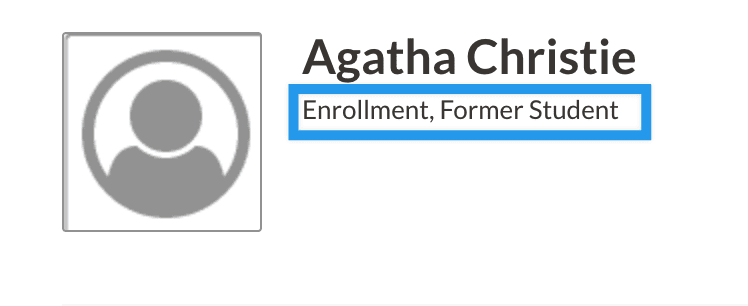
- Assigns the student the Former Student role.
- Moves the student Out of Workflow. They no longer count in your Dashboard Funnel or Current Counts.
- Does not waive contracted tuition, stop autopay, or adjust the ledger in any way.
What the Family Sees
Parents and guardians will no longer see the student in the Parent Portal, and the student's checklist will no longer be available to them when they log in.
Next Steps: Billing vs. Non-Billing Schools
- Non-Billing Schools: Skip to Step 4. Step 3 applies to Billing schools only.
- Billing Schools: Continue to Step 3.
Step 3: Handle Billing (Billing Schools Only)
After the status change, the ledger will continue to bill the family (and generate reminders, AR Aging entries, and billing emails) until autopay is turned off and every future month reads $0.00.
The billing cleanup involves:
- Stopping autopay
- Choosing among three ledger-cleanup approaches (Reverse Charge, Rearrange & Reverse, or Zero Out Contact)
- Handling edge cases (refunds and when contract regeneration is required).
Since the right path depends on how many installments remain, whether every month is the same amount, and whether any charges have already been paid, it's covered in its own article: "Billing Cleanup for a Midyear Withdrawal Student."
Step 4: Communicate with the Family (Optional but Recommended)
Even though the student has been moved out of workflow and (for Billing schools) the ledger has been zeroed, a brief confirmation email prevents confusion. A good closeout message includes:
- Confirmation that the student has been withdrawn.
- Confirmation that no further payments will be drafted (Billing schools).
- The final balance on the account (Billing schools).
- Whom to contact for records or re-enrollment in a future year.
You can send this through email from the contact record or use a saved email template. Visit the article "Sending Emails" for more information.
FAQs
Q: Does updating the status to Mid-Year Withdrawal stop autopay automatically?
A: No. Status changes never affect the ledger or autopay. Billing schools must stop autopay manually. See the "Billing Cleanup for a Midyear Withdrawal Student" article.
Q: We accidentally marked a student as Mid-Year Withdrawal when they should have been Not Enrolling (or vice versa). Can we change it back?
A: Yes. Return to the student's contact record and update the status again using the same path described in Step 2. The status itself has no billing impact, so switching doesn't move money. If you've already made ledger changes based on the wrong status, review those separately.
Comments
0 comments
Article is closed for comments.