
Highly stylized emails with images, multiple fonts, and colors actually reduce engagement by 23-37% and click-through rates by up to 51%, because recipients associate them with marketing. The best-performing emails are concise, text-only, and have a single clear call to action. This article covers when to stylize anyway (newsletters, event invites), font and image sizing, video handling, must-have content for admissions and enrollment emails, and scheduling.
💡Quick Answers
- What's the highest-performing email format? Concise, text-only, with a single clear call to action and no images or stylized formatting. Plain emails read like personal communication; stylized ones read like marketing and get ignored.
- When is stylized HTML actually a good idea? Newsletters, event invites, and formal communication where presentation matters. Just remember that email clients render HTML inconsistently, so what looks great in one inbox may break in another.
- What's the recommended font size? 13px for body text, 16px for headers. The default on templates is 13px (equivalent to 10pt in word editors).
- How do I single-space text in an email template? The default line spacing is double. Hold Shift + Enter/Return to insert a single-spaced line break.
- How wide should email images be? Pre-size every image to 600px wide before uploading. That's the industry standard width for readability on mobile and across email clients. Some clients (like Microsoft Office) ignore HTML image size tags, so pre-sizing is the only reliable way.
- Where should I store images that I reuse across emails? Upload them once to File Management and use the Browse option in the template editor to pull them in. This avoids creating duplicate files every time you add the image to a new template.
- Why don't videos render in emails? Most email clients don't support embedded video. See Using Video in Finalsite Enrollment Emails for workarounds like animated thumbnails linking to the video.
-
What should every admissions or enrollment email include? A link to the Parent Portal (use the
{{school.parent_portal_url}}merge token from the School category, hyperlinked on descriptive text), a link to the [Parent Portal Help Center](https://www.finalsite.com/schooladmin-parent-portal-help), and optionally{{recipient.portal_email}}so parents can see which email their account uses. - When's the best time to send emails? After 10 a.m. local time, if you want a quick reply, or later in the afternoon if the action requires sit-down time. Avoid first-thing Monday mornings, late Friday afternoons, and transition times when emails get read and then forgotten.
Colors, Images, Video, & Advanced HTML Formatting
Should you add these items to your emails?
Research by leading marketing companies, such as Hubspot, have found that highly formatted emails with lots of HTML, color, and images reduce engagement by 23% to 37% on average, and reduce click-through rates up to 51%. For more information on this research, check out this blog post by Hubspot.
The reason for this reduction in engagement is that we have come to associate a highly stylized email (with images, multiple fonts, and colors) as marketing emails that may not contain personalized information or require immediate action.
The best-performing emails are:
- Concise with clear information and a single call to action.
- Text only with no images, videos, stylized formatting, or header images.
When to use HTML, images, and video in emails
Stylized emails may still have a place in your communication plans! Newsletters, event invites and formal communication from your school may all require some level of formatting and stylization.
We all want our emails to look great; however, there are some challenges when sending HTML emails, because email clients do not all support HTML in the same way and they never support the full range of HTML styles. This means that while you have full access to HTML formatting in Finalsite Enrollment, not all receiving email clients will render it the same.
Text / Font Sizing
Generally, we recommend using 13px font size in your emails. That translates to 10pt font size in most word editors and is the default on all templates.
If you want to add a header section, we recommend 16px.
Email web editors use pixels, not points for font sizes. Use the following conversion guide to figure out the best pixel size for the text/font in your emails.
Pixel to Point Conversion Chart
| Pixel | Point |
| 11px | 8pt |
| 12px | 9pt |
| 13px | 10pt |
| 16px | 12pt |
| 18px | 14pt |
Single Spacing
The default line spacing in email templates is double, however, you can easily make a single space by holding down the shift key + enter/return on your keyboard.
Images in Emails
Email Width
Emails are limited to 600px width. This is per industry best practices within email marketing and sending services. 600px width ensures readability on mobile devices and within many email clients.
Images and tables will automatically conform to the 600px width overall, however, all images should be pre-sized to 600px width when adding them to a template (see the section on Images in Emails above). If a table cell is defined as a percentage width, it will be based on the max-width of 600px.
Pre-sizing images
Always pre-size your images to 600px before uploading them to Finalsite Enrollment to ensure correct visibility. Some email clients do not respect the image size HTML tag (for example, Microsoft Office), so resizing the image first will help ensure consistency of its look across the different email clients receiving the email.
For more information on using images in your templates, click here.
Working Smarter by uploading images to File Management
As a best practice, we recommend formatting the sizing of the image on your computer and then uploading it to File Management. Images uploaded through the File Management page are available, to pull into emails when you utilize the browse option in the email template.
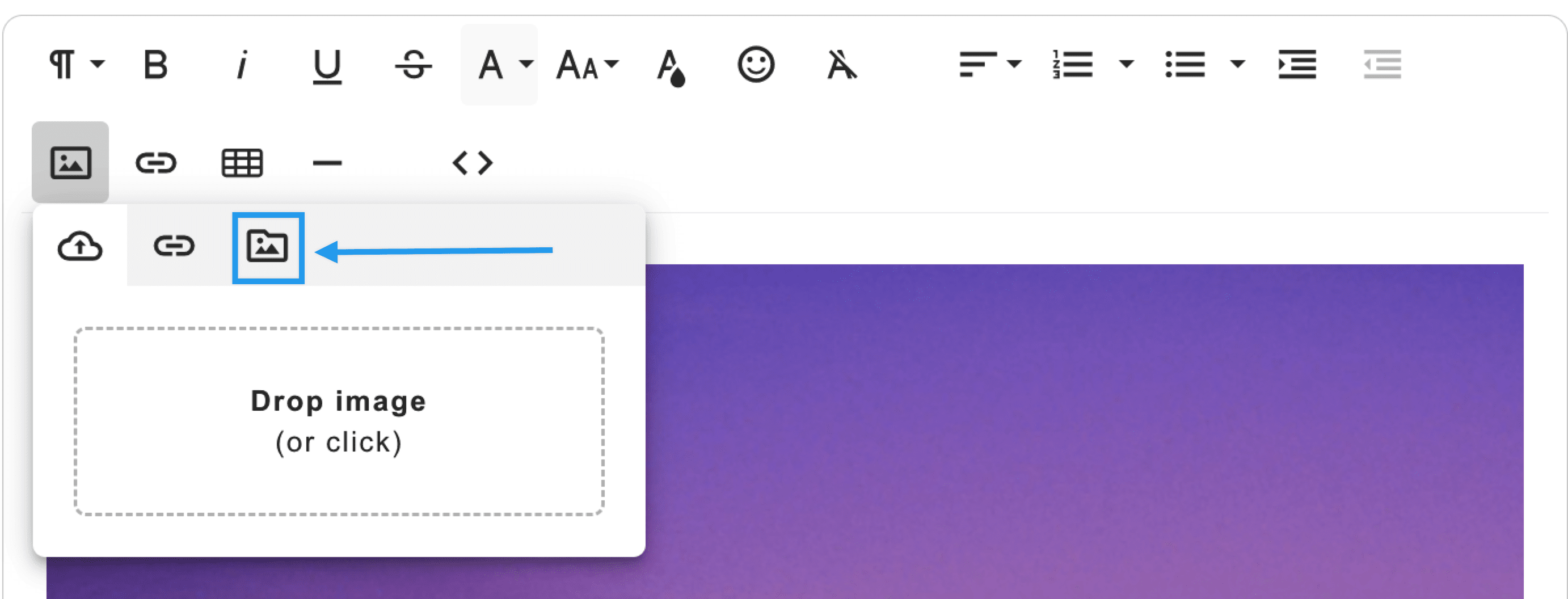
If you were to upload the image from your computer each time you add it to a template, you'd be creating a bunch of duplicate files, which would clutter your system. Instead, if you first upload the image to File Management and then pull it into your email with the Browse option (pictured above) you'll ensure consistency and simplicity (by not duplicating the image a bunch of times in your files.)
Video in Emails
Most email clients do not support embedded video. However, using some of our best practices, you can still share a video with your prospective or current families through a Finalsite Enrollment email.
For more information on using videos in your templates, click here.
Admissions and Enrollment Parent Emails
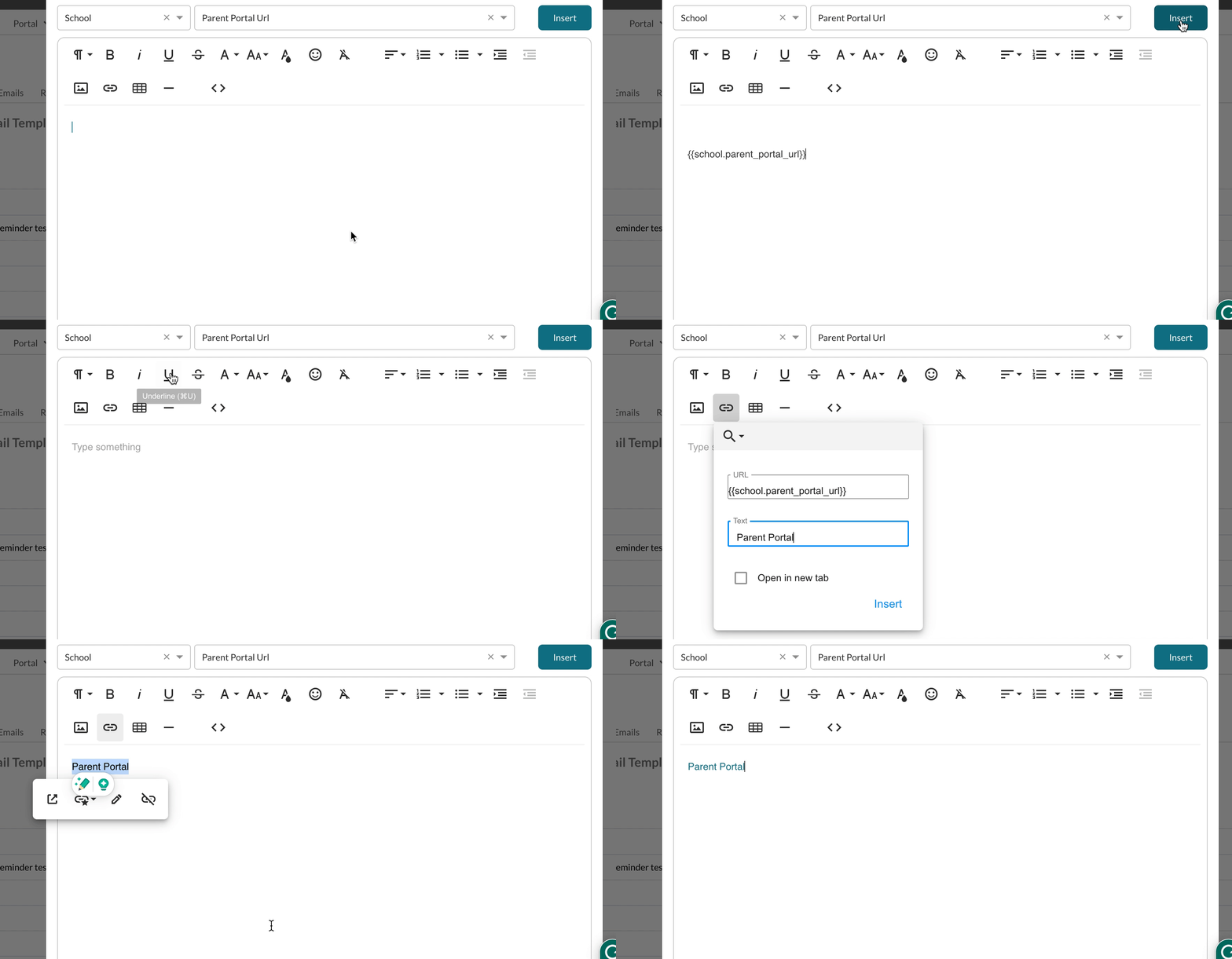
Always include a link to your Parent Portal within all emails that pertain to the checklist or items your parents need to complete. You can add this link to any template using the merge token from the 'School' category and then select 'Parent Portal URL.' If you don't want to display the full link, you can hyperlink the merge token. To do this, insert the token into the body of the email somewhere, 'cut' the merge token, and then highlight the text you'd like to hyperlink. Next, click on the hyperlink button (chain icon) and 'paste' the merge token as shown below.
- Include a link to the Parent Portal Help Center within your signature in email templates, and/or within the 'Contact Communication Area' template within Settings--Portal--Parent Portal Content.
- If you'd like to include the portal email (if one exists) in any of your emails so that parents/guardians can see what email address they used to create their portal account, you can include it via the 'recipient' category and then select 'portal email.' {{recipient.portal_email}}. You can include a note that if none exists, it will be blank and if it's mistyped, to please call the school so you can update it within Settings--Portal--Parent Portal Accounts.
Scheduling Emails
With Finalsite Enrollment, you can schedule emails to be sent at a specific date and time. When to schedule an email for delivery depends on what action you want the recipient to take:
- If the action is a quick reply to the email: Sending it after 10AM local time is recommended.
- If the action may require more in-depth action: It may be recommended to send it later in the afternoon. Email has a tendency to be read and then forgotten, so optimizing your send times to when the recipient has time to sit down and take the desired action is the best practice.
Research shows that email should be not be sent first thing in the morning, especially on Mondays, or late on Fridays. Transition times in the day are also not recommended. Transitions times include the end of the workday and especially Friday afternoon.
Learn more about scheduling emails:
Comments
0 comments
Article is closed for comments.