
Billing statements provide a detailed breakdown of a payer's transactions, charges, and payment history. Admins can access them from the parent's Billing tab, and parents can access them from the Billing Management tab in their portal.
💡Quick Answers
- What types of statements are available? Monthly Statements (downloadable by month), Summary Statements (a PDF of all ledger activity), and Tax Statements (available on the parent side only).
- How do I send a billing statement to a parent? From the parent's Billing tab, click the Send Statement button; this sends the Statement Updated email with their balance and a link to their current statement.
- Can parents download their own statements? Yes, parents can access Monthly, Summary, and Tax Statements from the Billing Management tab in their Parent Portal.
- Where do I edit statement templates? Monthly and Summary Statement templates are under Settings > Communication > Letter Templates; the Send Statement email is under Email Templates > Billing Emails.
- Can admins download Tax Statements? No, Tax Statements are only available for download on the parent side; admins can edit the Tax Statement template but cannot download it themselves.
In this article
- Accessing Statements
- Monthly Statements
- Summary Statements
- Tax Statements
- Sending Statements
- Editing Statement Templates
Accessing Statements
Admin Portal
You can access statements on your end by navigating to the parent/guardian Billing tab and selecting the Ledger or Schedule tabs.

Parent Portal
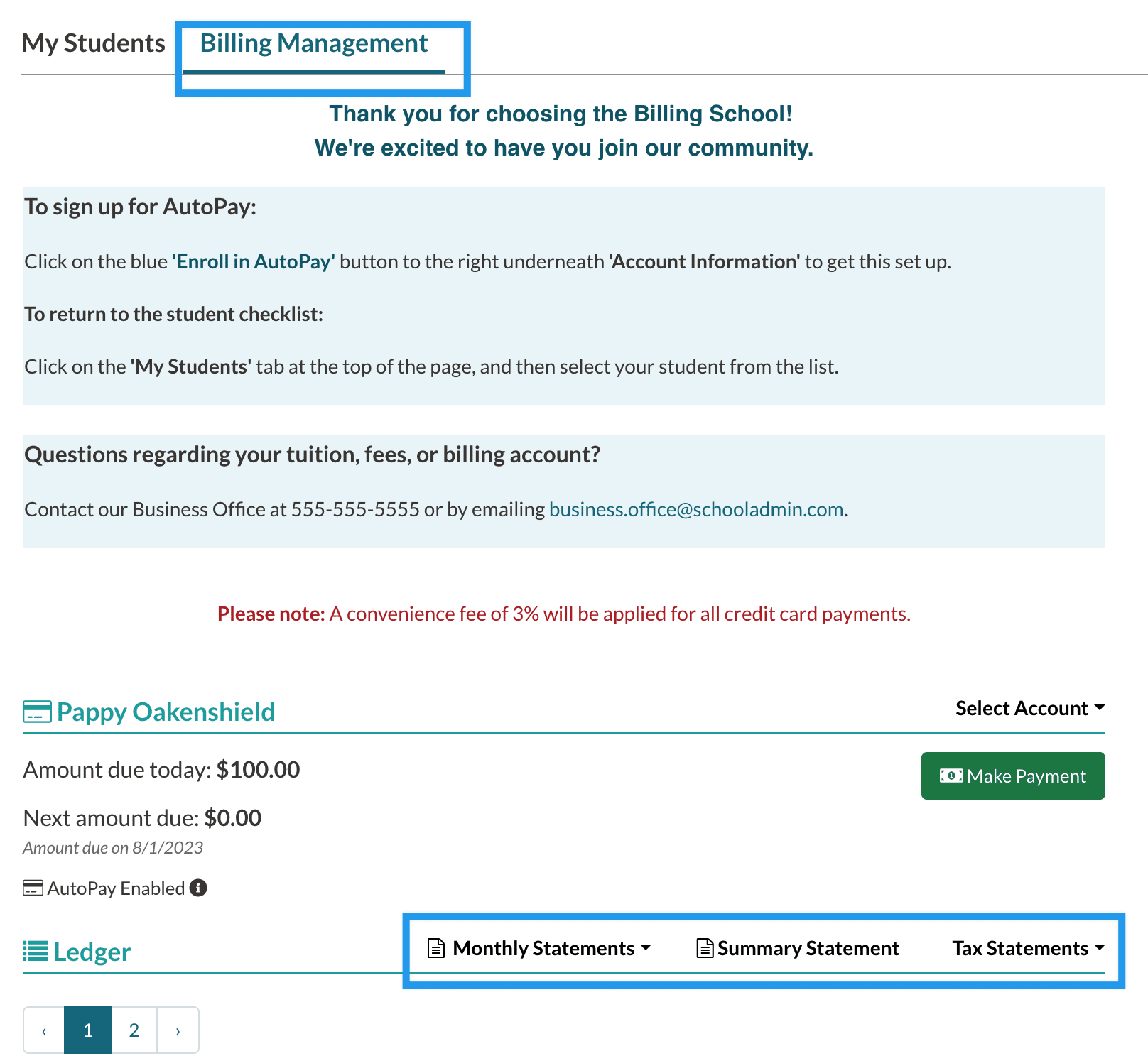
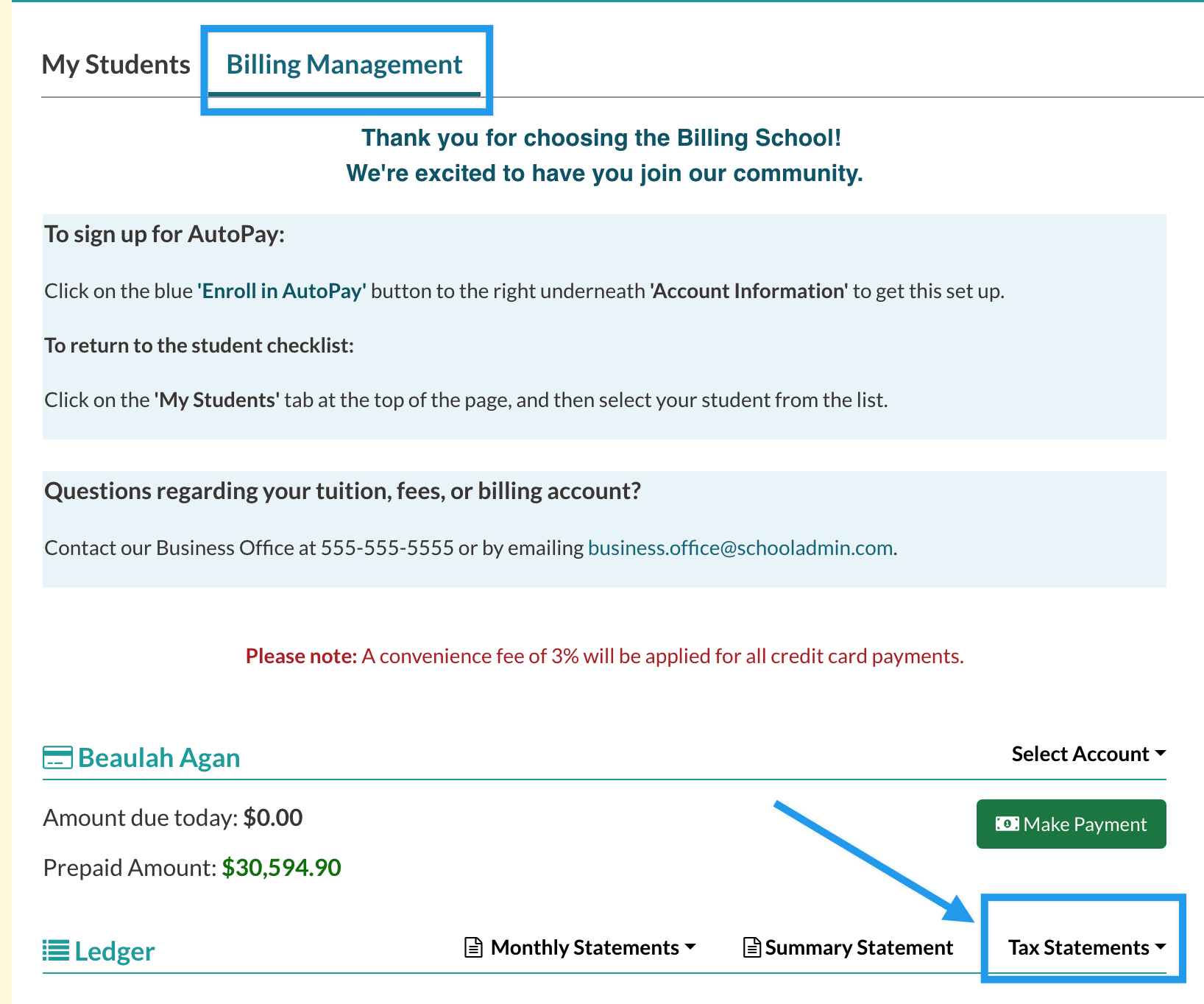
In the Parent Portal, payers can access their statements by navigating to their Billing Management tab. Their statements are right above the ledger.
Pro Tip
In the image above, right at the top, you see a thank you message, notes in blue boxes, and a note in red underneath that. This is something we custom-added to that test site in the Billing Management Widget. To learn about customizing that area, check out our Parent Portal Content article.
Monthly Statements
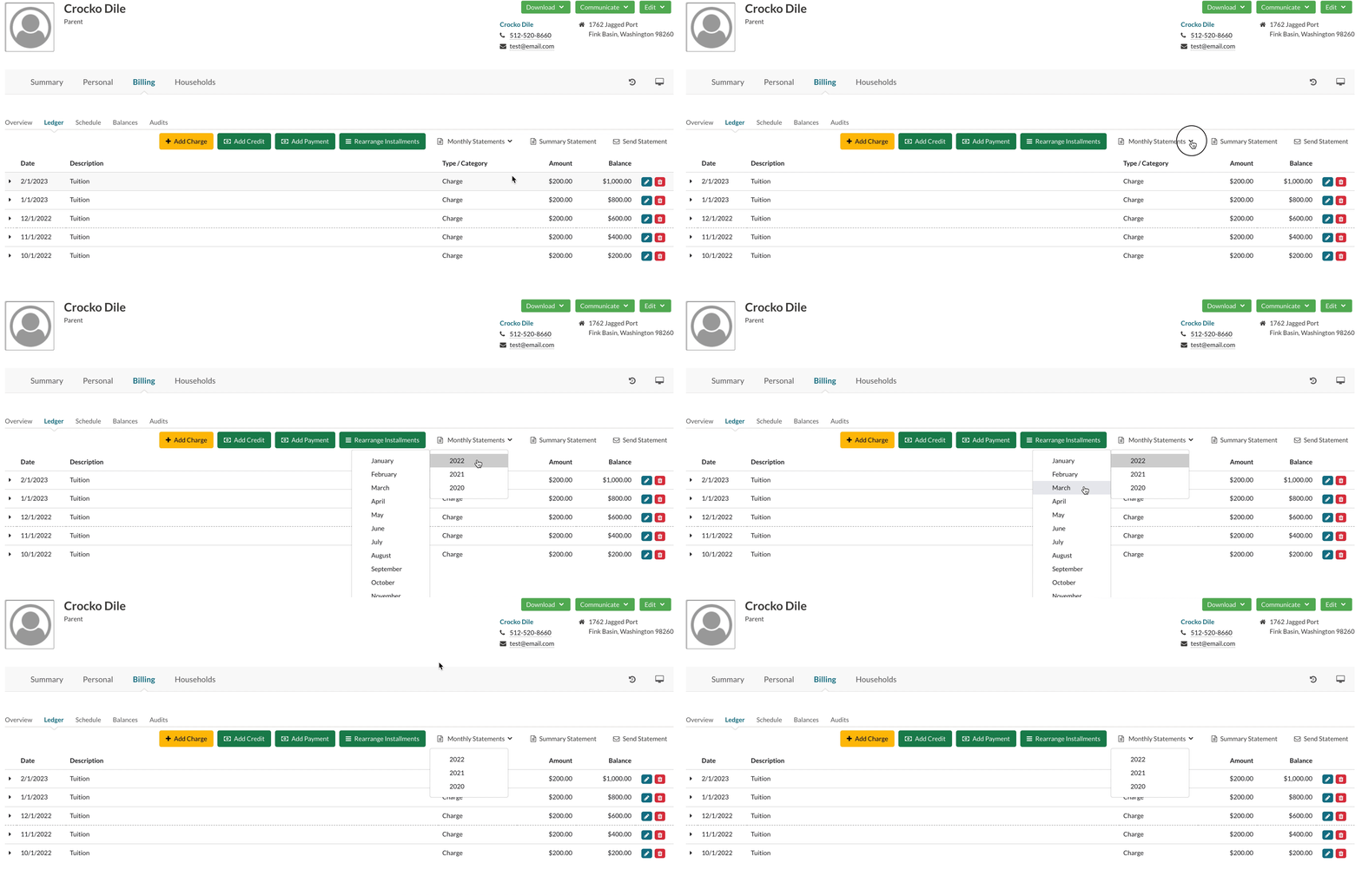
Clicking the Monthly Statements dropdown allows you to select and download statements by month within the current year or previous years.
 Summary Statement
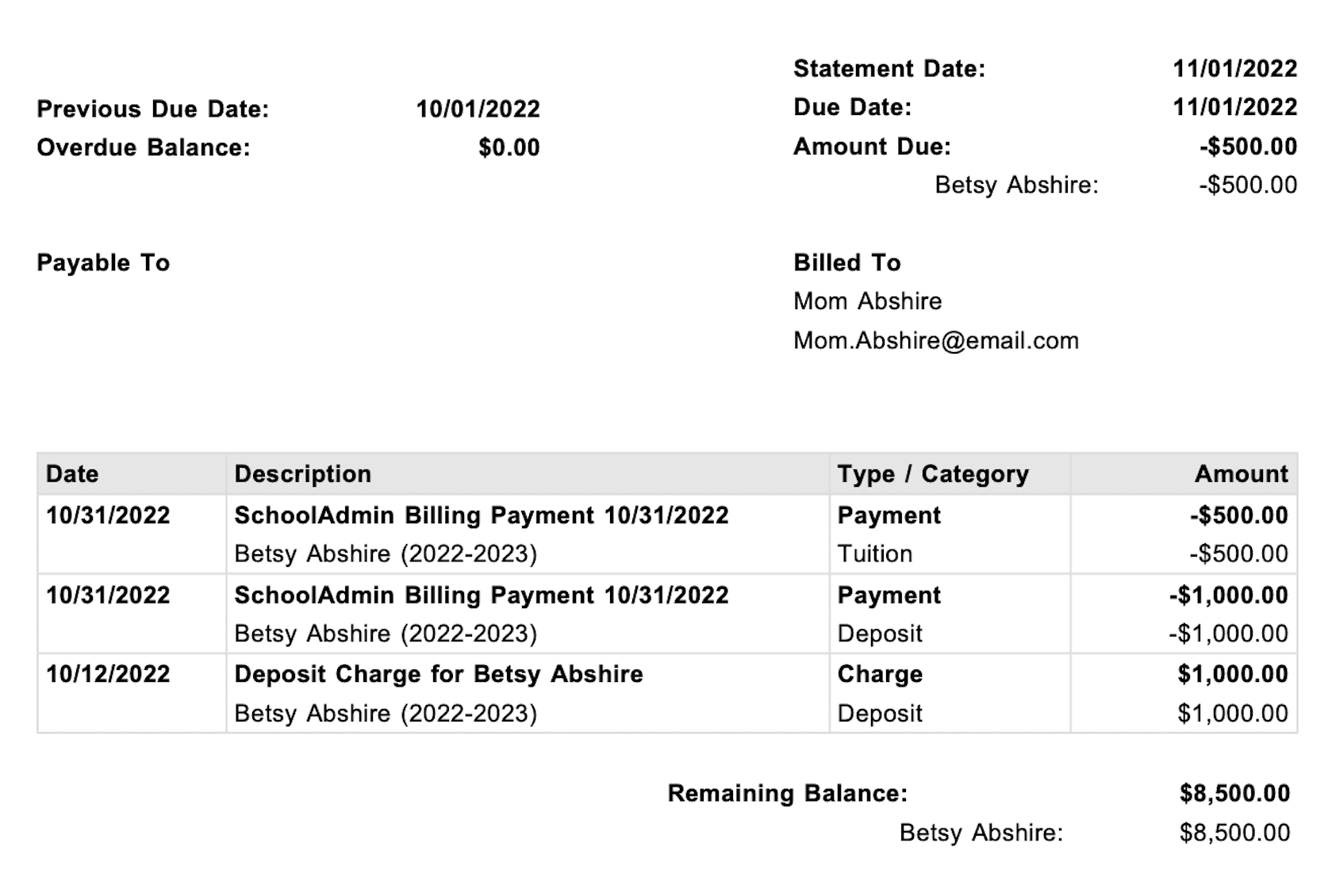
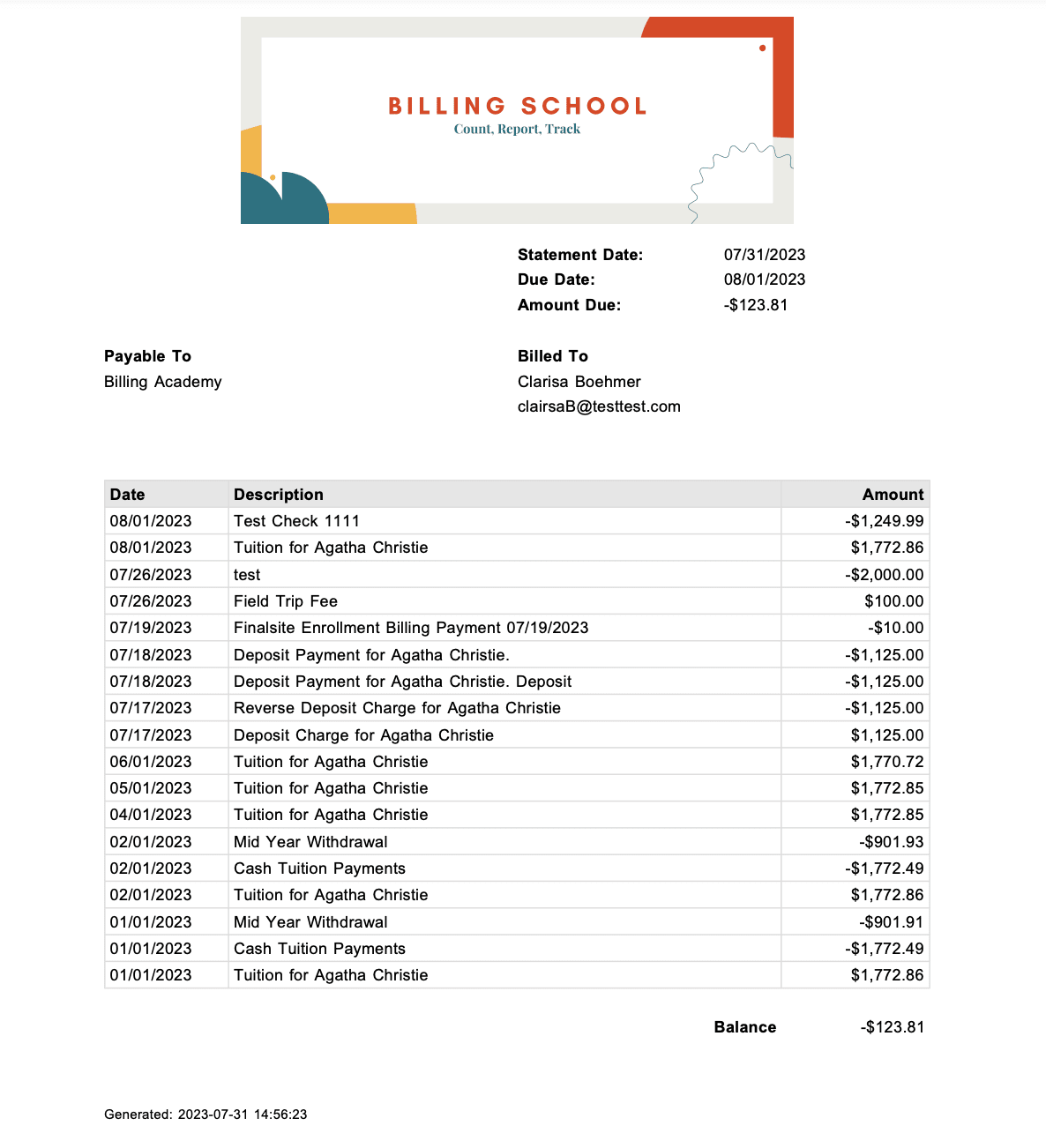
The Summary Statement is a pdf statement of all ledger activity up to the current month. Selecting Summary Statement on the Ledger or Schedule tab will download it as a pdf.

Example of a Summary Statement:
Tax Statements
Tax Statements are only available for download on the parent side within their Billing Management tab. You do, however, have edit access to the Tax Statement template. Read more below.
A parent or guardian can access and download their Tax Statements by navigating to the Billing Management tab in their portal and selecting the Tax Statements dropdown.
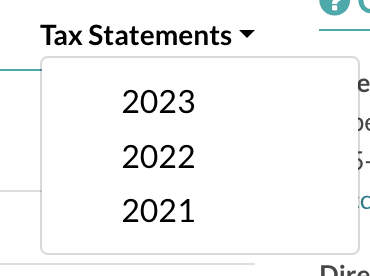
Parents or Guardians that have had accounts for multiple years will find each year listed in that dropdown.
Sending Statements
You have access to send a Billing statement to parents/guardians directly from their ledger by clicking the Send Statement button.

After you click the link, before the email is sent, you will be asked to confirm.
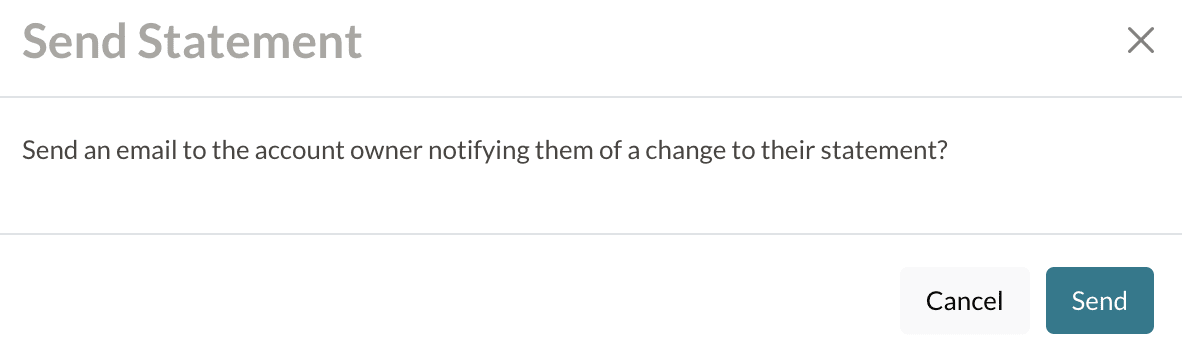
The email template that goes out is called Statement Updated. The email contains their due date, current balance, and a link to their current statement. You can review this email on the Billing Email Templates page (Settings > Communications > Email Templates > Billing).
The payer's current Billing Statement which is hyperlinked within the email can be found under Communication > Letter Templates > Billing Statement.
This email will be also recorded on the Sent Emails page. This will not affect the automated billing statement that goes out each month.
Pro Tip
Read more specifics about Billing communications within our Billing Communications article.
Editing Statement Templates
Each of the statements can be edited under Settings > Communication either within the email templates or letter templates pages. The location of each template is listed below.
-
Monthly Statements:
- Location: Letter Templates
- Template Title: Monthly Billing Statement
-
Summary Statements:
- Location: Letter Templates
- Template Title: Billing Statement
-
Tax Statements
- Location: Letter Templates
- Template Title: Tax Statement
-
Send Statement
- Location: Email Templates > Billing Emails
- Template Title: Statement Update
Editing Pro Tips
- Don't change or remove any of the merge tokens within the template. These contain valuable information.
- Add your school branding to the templates.
- Some schools also include additional contact information such as their address or a specific billing contact
- You may wish to add your EIN to the Tax statement template.
Comments
0 comments
Article is closed for comments.