
Under Settings > Financial > Payment Setup, you can choose to pass Credit Card and Electronic Check (ACH) convenience fees on to parents. This article walks through how to set that up, the domestic/international credit card options, and what parents see on their end.
💡Quick Answers
- If I set the "pass-along" rate to 0, is the school still charged a fee? Yes. Convenience fees are always withheld from your payouts by the payment processor. Setting the rate to 0 simply means the school is choosing to absorb that cost rather than passing it to the parent.
- What is the difference between Domestic and International credit card rates? Domestic rates apply to credit cards issued within the same country as the school. International rates apply to any credit card issued outside the school’s country. You can set these at different percentages to account for higher international processing costs.
- Can I charge a fee for tuition payments but not for application fees? Yes. In the "Apply To" section on the Payment Setup page, you can toggle the fee on or off for specific categories: Billing, Ad Hoc Forms, Applications, and Deposits.
- How does the system handle both a percentage (%) and a flat fee ($)? The system calculates the percentage first and then adds the flat fee. Example: A 3% fee + $1.50 on a $100 payment results in a total fee of $4.50.
- Will parents be notified if I change the convenience fee? Yes. When you save a new rate, the system automatically sends a Rate Change Email to active families currently enrolled in Autopay to ensure they are aware of the updated transaction total.
Who can access this page?
Admin Account Types: System Admins & Admin
Permissions: Financial
In This Article
- Before You Start: Convenience Fee Rates
- Pass Credit Card Fees on to Parents
- Pass Electronic Check (ACH) Fees on to Parents
- Parent Experience
Please note that the examples and best practices provided are offered solely as recommendations. Finalsite Enrollment does not provide legal or financial advisory services to schools. The responsibility for making financial decisions that align with your school's requirements rests with your institution's discretion.
Before You Start: Convenience Fee Rates
The standard convenience fee rates for Finalsite Enrollment Payments are listed below. International refers to a credit card issued outside of the school's country.
United States and Global (outside of Canada)
| Payment Method | Convenience Fee |
| Domestic Credit Card | 3.05% |
| International Credit Card | 4% |
| Electronic Check/ACH | $2.50 |
Canada
| Payment Method | Convenience Fee |
| Domestic Credit Card | 3.05% |
| International Credit Card | 3.05% |
| Electronic Check/ACH | $2.50 |
Your school's specific rates are also displayed in two places within Finalsite Enrollment:
- The Payment Setup page (Settings > Financial > Payment Setup) at the top of the Credit Card and Electronic Check Convenience Fees sections.
- The Payments page (Settings > Financial > Payments) in a read-only view alongside all your other payment rates.
⚠️ Important Note
Convenience fees will be withheld from your payouts even if you set the pass-along rate to 0. The Fee Rate and Fee Amount fields on this page only control how much of the fee is passed on to families; they do not change what your school is charged.
You can choose to pass on:
- The full convenience fee (your school's rate),
- A higher amount to cover a larger portion of merchant fees,
- A lower amount to absorb part of the cost yourself, or
- A negative amount to apply a discount instead of a fee.
Pass Credit Card Fees on to Parents
Credit card convenience fees can be set separately for domestic and international cards. International rates apply to credit cards issued outside of your school's country.
Note: Amounts shown below are examples. Use your school's specific rates when configuring.
Step 1: Navigate to the Credit Card Configuration tab on the Payment Setup page
Navigate to Settings > Financial > Payment Setup. Select the Credit Card Configuration tab.
Step 2: Select the charges that should include the fee
Scroll to the Credit Card Convenience Fees section. Under Apply To, select which charge types should include the fee: Billing, Ad Hoc Form, Application, and/or Deposit.
- Example: Deselecting Application means families won't be charged a credit card convenience fee on the application fee, but the fee will still be deducted from your payout.
Step 3: Set the Fee Rate Percentage and/or Amount(s)
Under Domestic Credit Card Fees, set:
- Fee Rate (in percent): The percentage passed on to domestic families. Enter a negative number for a discount.
- Fee Amount (in dollars): A flat amount added to the transaction after the rate is calculated.
Under International Credit Card Fees, set the Fee Rate and Fee Amount for cards issued outside your school's country.
How the Fee Rate and Fee Amount Combine
The Fee Amount is added after the Fee Rate is calculated. For a $100 charge with a 10% Fee Rate and $1.50 Fee Amount, the convenience fee would be $11.50 ($10.00 from the rate + $1.50 flat).
Step 4: Enter the Fee Description
This text displays wherever the fee appears to parents (e.g., Convenience Fee).
Step 5: Enable a Convenience Fee Message
- Check the Convenience Fee Notification Message box to require parents to acknowledge the fee before paying. This message will appear on the Billing Management tab and forms before completing a payment.
- In the Message box, enter the agreement text parents will see and confirm. Example: Please note that a 3.05% convenience fee (4.0% for international cards) will be charged for all payments made via credit or debit card.
Step 6: Save and send the Rate Change Email
- Click Save.
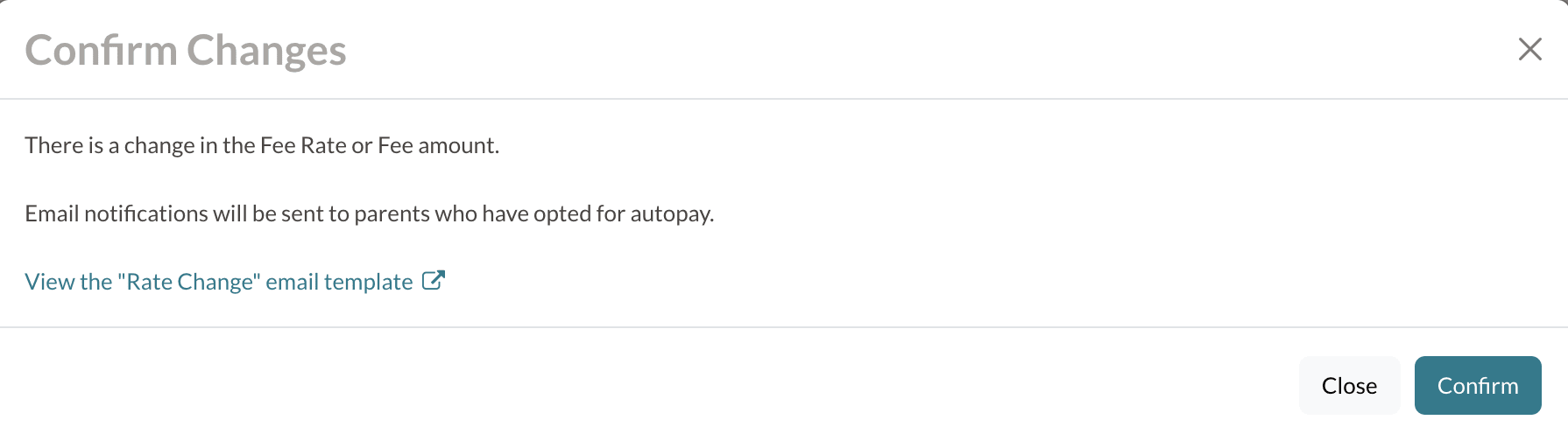
- A pop-up will confirm that the Rate Change email will be sent to active families enrolled in Autopay. See the Rate Change Email section below to learn more.
- Click Confirm to apply the change and send the email, or Close to cancel.
Pass Electronic Check (ACH) Fees on to Parents
Electronic Check (ACH) convenience fees are configured the same way as credit card fees, except there is no domestic/international split; a single rate applies to all electronic check payments.
Note: Amounts shown below are examples. Use your school's specific rates when configuring.
Step 1: Navigate to the Electronic Check Configuration tab on the Payment Setup page
Navigate to Settings > Financial > Payment Setup. Select the Electronic Check Configuration tab.
Step 2: Select the charges that should include the fee
Scroll to the Electronic Check Convenience Fees section. Under Apply To, select which charge types should include the fee: Billing, Ad Hoc Form, Application, and/or Deposit.
- Example: Deselecting Application means families won't be charged an ACH convenience fee on the application fee, but the fee will still be deducted from your payout.
Step 3: Set the Fee Rate Percentage and/or Amount(s)
- Fee Rate (in percent): The percentage passed on to families. Enter a negative number for a discount.
- Fee Amount (in dollars): A flat amount added to the transaction after the rate is calculated.
How the Fee Rate and Fee Amount Combine
The Fee Amount is added after the Fee Rate is calculated. For a $100 charge with a 10% Fee Rate and $1.50 Fee Amount, the convenience fee would be $11.50 ($10.00 from the rate + $1.50 flat).
Step 4: Enter the Fee Description
This text displays wherever the fee appears to parents (e.g., Convenience Fee).
Step 5: Enable a Convenience Fee Message
- Check the Convenience Fee Notification Message box to require parents to acknowledge the fee before paying. This message will appear on the Billing Management tab and forms before completing a payment.
- In the Message box, enter the agreement text parents will see and confirm. Example: Please note that a $2.50 convenience fee will be charged for all payments made via ACH.
Anytime you update the convenience fee, double-check that the Message box still matches the new fee. The message displays on the parent's screen when submitting a payment, so it must reflect the correct rate.
Step 6: Save and send the Rate Change Email
- Click Save.
- A pop-up will confirm that the Rate Change email will be sent to active families enrolled in Autopay. See the Rate Change Email section below to learn more.
- Click Confirm to apply the change and send the email, or Close to cancel.
Parent Experience
Parent Portal
In the Parent Portal, parents can find the convenience fee rates listed at the top left of the Billing Management tab.
-
Credit Card message format: Please note: a {Fee Description} of {domestic and international amounts} will be applied to all Credit Card payments.
- Credit Card example: Please note: a Convenience Fee of 3.05% (4.0% for international cards) will be applied to all Credit Card payments.
-
Electronic Check message format: Please note: a {Fee Description} of {amount} will be applied to all Electronic Check payments.
- Electronic Check example: Please note: a Convenience Fee of $2.50 will be applied to all Electronic Check payments.
⚠️ Important Note
- These notes only display on the Billing Management tab if you have a rate set up on the Payment Setup page. If you only pass along a credit card fee and no electronic check fee, only the credit card note appears.
- The Fee Description and Rate you entered on the Payment Setup page are pulled directly into the message.
Contract & Forms
Deposit Instructions
Adding convenience fee information to the Deposit Instructions template on the Parent Portal Content page alerts parents to the additional charge before they sign the contract. You can edit that template under Settings > Portal > Parent Portal Content > Deposit Instructions. The text appears above the payment information section on the contract.
Convenience Fee Agreement and Notification Messages
If you have enabled the Convenience Fee Notification Messages for credit cards and electronic checks, parents will see your confirmation language and will be required to agree to it on any form that includes a payment page.
Rate Change Email
When you update the convenience fees that you are passing along to parents, the Rate Change email is sent out. When you click Save after adjusting the rate on either the Credit Card or Electronic Check Configuration tabs, you'll see a pop-up window asking you to acknowledge that the email will be sent.
Who is the email sent to?
This email is automatically sent to affected parents who have autopay enabled. It's sent based on what you update and is only sent to applicable parents with autopay enabled.
For example, if you only update the Credit Card convenience fee, only parents with a Credit Card saved to autopay will be emailed.
In addition, the email is only sent to active accounts. Active accounts are those that either have:
- An upcoming charge that will be pulled in the next autopay cycle
- Or an unpaid past charge that will be pulled in the next autopay cycle
Parents who are no longer active with the school but may still have autopay enabled on their end will not receive the email.
What happens if I click Close instead of Confirm?
The rate change that you made will not be saved, and the email will not be sent.
Where can I update the Rate Change email?
It can be updated on the Billing Email templates page: Settings > Communication > Email Templates > Billing Emails.
Convenience Fee Merge Tokens
In addition to the above, we have a collection of Convenience Fee merge tokens that can be pulled into forms, emails, and the parent portal. Please read out in-depth information on these, including where and how to utilize them, in this article: Convenience Fee Merge Tokens.
Comments
0 comments
Article is closed for comments.