
You can add a calendar appointment selector to any online form using the Advanced Form Editor, allowing families to choose a time slot for an event directly within the form submission experience.
💡Quick Answers
- How do I add a calendar to a form? In the Advanced Form Editor, click Add a field, set the Type to Appointment, enter a prompt label, and select the calendar from the Calendar dropdown.
- What must exist in Finalsite Enrollment before I can add a calendar to a form? The calendar must already be set up (Settings > Calendars) with available appointment slots; see Creating New Calendars if needed.
- Who can edit forms in Finalsite Enrollment? Only System Admins and Admins with any permissions can access and edit forms under Settings > Forms.
- Are there other DIY form editing guides? Yes, see Forms DIY: Add a question or prompt and Forms DIY: Add text to a form in this series.
Pop some Popcorn!
Be sure to check out our collection in the Video Library to learn the basics of form edits!
A couple of reminders before we jump in
- Only System Admins and Admins (with any permissions) can access the Forms pages.
- Forms are located within the Settings > Forms menu.
- The following steps must be accomplished within the Advanced Form Editor.
- Once you make a draft of a form, select Go to Advanced Form Editor from the menu in the Actions column.
Adding calendars to your forms
You can add calendars to a form to allow families to sign up for an event within a form.
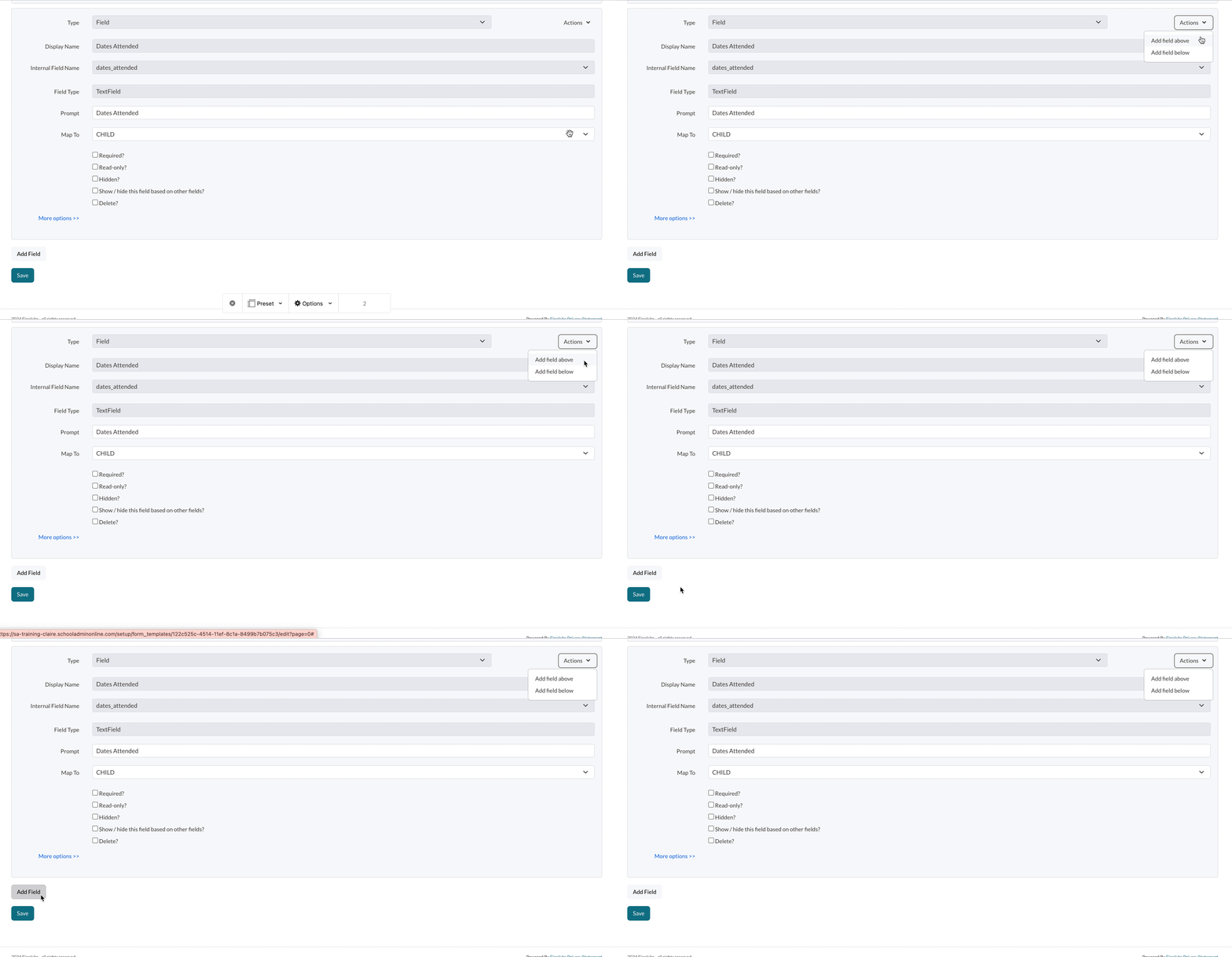
Step 1: Within the Advanced Editor, select to add a field from the Actions column, or at the bottom of the page.
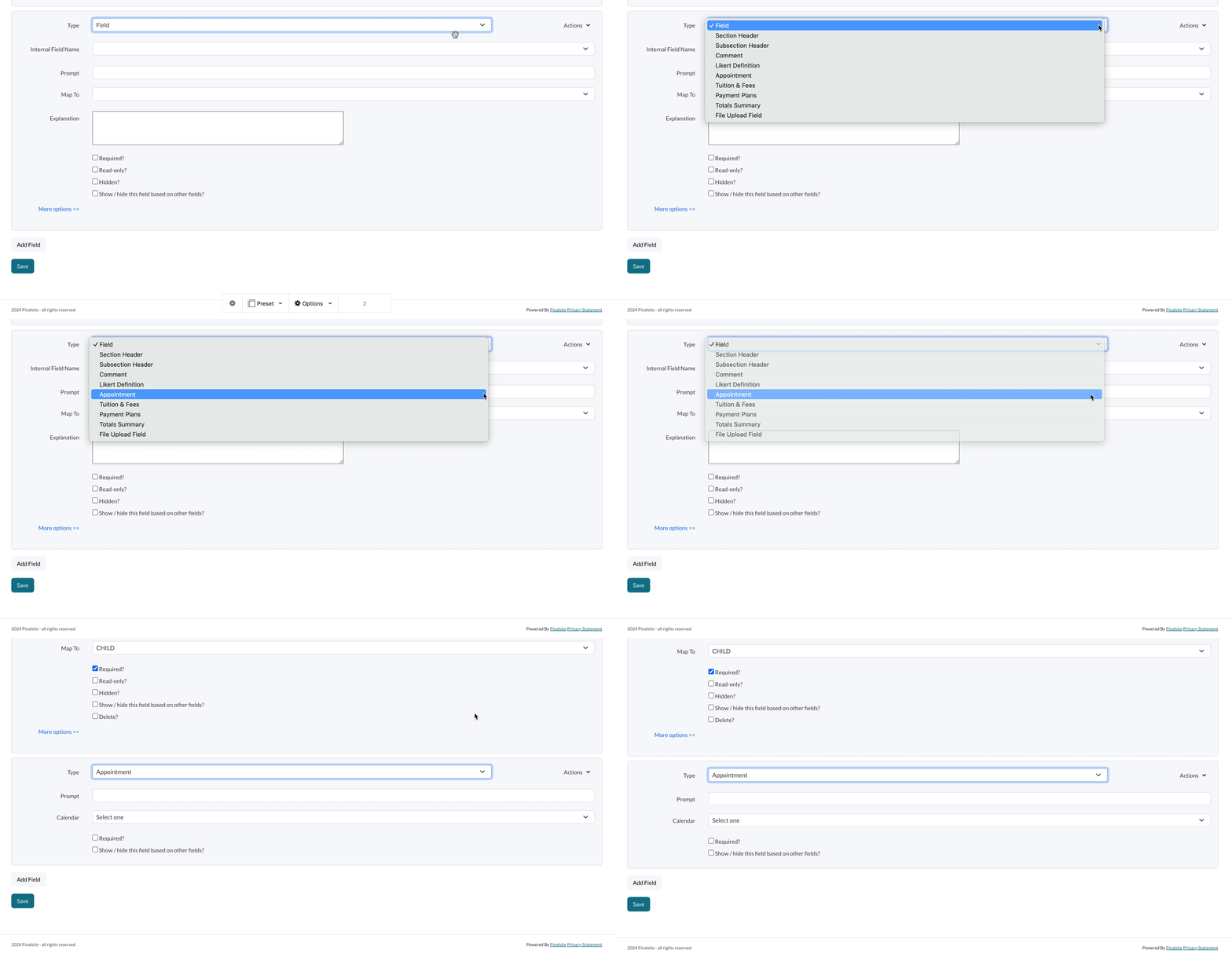
Step 2: In the Type dropdown, select Appointment.
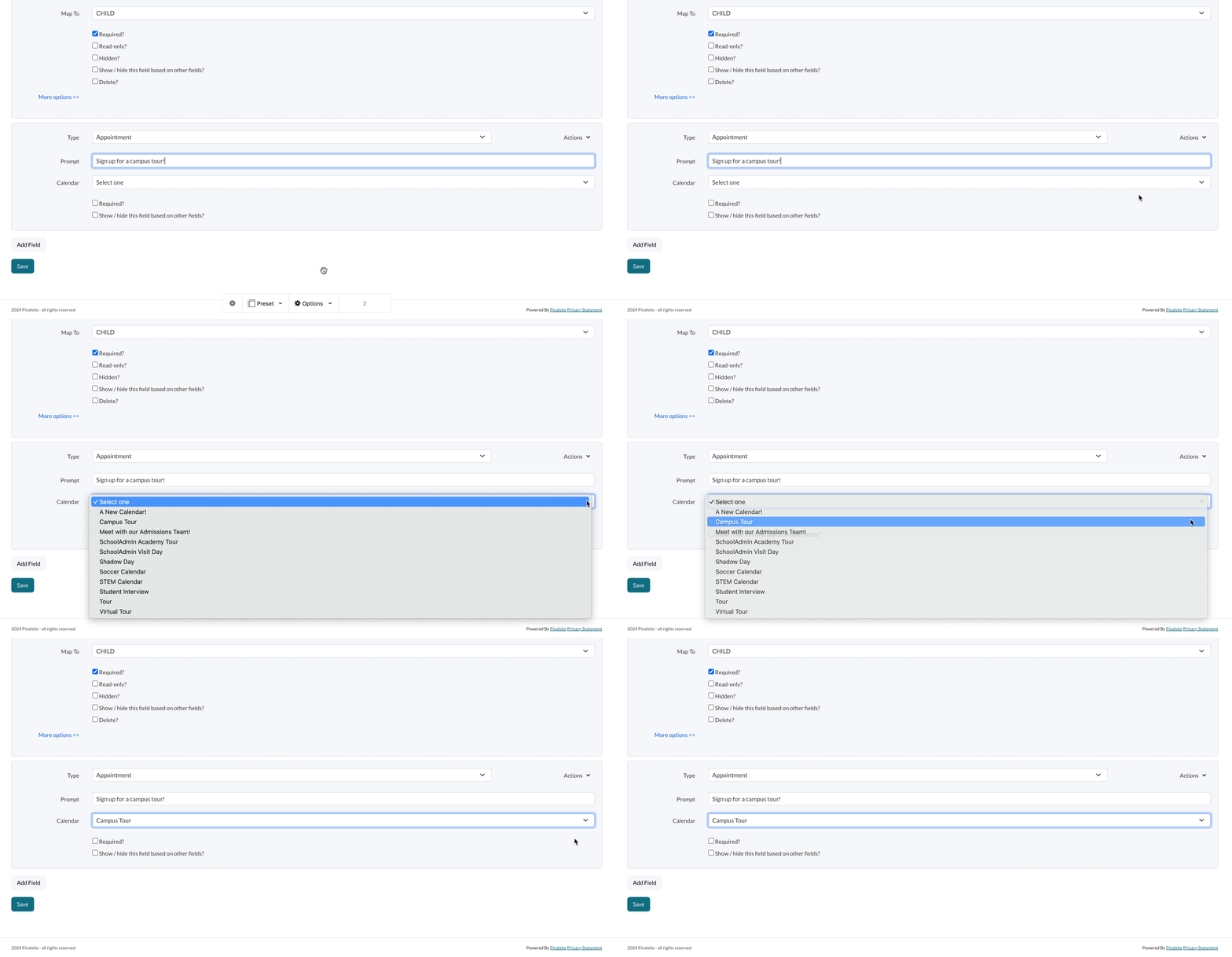
Step 3: In the Prompt section, enter a label for the calendar. This is what the parents will see within the form.

Step 4: In the Calendar dropdown, select the calendar that you'd like to include within the form.
The following steps are optional...
-
Required?: This option will make the question required within the form. This means that parents will be required to answer the question before proceeding to the subsequent pages of the form.
- Show/Hide this field based on other fields?: This is where you can add a dependency. It means that whether the question appears on the form depends on the answer given in another field. A common use case of this is the grade field. For example, when adding a question (field) to ask which preschool program families are interested in, you would select this option and then isolate the preschool grades so that the option only shows to the relevant families. We have a whole article on dependencies and filter options that we recommend you check out.

Saving your Work
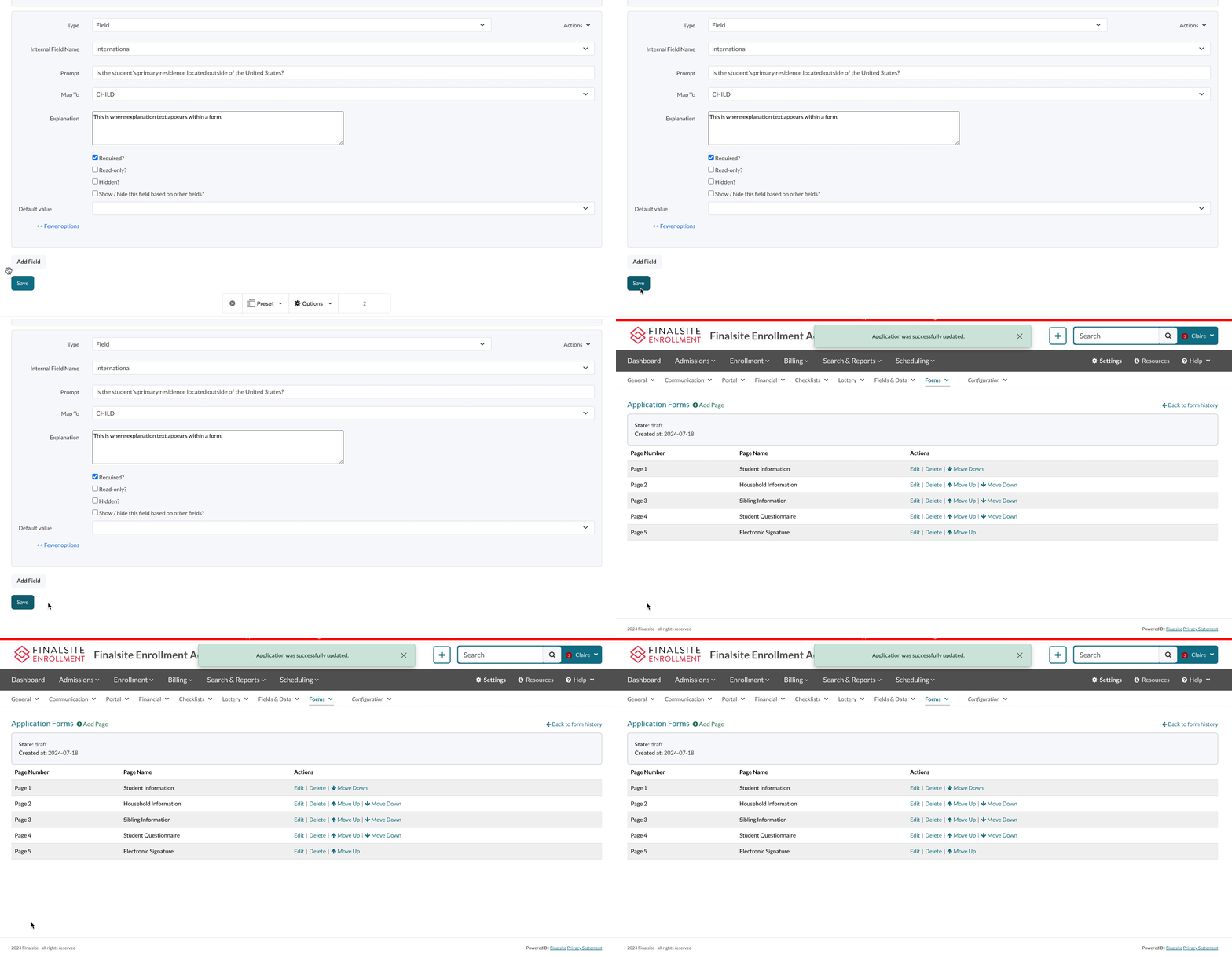
Remember to save your changes before exiting the Advanced Editor!
Errors
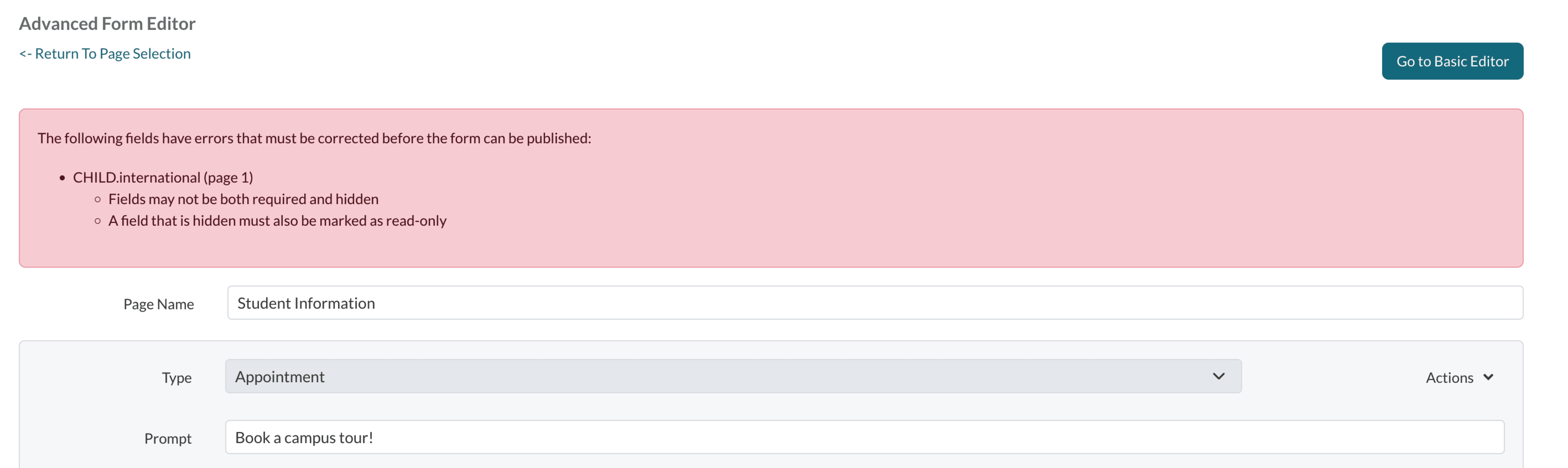
If you see a red banner at the top of the page it means that there is an error on the page. The error will be described within the message. If you are unable to resolve the error on your end, please connect with support who will be able to guide you.
Making Simple Text Edits
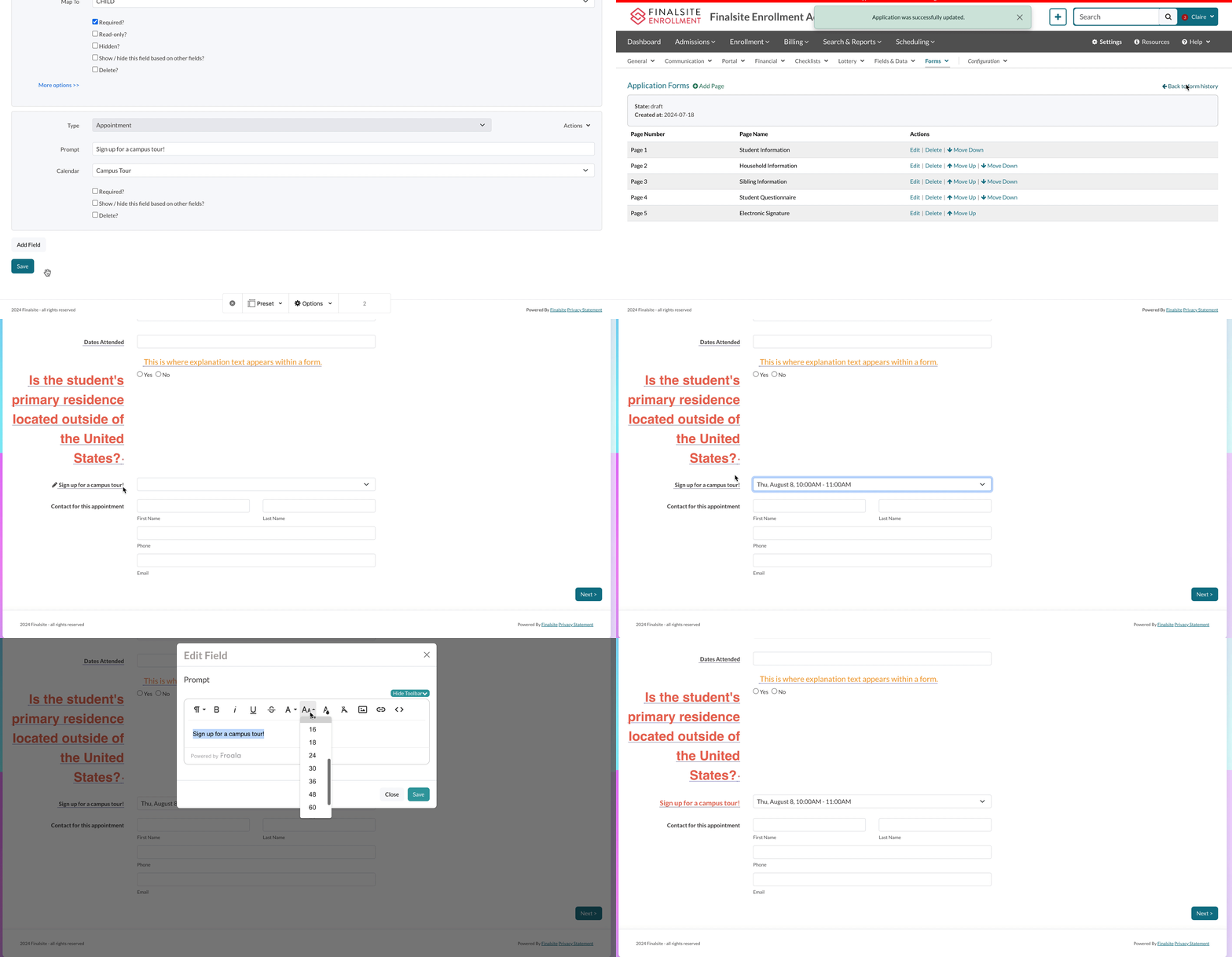
After you save your changes, go to the Basic Editor to preview your addition and make simple text edits to the prompt and any other text.
Good to know: Edits made in the Basic Editor save automatically. You won't find a save button in that editor.
Publishing
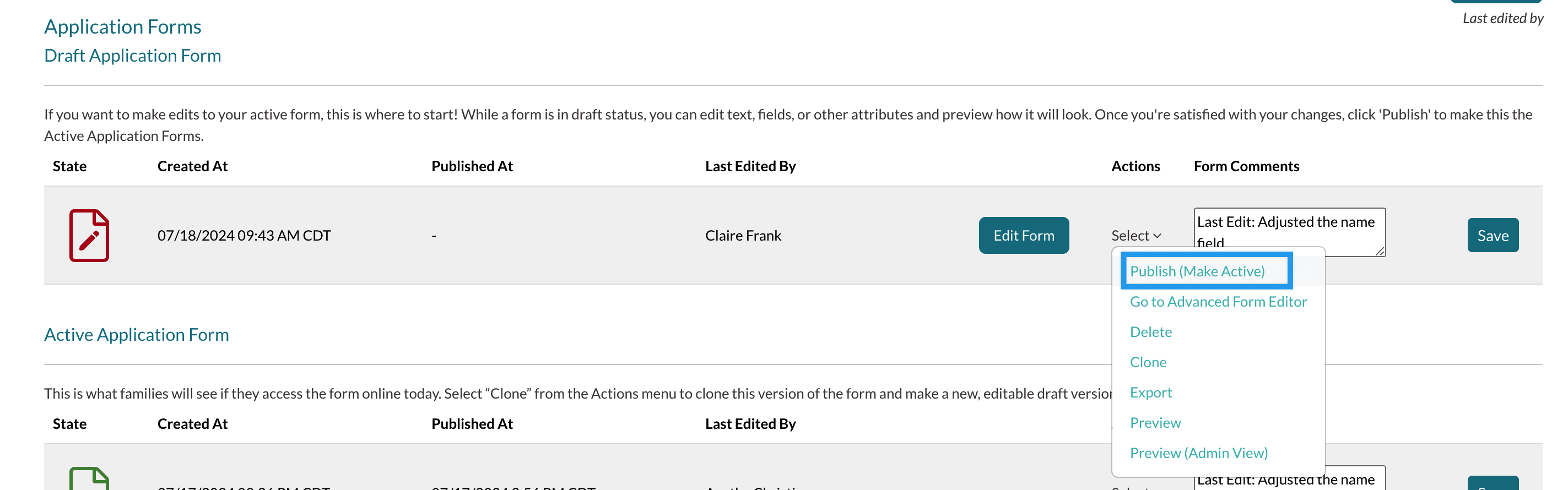
Your changes will only be live when you publish the form. You can do so from the page where you've made your draft. In the actions column, select the Publish (Make Active) option.
Additional Resources
- Office Hours & Past Session Recordings
-
Forms DIY: Add a question or prompt to a form (adding fields)
Forms DIY: Add text to a form (Sections, Subsections, and Comments) - Be sure to check out our collection in the Video Library to learn the basics of form edits!
Comments
0 comments
Article is closed for comments.