
A Supersite/Subsite configuration lets groups of schools, such as dioceses or multi-campus organizations, manage admin accounts, permissions, and reporting across all linked sites from a single Supersite.
💡Quick Answers
- How do Supersite admins navigate to a Subsite? Click the icon in the upper right of the admin portal to see a list of all linked Subsites, then click any school name to jump directly to that site's admin portal.
- What reports are available on the Supersite? The Admissions Report, Enrollment Report, Funnel Report (aggregated across all Subsites), Targets & Totals Report, and Key Feature Adoption Report; see Supersite Reports for details.
- How do admin accounts work in a Supersite/Subsite setup? Accounts created on the Supersite cascade down to all Subsites automatically; account details and permissions for Supersite-inherited accounts cannot be edited from the Subsite.
- How do Admin Permission Groups work across sites? Permission groups created on the Supersite apply across Subsites; both Supersites and Subsites have access to the Admin Permission Groups page, but the behavior differs depending on which site you are on.
In this article
Interested in setting up a Supersite/Subsite configuration?
If you would like to set up a Supersite/Subsite configuration for your school group, submit a request to our Support Team or reach out to your Client Success Manager to get started!
Navigation
Quickly navigate to Subsites from a Supersite
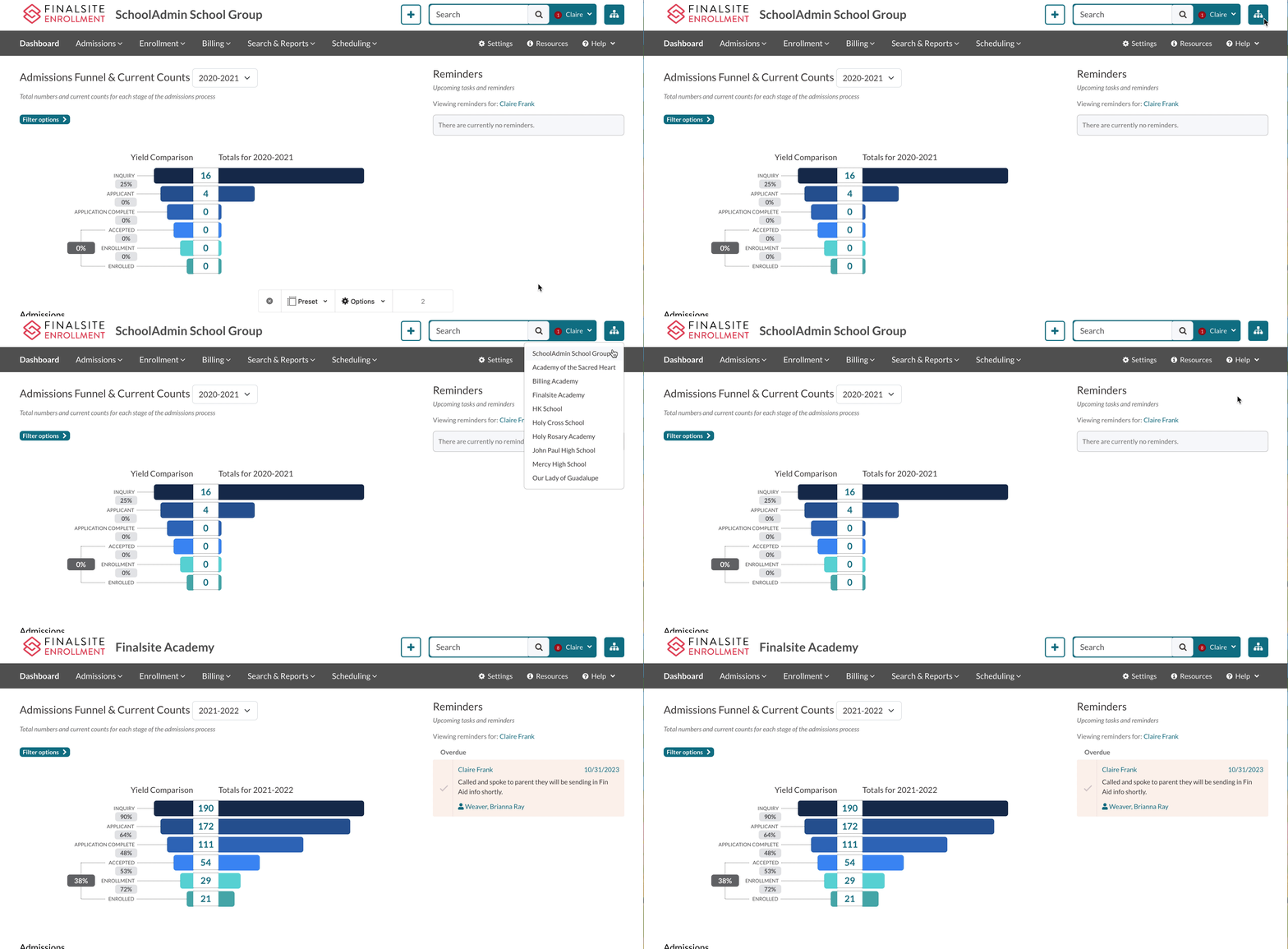
One of the primary functions of the Supersite is to allow admins/users on the site to easily jump to any of the linked Subsites. Supersite users can click the icon in the upper right of the admin portal to see a list of all linked Subsites.
Clicking on any of the schools in this list will take the user directly to the admin portal for that Subsite.
Reporting
Within the Supersite, you can view important admissions and enrollment data across all Subsites, or schools within your configuration.
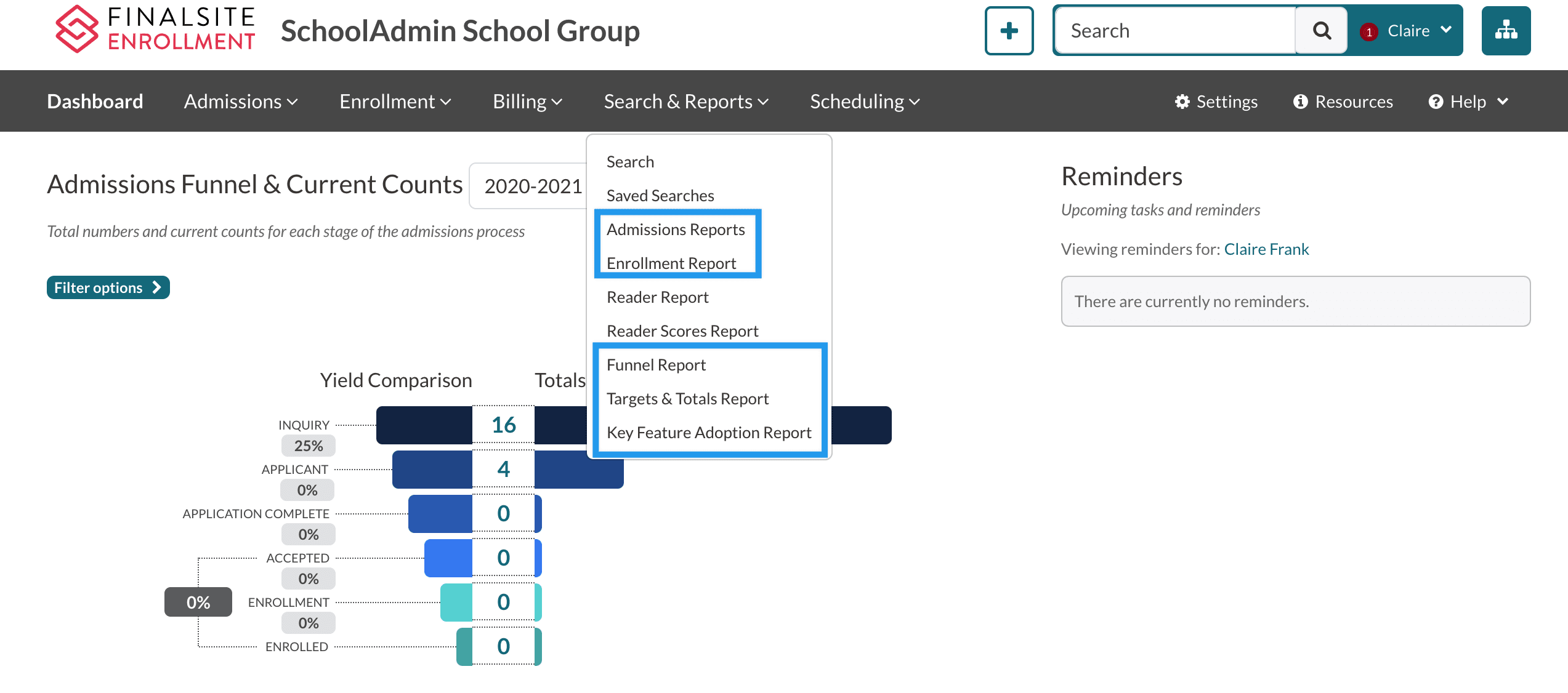
These reports are located within the Search & Reports menu and include the: Admissions Report, Enrollment Report, Funnel Report, Targets & Totals Report, and the Key Feature Adoption Report.
Admissions Report and Enrollment Report
The Admissions Report and the Enrollment Report on the Supersite, both contain a menu that lists all of the schools in your group.
When you select one of the schools, the report will refresh to show you the Admissions or Enrollment data for that particular school.
Funnel Report
The Funnel report aggregates and displays admissions funnel data from all Subsite schools so that you can view each school's progress towards their enrollment goals, as well as your total numbers across all schools, at a glance.
Targets & Totals Report
The Targets & Totals report takes the top row of data from the Enrollment Report for each Subsite and combines them all into one report. It includes grand totals for each column of data along the bottom row of the report.
Key Feature Adoption Report
The Key Feature Adoption Report displays what major features are being used by each Subsite/school so that you can see the 'performance' of each school and identify what features are being used the most by each school, and which ones haven't been adopted yet. This is critical to the success of each school, as the more features that are being utilized, the more streamlined, personalized, and automated each school's workflows will be.
Learn more!
We have an article dedicated entirely to these reports. It contains more specifics and helpful details and illustrations about Supersite reporting. Check that out here: Supersite Reports
Admin Accounts
Admin Portal Accounts created on the Supersite will be cascaded down to all Subsites, so that Supersite users don't have to manually create accounts on each of the Subsites. In addition, the Subsite account permissions will be inherited from the Supersite account.
Supersites can centrally manage which school(s) each user has access to. Schools can be assigned and removed individually by editing an account or in bulk under the Edit menu.
When viewing the Admin Portal Accounts page (Settings > Portal > Admin Portal Accounts) for a Subsite, any accounts that were inherited from the Supersite will have "Supersite" listed in the Source column. Accounts that were created directly on the Subsite will have a blank Source column.
Please note: Account information and permissions for accounts inherited from the Supersite cannot be edited from a Subsite. To make changes, go to the Admin Portal Accounts page on the Supersite.
Permissions
The Admin Permission Groups page (found under Settings > Portal > Admin Permission Groups) allows you to create reusable groups of permissions for your Supersite/Subsites.
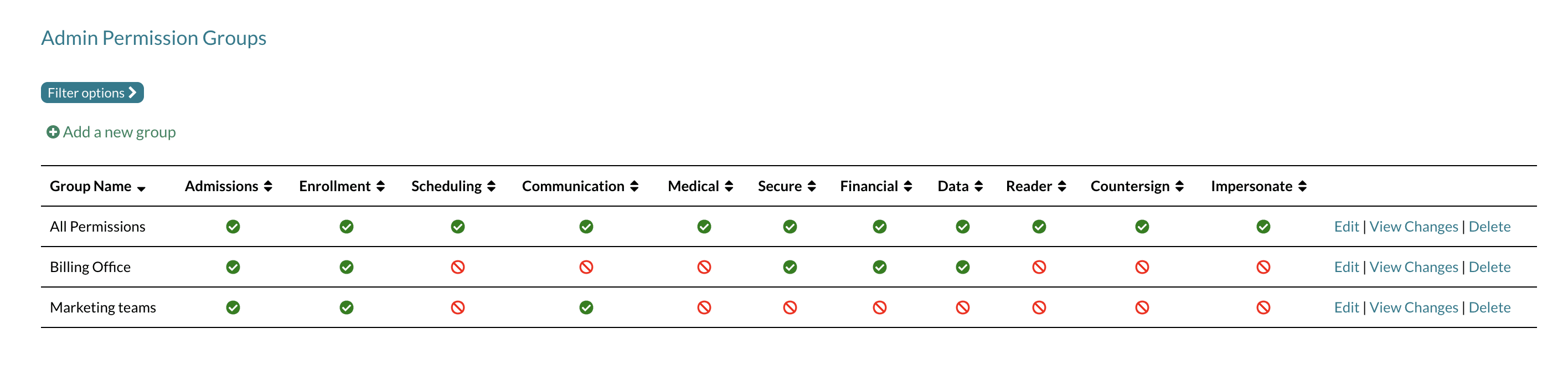
Think of these permission groups as templates. Instead of assigning individual permissions every time you create a new admin account, you can simply assign them to one of these pre-defined permission groups on the Admin Portal Accounts page. This makes setting up new admin accounts much faster and ensures consistent permission assignments.
Good to note
- Both Supersites and Subsites have access to this page, but it behaves differently depending on whether you are on a Supersite or Subsite.
- Access to this page is restricted to System Admins.
- You will find this page by navigating to Settings > Portal > Admin Permission Groups.
Learn more!
We have an article dedicated entirely to the Admin Permission Groups page. Be sure to check out our Managing Admin Permissions Across Multiple Sites article to learn more!
Comments
0 comments
Article is closed for comments.