
The All other fields search criterion in Search & Reports lets you search on any custom or standard data field in your system, such as grade, application submit date, or athletic interests.
💡Quick Answers
- How do I use the All other fields option in a search? In Search & Reports, select All other fields as a criterion, then use the Field dropdown to find the desired field by display name.
- What if the field I need is not showing in the dropdown? Make sure the field is marked as Searchable in Settings > Fields & Data > Fields.
- Can I search by application submit date? Yes, use All other fields and select Application Submit Date to find students who applied before or after a specific date.
- Can I see the exact time an application was submitted? Yes, add the Application Submit Time field as a search column; it provides the date, time, and seconds of submission for precise ordering.
How-To: Run a search using the All other fields option
- In the Search & Reports tab, select the All other fields option within the search criteria area.
- Use the Field drop-down menu to find the desired field.
You can scroll down the list, or begin typing into the box provided to narrow down the results. Fields are listed by Display Name.
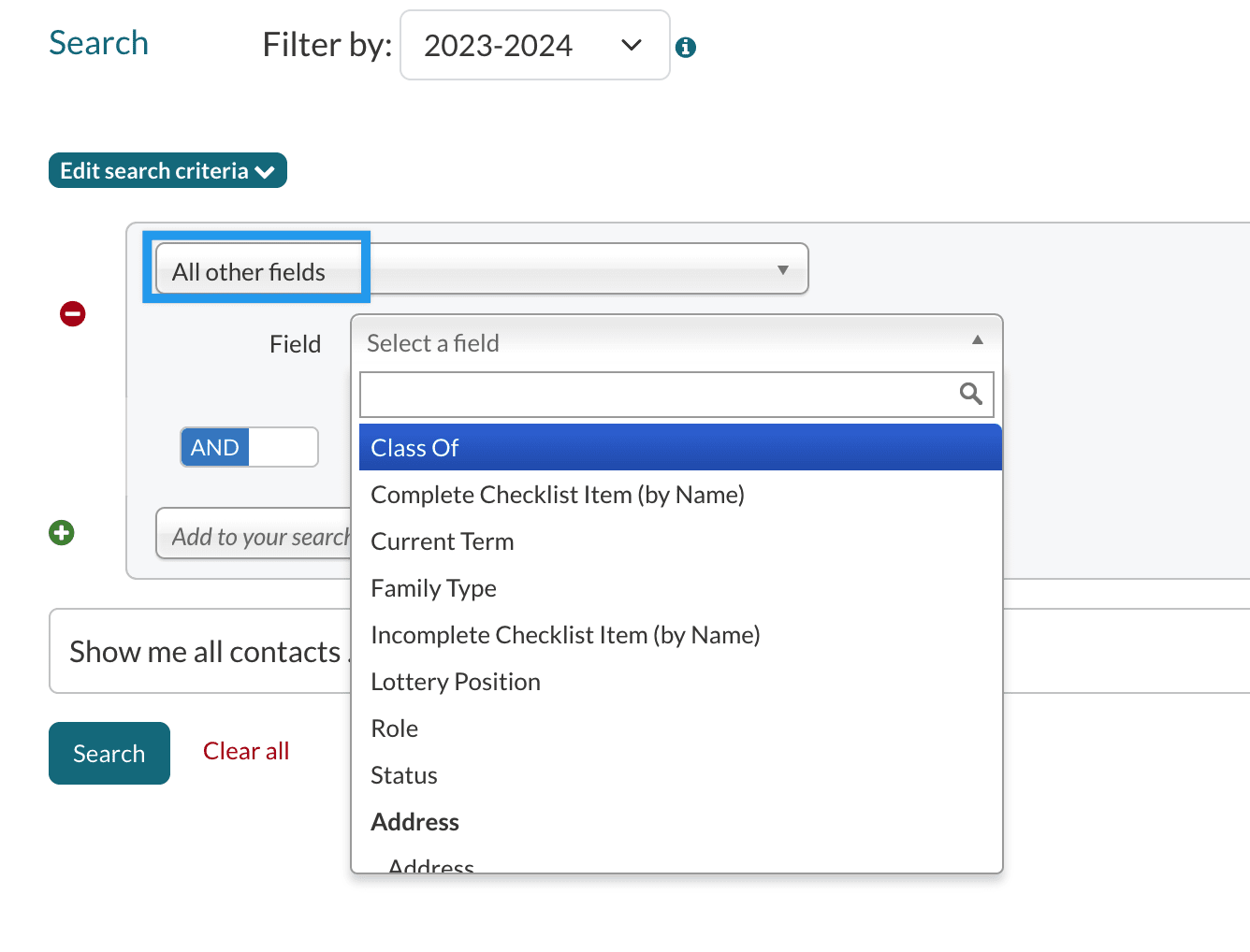
Please note: If the field you are looking for is not showing in the drop-down menu, make sure it is set as Searchable within Settings > Fields & Data > Fields. Click here for more information.
Contact Record Data Search Scenarios
Please note: The field names in your Finalsite Enrollment site may be different from what is listed in the example above. Reference the Fields page and find the field you are currently using to collect athletic or extracurricular interests.
Find current high school Applicants with an interest in soccer.
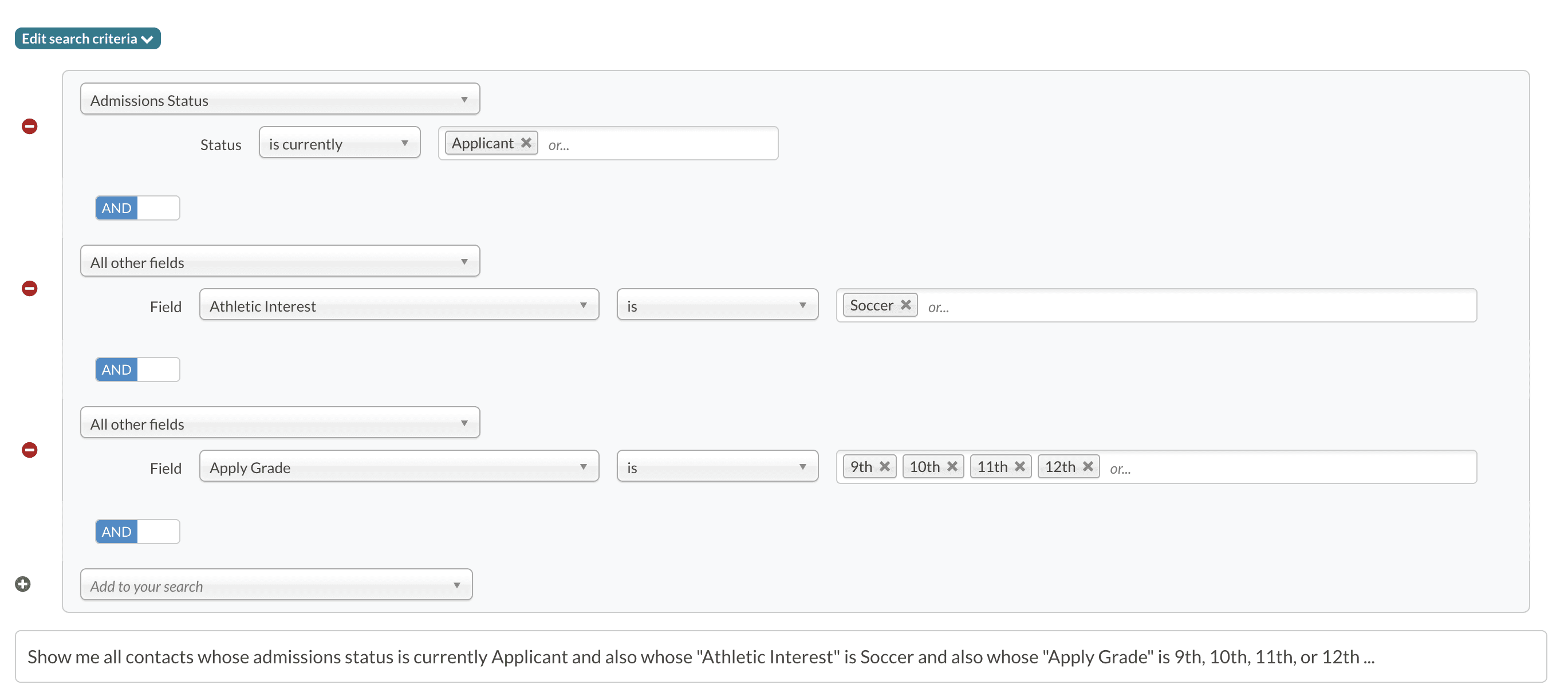
In this example, we add three search segments:
- Admissions Status is currently Applicant (click here for more information on admissions status searches)
AND
- All other fields - Athletic Interest is Soccer
AND
- All other fields - Apply Grade is 9th, 10th, 11th, or 12th
Find Current Applicants with an Application Submit Date after a certain date.
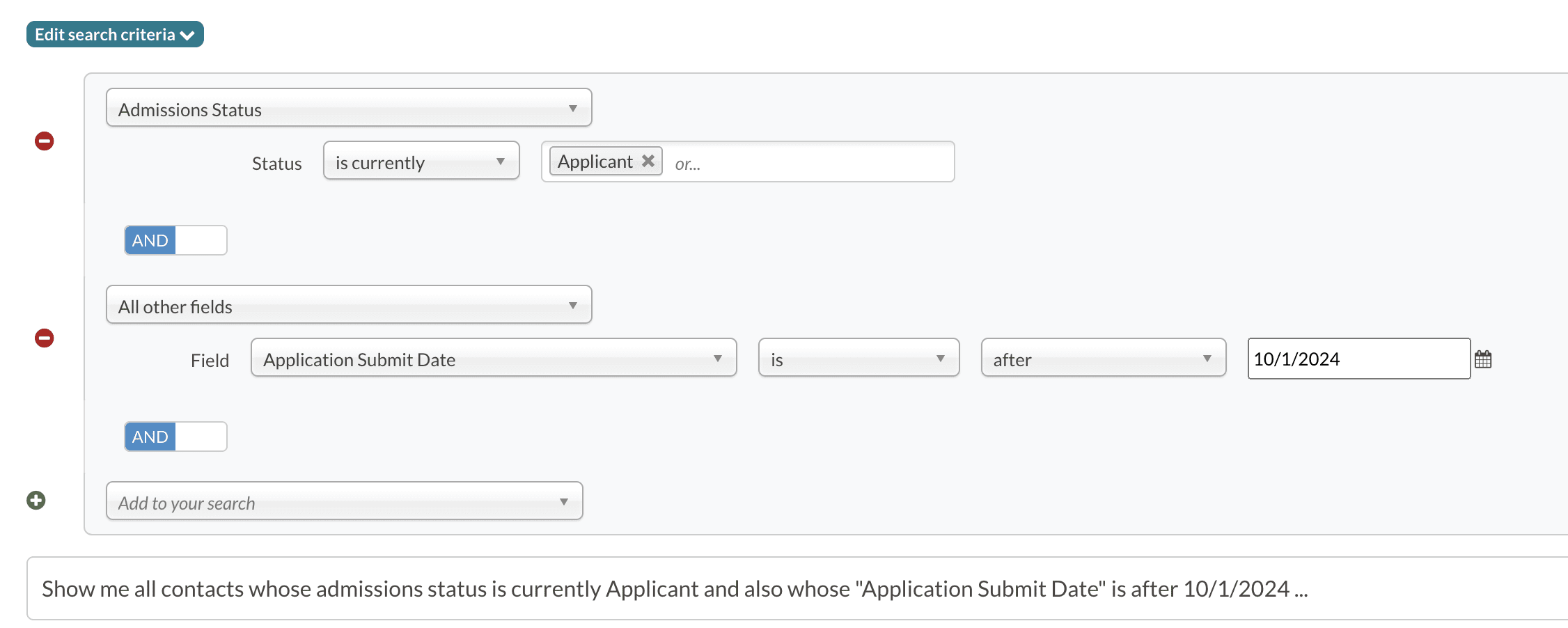
In this example, we add two search segments:
- Admissions Status is currently Applicant (click here for more information on admissions status searches)
AND
- All other fields - Application Submit Date is after [selected date].
This type of search can be useful for finding students who applied after a priority deadline. Once your search results come up, you can use the Edit menu to change the status for these students (e.g. to waitlisted or denied), send communications, or even add a note to their records.
Application Submit Time
Need to determine exact application order for first-come, first-served decisions? Use the Application Submit Time field in your report. It provides the date, time, and seconds of submission for maximum accuracy. You can use this field as both search criteria and a report column.
Comments
0 comments
Article is closed for comments.