
Each calendar can send three automated emails to families: a confirmation when an appointment is booked, a reminder a configurable number of days before the appointment, and a cancellation when an appointment is canceled. All three are toggled and edited in Calendar Settings, and you can optionally send each one to all parents on the student record instead of just the booking contact.
💡Quick Answers
- Where do I edit appointment emails? Scheduling > Calendars > select the calendar > Calendar Settings > Edit Settings. Each email type has an Edit link below its enable checkbox. Heads up: when you first create a calendar, you can only edit the emails AFTER saving the calendar for the first time.
- What does the Email All Parents checkbox do? Sends the appointment email to every parent on the student's record, not just the parent who booked or whose email is on the appointment. Off by default.
- When does the confirmation email send? Immediately when an appointment is booked (by parent OR admin). It sends even for same-day bookings during an ongoing recurring time slot. It does NOT send if an admin adds a student to a past-dated appointment.
- When does the reminder email send? Daily at 4am Central, 1 to 14 days before the appointment (configurable per calendar). Important catch: if a parent books AFTER the 4am trigger fires for their appointment, the reminder will not send. Best practice is to put critical details (video link, location, time) in BOTH the confirmation and reminder emails.
- Can I resend a confirmation if a parent didn't receive it? No, the system has no resend function. You'll need to manually send a one-off email from the contact record instead.
- Will I get notified when an appointment is canceled or rescheduled? You get an admin notification on cancellation (if you've enabled Immediate Calendar Notifications under User Notifications) but NOT on reschedule. Cancellation emails to parents are sent immediately when the cancellation happens.
In this Article
- Edit & use calendar emails
- Confirmation email
- Appointment reminder email
- Cancellation email
- Best practices for appointment emails
Edit & use calendar emails
Appointment email templates can be edited by navigating to the specific calendar from the Scheduling tab, and then clicking on Calendar Settings > Edit Settings towards the upper right.
⚠️ Important Note
When you first create a calendar, the email templates cannot be edited. However, once you complete the action of creating the calendar, you can go back into the Calendar Settings to customize each email template.
Within the Calendar Details window, under the Email and Scheduling Options heading, you will see three different appointment email types: Appointment Confirmation, Appointment Reminder, and Appointment Cancellation. Read on below for a description of each type.
Email all parents
Within the Calendar Details window, you also have the option to send these emails to all parents of the contact, instead of only the email address associated with the appointment (which is the default). To do this, simply check the Email all parents box.
Confirmation email
- If enabled, the confirmation email is sent out immediately when an appointment is scheduled (either by the parent or an admin/user on your team).
- It will send out even if the appointment is booked for the same day, as long as the time slot has not yet finished. This means the confirmation email will be sent if the appointment is booked during an ongoing (recurring) time slot.
- It will not send if a student is added (by an admin) to an appointment date that has already passed. The confirmation email is enabled by default when creating a new calendar.
⚠️ Important Note
The system does not have the functionality to resend an appointment email. If an email address was entered incorrectly or the parent did not receive the email, the school will need to manually send the email to the parent.
Appointment reminder email
If enabled, the appointment reminder is sent out a specific number of days before the appointment is scheduled to take place. You can select between 1-14 day(s) using the drop-down menu provided:
The reminder email is enabled by default when creating a new calendar. Please note: Receipt of the reminder email will depend upon when the appointment was booked.
- Reminder emails are sent out daily at 4 AM Central, based on the number of days set before the appointment.
- If an appointment is booked less than 24 hours before the reminder email is set to go out at 4 AM, the reminder email will not be sent.
- In other words, appointments that are booked after the reminder trigger is performed will not receive the reminder email.
Example: Consider a case where you have an available appointment slot on Tuesday at 12:30 PM, and the appointment reminder email is set to go out 1 day before the appointment (i.e. on Monday around 4 AM). If the parent books themselves for that appointment slot at any point AFTER 4 AM on Monday, the reminder email will not be sent.
Because of this behavior, a good practice is to put any key appointment information (e.g. video conferencing links, dates and times, meeting places, etc.) in both the appointment confirmation email and the appointment reminder email.
Cancellation email
- If enabled, the cancellation email is sent out immediately when an appointment is canceled (either by the parent or an admin/user on your team).
- Within the Calendar Access section of the Calendar Settings, you can choose whether you want parents to have the ability to cancel (or reschedule) their own appointments or not.
- Admins will receive notifications about canceled appointments, but not about rescheduled appointments.
Best practices for appointment emails
- Customize each of the templates you enable with your images, branding, and personal messaging. Each calendar you create in Finalsite Enrollment has its own set of confirmation, reminder, and cancellation emails, so you'll need to customize these templates for each of your events. Visit the article "Email Best Practices" for general email templates tips.
- If you are using user schedules on a calendar and have the video conferencing link and/or custom appointment text set for them, make sure you add the merge fields for them to your confirmation and/or reminder email templates:
- Video Conferencing Link: #{{appointment.video_conferencing_link}}
- Custom Appointment Text: #{{appointment.custom_schedule_text}}
A quick note about internal email notifications
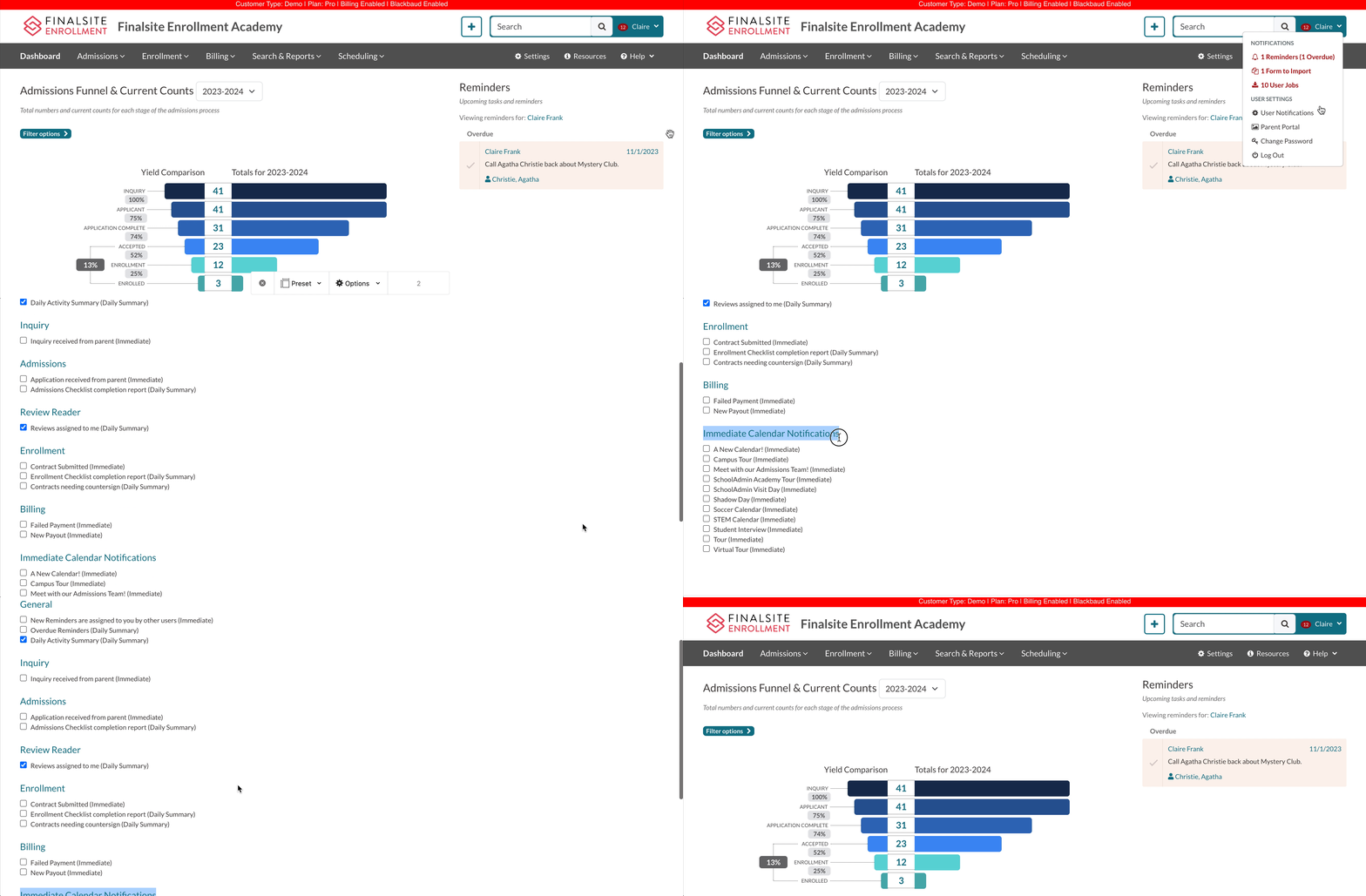
If you would like to receive internal email notifications for when an appointment is booked or rescheduled within a calendar, navigate to your User Notifications page (Username Menu > User Notifications) and, under the Immediate Calendar notification section, select the name of the calendar you wish to enable notifications for. Read more within this article: User Notifications
Comments
0 comments
Article is closed for comments.