
Communication Setup (Settings > Communication > Communication Setup) is the global control panel for system emails and the reply-to defaults that apply across every email Finalsite Enrollment sends. You enable or disable the system thank-you emails and contract thank-you page, set the Inquiry Thank You recipient, and configure who gets notified when an email fails. Access requires Communication permission.
Who can access this feature?
Admin Account Types: System Admins and Admins
Permissions: Communication
💡Quick Answers
- What are the Email Reply-To and Email From fields? Reply-To is the address that receives replies when a family responds to a school email (can be overridden per send). Email From is the display name on outgoing emails. Recommended: set Email From to your school's name, so families see Your School Name in the inbox instead of just an fsenrollment.com address.
- Which automatic emails can I toggle on/off here? Application Thank You, Inquiry Thank You, Contract Thank You. There's also a toggle for the Contract Thank You Page (off by default, so families are redirected to the enrollment checklist after submitting).
- Which emails are NOT customizable? Application Fee Receipt and Deposit Receipt. Both are auto-sent by the system on payment submission and cannot be edited.
-
Where does the Inquiry Thank You email actually go? To either Parent 1 or the Child, whichever you select in the Inquiry Thank You Email Send-To setting. Note: salutation merge tokens do not work in this template, so use recipient merge fields like
{{recipient.preferred_name_or_first}}instead. - How do I get notified when emails fail? In the Failed Emails Notification Email field, add one or more email addresses separated by a comma with no space. Leave blank to skip notifications (failed emails are still visible at Settings > Communication > Failed Emails).
In this article
In the top section of the Communication Setup page are some general settings that apply to all of the emails you send through the Finalsite Enrollment system:
- Email Reply-To: The email address that will receive the reply if a contact receives an email from your school and opts to reply to it. Although this email address will display by default, it can be changed manually within a bulk or individual email communication before it is sent out.
- Email From: Text that displays in an email's “from” field when it is sent/received. This is a global setting and will apply to all emails that are sent from the system.
For Example: If the Email From field is saved as "Training Academy", the parent would see something very similar to this in the 'from' section when receiving an email:
From: Training Academy <info+training@fsenrollment.com>
Automatic Emails and Communication Pages
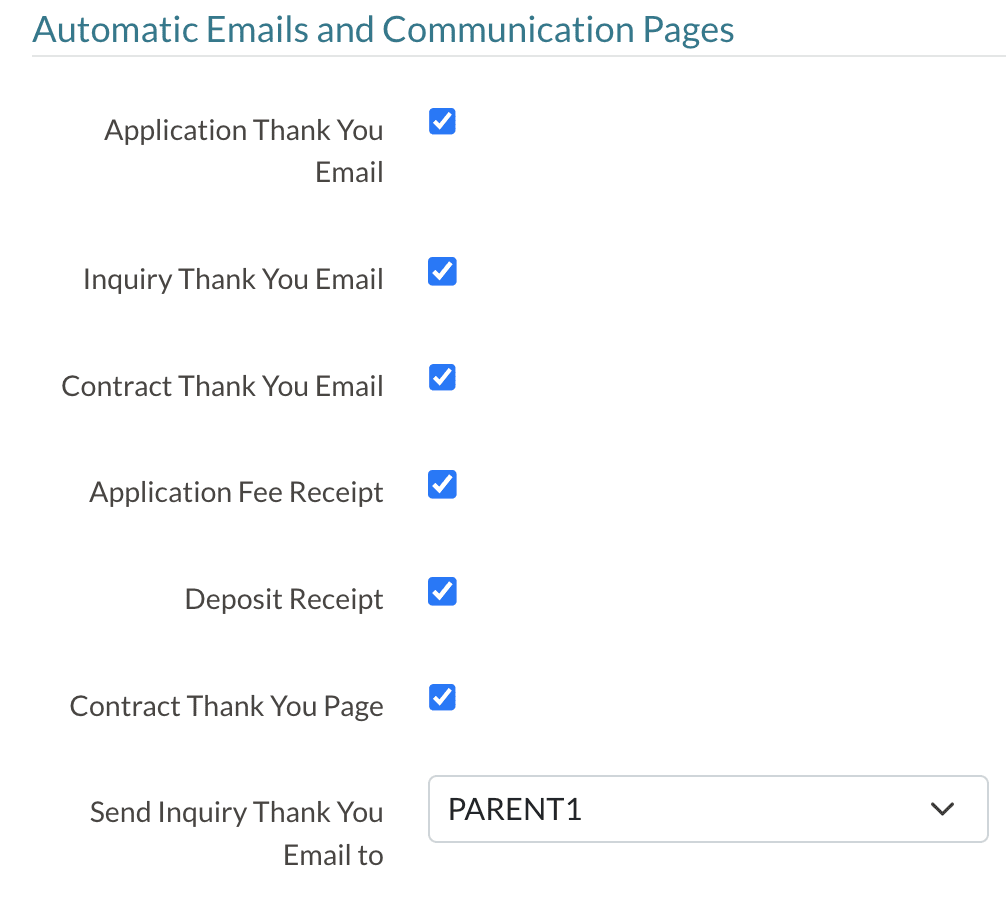
The next section includes settings related to the automatic system emails and pages that trigger at different points in the admissions and/or enrollment process. Some of these emails have customizable templates, which can be edited from Settings > Communication > Email Templates in the System Emails tab.
-
Application Thank You Email: Automated email sent to the email address of the portal account that is logged in when the application form is submitted.
- This email is customizable under Settings > Communication > Email Templates > System Emails.
- This email is customizable under Settings > Communication > Email Templates > System Emails.
-
Inquiry Thank You Email: Automated email sent to the contact selected in the "Send Inquiry Thank You Email to" setting (noted below) when the inquiry form is submitted.
- This email is customizable under Settings > Communication > Email Templates > System Emails.
-
Please note: The Salutation Merge Fields will not work in the Inquiry Thank You email.
-
Contract Thank You Email: Automated email sent to the email address of the portal account that is logged in when the contract form is submitted. When sent, this email will show on the Sent Emails page, but not on the student record.
- This email is customizable under Settings > Communication > Email Templates > System Emails.
Please note:
Even when enabled with this page, Contract Thank You emails are only sent automatically if the contract submission is performed by the parent. Bulk contract submissions by an admin or contracts subjected to countersign will not trigger the system Contract Thank You Email.
If you are using the countersign or bulk submission feature and would like to learn how to set up an automatic communication plan to trigger a Thank You email post-contract completion, please refer to this article within the How-To Set Up an Automatic Contract Thank You Email section.
-
Application Fee Receipt:Automated email sent to the email address of the portal account that is logged in when the application form is submitted, confirming receipt of the application fee. Includes the amount paid (incl. any convenience fees), date, and order number, as well as the name and portal link for your school.
- This email is not customizable.
- This email is not customizable.
-
Deposit Receipt:Automated email sent to the email address of the portal account that is logged in when the contract form is submitted, confirming receipt of the deposit/registration fee. Includes the amount paid (incl. any convenience fees), date, and order number, as well as the name and portal link for your school.
- This email is not customizable.
- This email is not customizable.
-
Contract Thank You Page:Page which displays after the contract is submitted, thanking the parent/guardian for completing the contract. This is turned off by default so that families are automatically redirected to the enrollment checklist.
- This landing page is customizable under Settings > Portal > Parent Portal Content.
- This landing page is customizable under Settings > Portal > Parent Portal Content.
- Inquiry Thank You Email Send-To:This is the contact that will receive the Inquiry Thank You Email, as described above. You can select Parent 1 or the Child (student).
Failed Emails Notifications
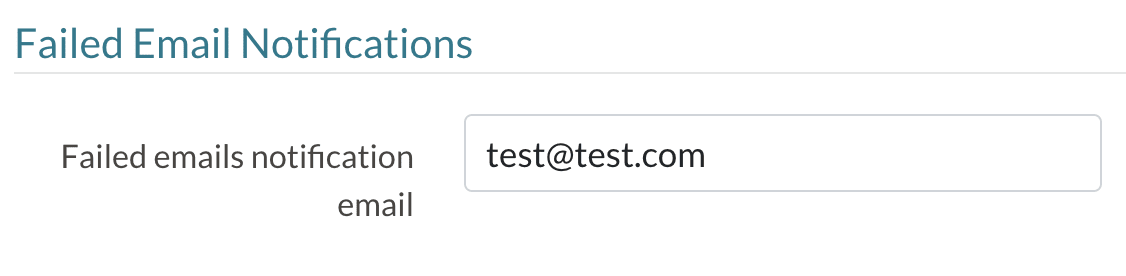
The last setting on the Communication Setup page is the failed email notification configuration:
-
Failed Emails Notification Email: You can add multiple email addresses that will receive instant notifications for any failed emails that were sent through Finalsite Enrollment. Please separate each with a comma and no space in between.
- Example: yourname@yourname.com,myname@myname.com
Please note: This can be left blank if you do not want to receive an email notification when emails fail to send through Finalsite Enrollment. You can always view all failed emails and failure reasons within Settings > Communication > Failed Emails.
Comments
0 comments
Article is closed for comments.