
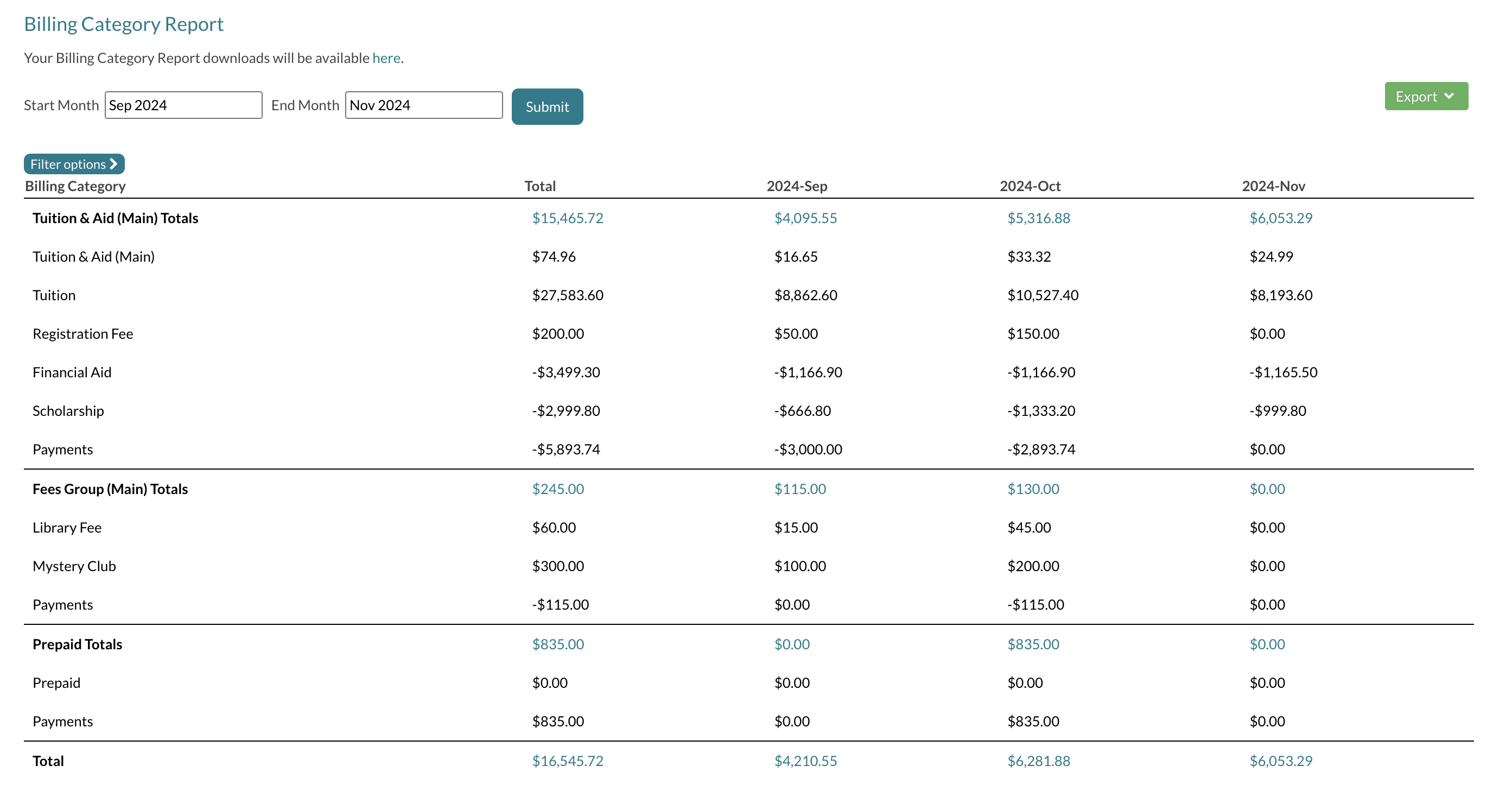
The Billing Category Report shows a monthly summary of your billing categories, grouped by category group, showing charges, credits, and payments for each category within a customizable date range.
💡Quick Answers
- Where is the Billing Category Report? Under the Billing menu; it is distinct from the Billing Reports: Billing Category tab in the Billing Reports section.
- What date range can I view? Up to 15 months; the default is the current month and you can set a custom Start and End Month.
- Can I drill into the transactions behind a total? Yes, click any total in the report to open the Ledger report filtered to the transactions that make up that amount.
- How do I filter or export the report? Use the Filter Options dropdown (term, grade, custom filters) and the Export button to download as CSV or PDF.
Within the Billing Category Report, you can see the summary of your individual billing categories by month. Each section will be consolidated together by category grouping that consists of one charge, any credits associated with the charge, and any payments associated with the charge.
Functionality
-
Start and End Month
- The Billing Category Report is defaulted to be the current month and has a custom date range that can be filtered up to 15 months.
- You'll only see the data that falls within the time frame you select.
-
Categories
- Only categories used during your search timeframe will appear in the report. Categories without financial data in that period will not be visible.
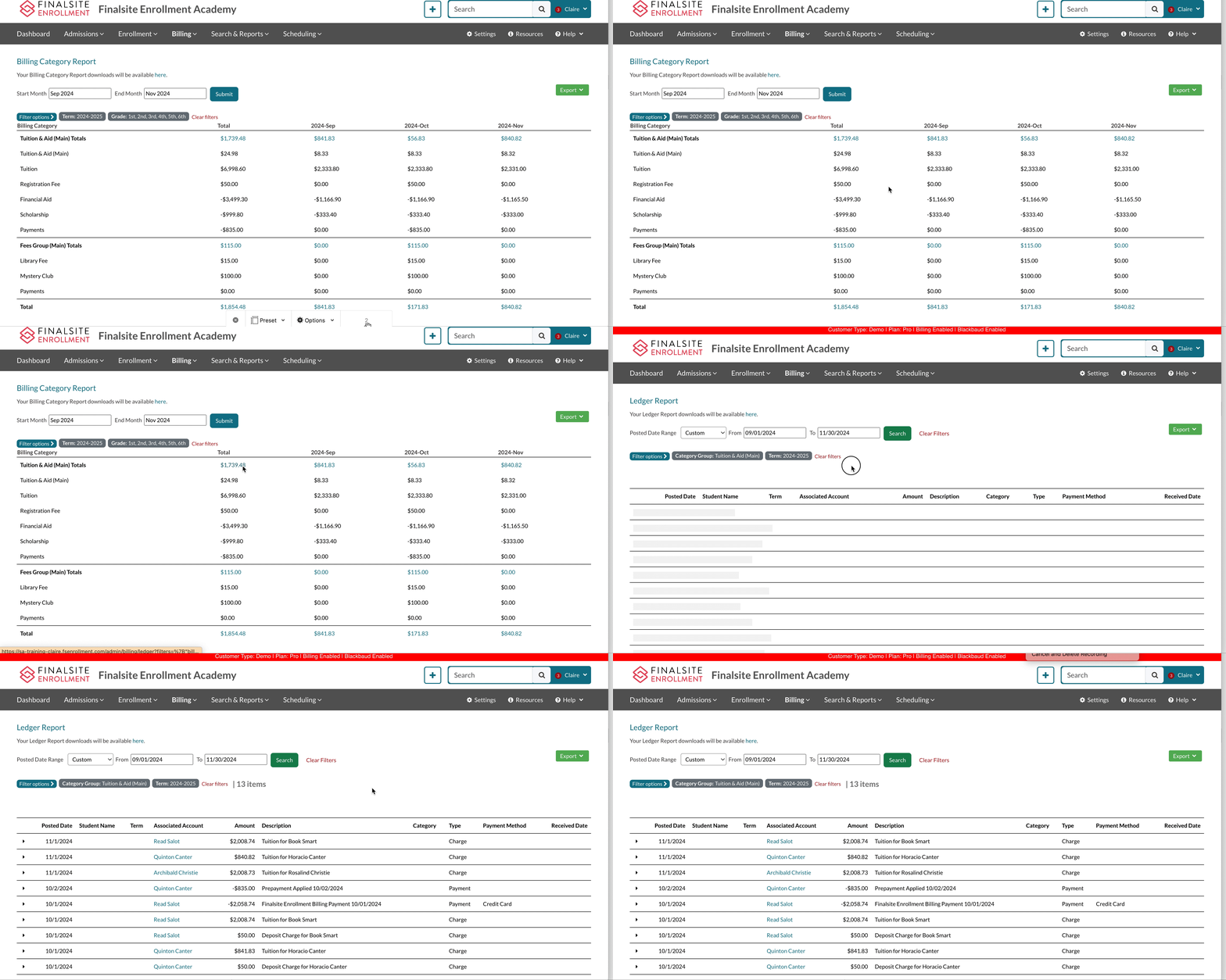
- You can click on the totals (at the top row of each section.) That will take you to a filtered view of the transactions that make up those totals in the Ledger report. See that in action in the GIF at the bottom of this article.
-
Filter Options
- Within the Filter Options dropdown, you have the option to filter the report by term, grade, and/or any additional custom filters you've included.
-
Exporting
- You can Export the report as a CSV or PDF.
Comments
0 comments
Article is closed for comments.